# HiBob for Docusign IAM
> Connect HiBob to your Docusign agreement workflows. Read employees, candidates, job openings, applications and offers to pre-fill agreements, create or update the employee when the document is signed, and file the signed PDF in the employee's docs in Bob.
- Web page: https://fluidlabs.com/documentation/hibob-for-docusign-iam
- Published by: Fluidlabs
- Status: In development (not yet listed on the Docusign App Center)
- Last updated: 2026-11-06
- Support: docusign-support@fluidlabs.com
## Contents
- [Quick Start](https://fluidlabs.com/documentation/hibob-for-docusign-iam#1-quick-start)
- [Supported Objects](https://fluidlabs.com/documentation/hibob-for-docusign-iam#2-supported-objects)
- [Employee](https://fluidlabs.com/documentation/hibob-for-docusign-iam#3-employee)
- [Custom Fields](https://fluidlabs.com/documentation/hibob-for-docusign-iam#4-custom-fields)
- [Hiring (Read Only)](https://fluidlabs.com/documentation/hibob-for-docusign-iam#5-hiring-read-only)
- [Picklists](https://fluidlabs.com/documentation/hibob-for-docusign-iam#6-picklists)
- [Other Known Behaviors](https://fluidlabs.com/documentation/hibob-for-docusign-iam#7-other-known-behaviors)
- [Installation and Configuration](https://fluidlabs.com/documentation/hibob-for-docusign-iam#8-installation-and-configuration)
- [How to Use the App](https://fluidlabs.com/documentation/hibob-for-docusign-iam#9-how-to-use-the-app)
- [Read from HiBob](https://fluidlabs.com/documentation/hibob-for-docusign-iam#10-read-from-hibob)
- [Writeback to HiBob](https://fluidlabs.com/documentation/hibob-for-docusign-iam#11-writeback-to-hibob)
- [File Upload to HiBob](https://fluidlabs.com/documentation/hibob-for-docusign-iam#12-file-upload-to-hibob)
- [FAQ & Troubleshooting](https://fluidlabs.com/documentation/hibob-for-docusign-iam#13-faq--troubleshooting)
---
## 1. Quick Start
### 1. Prepare HiBob
- A Bob administrator creates a service user and a permission group for it.
- Copy the service user's **ID** and **Token**. Bob shows the token only once.
- See [Preparing HiBob](https://fluidlabs.com/documentation/hibob-for-docusign-iam#preparing-hibob).
### 2. Install the App in Docusign
- Open the [**Docusign App Center**](https://apps.docusign.com/app-center/extensionapps) and search for **HiBob**.
- Open the **HiBob** app card, click **Install App**, then **Install and Authorize** on the consent screen.
### 3. Connect Your Account
- On the HiBob app page, click **Connect Account**, choose the connection visibility, name the connection, and click **Log In**.
- Click **Allow**, enter the **Service User ID** and the **Service User Token**, then click **Continue to Docusign**.
- See [Connecting Your Account](https://fluidlabs.com/documentation/hibob-for-docusign-iam#connecting-your-account).
### 4. Create a Workflow
- In Docusign, open **Automations → Workflows** and create a workflow.
- Choose your preferred workflow start type.
- Add a HiBob step: **Read**, **Writeback**, or **File Upload**.
### 5. Available Actions
- [**Read from HiBob**](https://fluidlabs.com/documentation/hibob-for-docusign-iam#10-read-from-hibob): pull an employee, or a hiring record such as a candidate or an offer, into your workflow to pre-fill an agreement.
- [**Writeback to HiBob**](https://fluidlabs.com/documentation/hibob-for-docusign-iam#11-writeback-to-hibob): create or update the employee after signing.
- [**File Upload to HiBob**](https://fluidlabs.com/documentation/hibob-for-docusign-iam#12-file-upload-to-hibob): file the signed document in the employee's docs in Bob.
### 6. Useful Information
- [Supported Objects](https://fluidlabs.com/documentation/hibob-for-docusign-iam#2-supported-objects): the objects the app reads and writes.
- [Employee](https://fluidlabs.com/documentation/hibob-for-docusign-iam#3-employee): the employee fields, and how writing and searching work.
- [Custom Fields](https://fluidlabs.com/documentation/hibob-for-docusign-iam#4-custom-fields): which custom field types the app supports.
- [Hiring (Read Only)](https://fluidlabs.com/documentation/hibob-for-docusign-iam#5-hiring-read-only): candidates, job openings, applications, and offers.
- [Picklists](https://fluidlabs.com/documentation/hibob-for-docusign-iam#6-picklists): fields that take a value from a Bob list.
- [Other Known Behaviors](https://fluidlabs.com/documentation/hibob-for-docusign-iam#7-other-known-behaviors): what to expect when a step fails.
- Common questions: [FAQ & Troubleshooting](https://fluidlabs.com/documentation/hibob-for-docusign-iam#13-faq--troubleshooting).
## 2. Supported Objects
Select an object in the **HiBob object** dropdown of a Read or Writeback step.
This object can be read and written:
- [Employee](https://fluidlabs.com/documentation/hibob-for-docusign-iam#3-employee)
These objects are available read only. Use them to read hiring data into a workflow, for example to pre-fill an offer letter. They do not appear in the Writeback step, and a workflow cannot update them:
- [Candidate](https://fluidlabs.com/documentation/hibob-for-docusign-iam#candidate-fields)
- [Job Opening](https://fluidlabs.com/documentation/hibob-for-docusign-iam#job-opening-fields)
- [Application](https://fluidlabs.com/documentation/hibob-for-docusign-iam#application-fields)
- [Offer](https://fluidlabs.com/documentation/hibob-for-docusign-iam#offer-fields)
The hiring objects need Bob Hiring on your Bob account and the **Manage all job openings** right for the service user, see [Permissions the App Needs](https://fluidlabs.com/documentation/hibob-for-docusign-iam#permissions-the-app-needs).
File Upload puts a file in an employee's docs in Bob, see [File Upload to HiBob](https://fluidlabs.com/documentation/hibob-for-docusign-iam#12-file-upload-to-hibob).
## 3. Employee
**Employee** is a person in Bob's People, including people who have not started yet and people who have left. The field list is loaded when you connect, so a field added in Bob later appears after a **Reconnect**, see [Managing Connections](https://fluidlabs.com/documentation/hibob-for-docusign-iam#managing-connections).
### Employee Fields
The Read step offers the fields of Bob's employee profile and your [custom fields](https://fluidlabs.com/documentation/hibob-for-docusign-iam#4-custom-fields): Record ID and Employee ID, names and email, status and lifecycle status, work details (start date, site, department, job title, the manager and the other people linked to the employee), contact details, date of birth, employment, payroll, address, lifecycle and termination, identification, the emergency contact, and job catalog fields.
**Writable:** First name, Last name, Middle name, Display name, Email, Start date, Site, Department, Job title, Reports to Record ID, Work effective date, Work phone, Work mobile, Personal email, Personal phone, Personal mobile, Date of birth, the emergency contact's first name, last name, phone number, mobile phone number, and email, and [custom fields](https://fluidlabs.com/documentation/hibob-for-docusign-iam#4-custom-fields) of the writable types. Every other field is read only.
**Required:** First name, Last name, Email, Start date, and Site. In Create and Update or Create the step adds them with an asterisk and does not let you remove them.
**Identifiers:** Record ID is Bob's internal number for the person. Employee ID is the employee's number in your company, `36`. See [Record ID and Employee ID](https://fluidlabs.com/documentation/hibob-for-docusign-iam#record-id-and-employee-id).
### Other Readable Fields
These fields are read only. All of them can be used in a search rule, except Full address and Job profile description.
| Bob group | Fields |
| --- | --- |
| Personal | Prefix, Nationality, Pronouns |
| Work | Original start date, Reports to Name, Reports to Email, Manager's ID, Is a manager, Second level manager, Second level manager Record ID, Org level, Buddy, Buddy Record ID, HRBP, HRBP Record ID, Payroll manager, Payroll manager Record ID, IT admin, IT admin Record ID |
| Employment | Employment effective date, Employment contract, Employment type, Salary pay type, FLSA code, FTE %, Weekly hours, Work location, Employer |
| Payroll | Base salary, Base salary Currency, Base salary (annual), Base salary (annual) Currency, Base salary (monthly), Base salary (monthly) Currency, Salary pay period, Salary pay frequency, Salary effective date |
| Address | Full address, Address line 1, Address line 2, City, State/Province/Region, Postal code, Country |
| Site address | Site address line 1, Site address line 2, Site city, Site State/Province/Region, Site Zip/Post/Postal code, Site country |
| Lifecycle | Termination date, Reason for termination, Leave and termination type, Notice period, Probation end date, First day of work, Last day of work, Eligible for Rehire |
| Identification | Passport number, National ID, NI number, SSN, SSN Last 4 Digits, Social insurance number (SIN), SIN expiration date |
| Emergency | Emergency contact's middle name, Emergency Contact Relationship, Emergency contact's address, Emergency contact's city of residence, Emergency contact's post code, Emergency contact's country of residence |
| Jobs | Job code, Job profile name, Job level name, Job level track, Job role, Job family, Job family group, Job profile description |
| User data | Creation date |
All Employee fields
| Field | Type | Read | Search | Create | Update | Required |
| --- | --- | --- | --- | --- | --- | --- |
| Record ID | Text | Yes | Yes | No | No | |
| Employee ID | Text | Yes | Yes | No | No | |
| First name | Text | Yes | Yes | Yes | Yes | Yes |
| Last name | Text | Yes | Yes | Yes | Yes | Yes |
| Middle name | Text | Yes | Yes | Yes | Yes | |
| Display name | Text | Yes | Yes | Yes | Yes | |
| Full name | Text | Yes | Yes | No | No | |
| Email | Text | Yes | Yes | Yes | Yes | Yes |
| Status | Text | Yes | Yes | No | No | |
| Lifecycle status | Text | Yes | Yes | No | No | |
| Start date | Date | Yes | Yes | Yes | Yes | Yes |
| Original start date | Date | Yes | Yes | No | No | |
| Site | Text | Yes | Yes | Yes | Yes | Yes |
| Department | Text | Yes | Yes | Yes | Yes | |
| Job title | Text | Yes | Yes | Yes | Yes | |
| Reports to Name | Text | Yes | Yes | No | No | |
| Reports to Record ID | Text | Yes | Yes | Yes | Yes | |
| Reports to Email | Text | Yes | Yes | No | No | |
| Work effective date | Date | Yes | Yes | Yes | Yes | |
| Is a manager | Boolean | Yes | Yes | No | No | |
| Work phone | Text | Yes | Yes | Yes | Yes | |
| Work mobile | Text | Yes | Yes | Yes | Yes | |
| Personal mobile | Text | Yes | Yes | Yes | Yes | |
| Personal email | Text | Yes | Yes | Yes | Yes | |
| Personal phone | Text | Yes | Yes | Yes | Yes | |
| Date of birth | Date | Yes | Yes | Yes | Yes | |
| Pronouns | Text | Yes | Yes | No | No | |
| Address line 1 | Text | Yes | Yes | No | No | |
| Address line 2 | Text | Yes | Yes | No | No | |
| City | Text | Yes | Yes | No | No | |
| State/Province/Region | Text | Yes | Yes | No | No | |
| Postal code | Text | Yes | Yes | No | No | |
| Country | Text | Yes | Yes | No | No | |
| Creation date | Date | Yes | Yes | No | No | |
| Prefix | Text | Yes | Yes | No | No | |
| Nationality | Text | Yes | Yes | No | No | |
| Manager's ID | Text | Yes | Yes | No | No | |
| Second level manager | Text | Yes | Yes | No | No | |
| Second level manager Record ID | Text | Yes | Yes | No | No | |
| Org level | Text | Yes | Yes | No | No | |
| Buddy | Text | Yes | Yes | No | No | |
| Buddy Record ID | Text | Yes | Yes | No | No | |
| HRBP | Text | Yes | Yes | No | No | |
| HRBP Record ID | Text | Yes | Yes | No | No | |
| Payroll manager | Text | Yes | Yes | No | No | |
| Payroll manager Record ID | Text | Yes | Yes | No | No | |
| IT admin | Text | Yes | Yes | No | No | |
| IT admin Record ID | Text | Yes | Yes | No | No | |
| Full address | Text | Yes | No | No | No | |
| Site address line 1 | Text | Yes | Yes | No | No | |
| Site address line 2 | Text | Yes | Yes | No | No | |
| Site city | Text | Yes | Yes | No | No | |
| Site State/Province/Region | Text | Yes | Yes | No | No | |
| Site Zip/Post/Postal code | Text | Yes | Yes | No | No | |
| Site country | Text | Yes | Yes | No | No | |
| Employment effective date | Date | Yes | Yes | No | No | |
| Employment contract | Text | Yes | Yes | No | No | |
| Employment type | Text | Yes | Yes | No | No | |
| Salary pay type | Text | Yes | Yes | No | No | |
| FLSA code | Text | Yes | Yes | No | No | |
| FTE % | Number | Yes | Yes | No | No | |
| Weekly hours | Number | Yes | Yes | No | No | |
| Work location | Text | Yes | Yes | No | No | |
| Employer | Text | Yes | Yes | No | No | |
| Base salary | Number | Yes | Yes | No | No | |
| Base salary Currency | Text | Yes | Yes | No | No | |
| Base salary (annual) | Number | Yes | Yes | No | No | |
| Base salary (annual) Currency | Text | Yes | Yes | No | No | |
| Base salary (monthly) | Number | Yes | Yes | No | No | |
| Base salary (monthly) Currency | Text | Yes | Yes | No | No | |
| Salary pay period | Text | Yes | Yes | No | No | |
| Salary pay frequency | Text | Yes | Yes | No | No | |
| Salary effective date | Date | Yes | Yes | No | No | |
| Termination date | Date | Yes | Yes | No | No | |
| Reason for termination | Text | Yes | Yes | No | No | |
| Leave and termination type | Text | Yes | Yes | No | No | |
| Notice period | Text | Yes | Yes | No | No | |
| Probation end date | Date | Yes | Yes | No | No | |
| First day of work | Date | Yes | Yes | No | No | |
| Last day of work | Date | Yes | Yes | No | No | |
| Eligible for Rehire | Text | Yes | Yes | No | No | |
| Job code | Text | Yes | Yes | No | No | |
| Job profile name | Text | Yes | Yes | No | No | |
| Job level name | Text | Yes | Yes | No | No | |
| Job level track | Text | Yes | Yes | No | No | |
| Job role | Text | Yes | Yes | No | No | |
| Job family | Text | Yes | Yes | No | No | |
| Job family group | Text | Yes | Yes | No | No | |
| Job profile description | Text | Yes | No | No | No | |
| Emergency contact's first name | Text | Yes | Yes | Yes | Yes | |
| Emergency contact's last name | Text | Yes | Yes | Yes | Yes | |
| Emergency contact's phone number | Text | Yes | Yes | Yes | Yes | |
| Emergency contact's mobile phone number | Text | Yes | Yes | Yes | Yes | |
| Emergency contact's email | Text | Yes | Yes | Yes | Yes | |
| Emergency contact's middle name | Text | Yes | Yes | No | No | |
| Emergency Contact Relationship | Text | Yes | Yes | No | No | |
| Emergency contact's address | Text | Yes | Yes | No | No | |
| Emergency contact's city of residence | Text | Yes | Yes | No | No | |
| Emergency contact's post code | Text | Yes | Yes | No | No | |
| Emergency contact's country of residence | Text | Yes | Yes | No | No | |
| Passport number | Text | Yes | Yes | No | No | |
| National ID | Text | Yes | Yes | No | No | |
| NI number | Text | Yes | Yes | No | No | |
| SSN | Text | Yes | Yes | No | No | |
| SSN Last 4 Digits | Text | Yes | Yes | No | No | |
| Social insurance number (SIN) | Text | Yes | Yes | No | No | |
| SIN expiration date | Date | Yes | Yes | No | No | |
Custom fields are added to this list, see [Custom Fields](https://fluidlabs.com/documentation/hibob-for-docusign-iam#4-custom-fields).
### Writing Employees
The Writeback to HiBob step offers **Create**, **Update**, and **Update or Create** on Employee.
- **First name, Last name, Email, Start date, and Site are required for Create and Update or Create.** The step adds them with an asterisk, and they cannot be removed. In Update nothing is required: a field you do not map is not changed.
- **First name and Last name take up to 50 characters, Display name up to 100.** A longer value fails the step, which names the field.
- **Update changes only the fields you map.** Its rule must find exactly one employee, for example by Record ID or Email.
- **Overwrite if field value exists** appears in **Update or Create**, on the required fields. Unticked, a required field that already has a value keeps it. Every other mapped field is always written.
- **Site, Department, and Job title take a value from Bob's lists**, set up under Settings in Bob. Site needs the full site name, in any letter case: `London (Demo)`, not `London`. The picker shows it as `Site (exact name)`. Any other value fails the step.
- **Reports to Record ID takes the manager's Record ID**, the long number a Read from HiBob or Writeback to HiBob step on Employee returns. An Employee ID (`36`), an email, or a name fails the step.
- **Dates are typed as MM/DD/YYYY**: `01/05/2027` is 5 January 2027.
- **A change to Site, Department, Job title, or Reports to Record ID is dated.** See [Start Date and Work Effective Date](https://fluidlabs.com/documentation/hibob-for-docusign-iam#start-date-and-work-effective-date).
- **Changing Email sends Bob's invitation to the new address.**
- **The address and Pronouns are read only.** Change an address in Bob: Actions, Update profile, Address Change.
### Start Date and Work Effective Date
**Start date** is the employee's first working day. An employee created with a Start date in the future gets Lifecycle status `Hired` until that day.
**Work effective date** is the day from which a change to Site, Department, Job title, or Reports to Record ID applies. Bob keeps these four fields as a history in the `Work` table: every change is a new entry with its own date.
| Step | Work effective date |
| --- | --- |
| Create | Optional. Without it, the first `Work` entry takes the Start date. With it, the first entry takes this date |
| Update or Update or Create, the four fields unchanged | Not needed and ignored. Nothing is written to `Work` |
| Update or Update or Create, a field changed | A new `Work` entry with this date. Without it, today's date |
| Any step, a date that already has a `Work` entry | The change is added to that entry. No second entry is created |
- **To set the manager of a new employee before the first day**, run Update with Reports to Record ID and Work effective date equal to the Start date. The manager goes into the first `Work` entry.
- **A change dated in the future shows in a Read step only when that day comes.** Until then the step reads the entry in effect today.
> ⚠️ **For an employee who has not started yet, map Work effective date, on or after the Start date, in every step that changes Site, Department, Job title, or Reports to Record ID.** Without it, or with an earlier date, the step fails and Docusign shows only `400`.
### Reading Employee Data
- **Values read as Bob's web shows them**: names, not codes. Org level reads `Individual contributor`.
- **A link to a person reads as two fields**: the name and `… Record ID`. Reports to, Second level manager, Buddy, HRBP, Payroll manager, IT admin, and custom Employee reference fields work this way. Manager's ID is the manager's Employee ID.
- **Money reads as a number rounded to two decimals**, with the currency in its own field: Base salary (monthly) `3083.33` and Base salary (monthly) Currency `USD`.
- **Notice period reads as a phrase**, `30 days`.
- **Nationality and multi-select custom fields read their values joined by `; `.** Hierarchical lists read the path as `Parent \ Child`, Job level name `IC \ Principal`.
- **Work, Employment, Payroll, Address, and Lifecycle read the entry in effect today.** For an employee who has not started yet, the first entry. The history is not offered.
- **The termination fields are filled only by Bob's termination flow**: Termination date, Reason for termination, Leave and termination type, Last day of work, Notice period, Eligible for Rehire.
- **A US address has no separate State or County.** Read them from Full address. For other countries, the region is in State/Province/Region.
- **SSN reads the full number**, which Bob's web shows masked. SSN Last 4 Digits reads the masked form.
- **Dates read as midnight UTC on that day**: Start date `2015-05-01T00:00:00.000Z`.
- **The step preview does not show empty fields.**
### Searching for an Employee
- **A rule can use every field except those marked `(not searchable)`** in the picker: Full address, Job profile description, and custom Text area fields.
- **Text matches in any letter case.** Site matches the full site name, `London (Demo)`.
- **Nationality and multi-select fields match by values**: `beta; gamma` finds a record with `gamma; beta`, in any order and letter case. A hierarchical list matches the full path.
- **An empty value in a rule fails the step.** It does not mean "any". Check that the variable is filled.
- **Terminated employees and employees who have not started yet are found too.** Add Status or Lifecycle status to the rule to narrow it. The service user sees them only when its permission group covers them, see [Preparing HiBob](https://fluidlabs.com/documentation/hibob-for-docusign-iam#preparing-hibob).
## 4. Custom Fields
When you connect, the app loads your Bob custom fields. A custom field's label ends with `(Custom)`.
**Read and written:** Text, Text area, Date, Number, List, and Employee reference.
**Read only:** Multi-select, Currency, and Hierarchical list.
**Not supported:** Document.
- **Text area is a one-line field in the step** and cannot be used in a search rule.
- **A Number is written with a dot for decimals**: `42`, `42.5` or `1,000`. A decimal comma, `1,5`, fails the step.
- **A List value is written by name**, in any letter case, and must be one of the field's values in Bob. Another value fails the step.
- **Employee reference reads as two fields**, the person's name and `… Record ID`, and is written by Record ID, the same way as [Reports to Record ID](https://fluidlabs.com/documentation/hibob-for-docusign-iam#writing-employees).
- **Multi-select reads the values joined by `; `.** Currency reads the amount, with the currency in its own field. Hierarchical list reads the path, `Parent \ Child`.
- **A field with history in Bob reads its current value.**
- **Grant each new custom field to the service user.** Bob does not add a new category, or a new field in a standard category, to any permission group. Give the service user's permission group View, and Edit for fields the workflow writes, or the field does not appear in the step. See [Permissions the App Needs](https://fluidlabs.com/documentation/hibob-for-docusign-iam#permissions-the-app-needs).
- **Custom offer fields** (Bob: Settings, Data management, Fields, Offers) appear on [Offer](https://fluidlabs.com/documentation/hibob-for-docusign-iam#offer-fields), read only, once at least one offer has a value in them.
- **After adding a custom field in Bob, Reconnect** to load it, see [Managing Connections](https://fluidlabs.com/documentation/hibob-for-docusign-iam#managing-connections).
## 5. Hiring (Read Only)
**Candidate, Job Opening, Application, and Offer** come from Bob Hiring, a separate Bob product. The service user's permission group needs **Manage all job openings** under Features, Hiring, Job openings, see [Permissions the App Needs](https://fluidlabs.com/documentation/hibob-for-docusign-iam#permissions-the-app-needs). Without Bob Hiring or the right, a Read from HiBob step on these objects fails.
A **Job Opening** has many **Applications**. An Application is one **Candidate** applying to one job opening, with its stage and status; one candidate can apply to several job openings. An **Offer** belongs to an Application.
- **All four objects are read and search only.** Move a stage, add a candidate, make or send an offer, and hire in Bob, then read the result into the workflow.
- **An offer exists in Bob only with an active Offer letter template** (Hiring, Settings, Templates, Offer letter). Without one, Offer finds nothing.
### Candidate Fields
Record ID, First name, Last name, Email, Phone, Current title, Current company, Current position, Country, City, Region, Address, LinkedIn, Facebook, GitHub, Instagram, Medium, Personal website, Reddit, Threads, Twitter, Xing, YouTube, Skills, Languages, Education, Employee Record ID, Last modified.
- **Current company, Current position, Skills, Languages, and Education come from a resume Bob parsed.**
- **Skills read joined by `; `.** See [Searching Hiring Records](https://fluidlabs.com/documentation/hibob-for-docusign-iam#searching-hiring-records).
- **Languages read each language with its level, joined by `; `.** In a rule, Equal to matches a whole entry such as `English (Advanced (C1))`; Contains finds the language word, `English`.
- **Employee Record ID is filled once the candidate is hired.** Use it to read the new employee on [Employee](https://fluidlabs.com/documentation/hibob-for-docusign-iam#3-employee).
### Job Opening Fields
Record ID, Title, Status, Status code, Department, Site, Employment type, Seniority, Job function, Job category, Education level, Minimum years of experience, Owner, Owner Record ID, Owner email, Marketing status, Pay range minimum, Pay range maximum, Pay range currency, Pay period, Additional info, Salary notes, Created, Last modified.
- **Record ID is the "ID" line on the job opening's card** under Hiring, Job openings, `67085904`.
- **Status, Status code, and Marketing status take the values listed under [Picklists](https://fluidlabs.com/documentation/hibob-for-docusign-iam#6-picklists).**
- **Additional info and Salary notes read as plain text**, a note of several lines line by line, and cannot be used in a search rule.
### Application Fields
Record ID, Status, Status code, Candidate Record ID, Candidate name, Candidate email, Job Opening Record ID, Job title, Stage ID, Source, Sourced by, Referred by, Referred by Record ID, Site, Workspace type, Desired salary, Desired salary currency, Date applied, Date available, Has offer, Evaluation score, Evaluation recommendation, Time to hire in days, Created, Last activity, Last modified.
- **Stage ID is a number, and each job opening has its own stage IDs.** Use Status or Status code in conditions.
- **Job title and Site come from the job opening.**
- **Desired salary and Date available are filled when the job opening's application form asks for them.**
- **Evaluation recommendation reads as Bob shows it**, `Strong yes`.
### Offer Fields
Record ID, Status, Status code, Application Record ID, Candidate Record ID, Candidate name, Candidate email, Job Opening Record ID, Job title, Start date, Salary, Salary currency, Reason, Comment, Requested by, Requested by Record ID, Sent, Created, and your custom offer fields.
- **Record ID is the offer's own number.** Search offers by Application Record ID, see [Finding a Hiring Record](https://fluidlabs.com/documentation/hibob-for-docusign-iam#finding-a-hiring-record).
- **Comment reads as plain text** and cannot be used in a search rule.
- **Sent is empty until the offer is sent to the candidate.**
- **Custom offer fields end with `(Custom)`**, see [Custom Fields](https://fluidlabs.com/documentation/hibob-for-docusign-iam#4-custom-fields).
### Finding a Hiring Record
| Object | Finds one record |
| --- | --- |
| Candidate | Record ID or Email. First name and Last name can match several people |
| Job Opening | Record ID, the "ID" line on the job opening's card under Hiring, Job openings, `67085904`. Title, when titles are unique |
| Application | Candidate Record ID and Job Opening Record ID, or Candidate email and Job Opening Record ID |
| Offer | Application Record ID, or Candidate Record ID and Job Opening Record ID |
- **An Offer has two IDs.** Record ID is the offer's own number, which Bob's web does not show. Application Record ID is the application the offer belongs to. Search by **Application Record ID**: a Read from HiBob step on Application returns it as Record ID.
- **Candidate Record ID and Job Opening Record ID** come from a Read from HiBob step on Candidate, Job Opening, or Application.

### Searching Hiring Records
The rules under [Searching for an Employee](https://fluidlabs.com/documentation/hibob-for-docusign-iam#searching-for-an-employee) apply. On top of them:
- **Skills match whole skills.** `Python` finds a candidate with `Test automation; Python`; `Pyth` finds nothing. `Python; SQL` finds candidates who have all the listed skills, in any order. For any of them, join conditions with OR.
- **Status takes the word or the code.** `In progress` and `in_progress` both work.
- **Status code takes only Bob's codes**, in any letter case. A word such as `In progress` fails the step. See [Picklists](https://fluidlabs.com/documentation/hibob-for-docusign-iam#6-picklists).
- **Stage ID differs per job opening.** Do not reuse one job opening's stage IDs in another. Use Status or Status code in conditions.
- **Additional info, Salary notes, and Comment cannot be used in a rule.** The picker marks them `(not searchable)`.
- **Rejected applications are found too**, although the job opening view in Bob hides them by default.
## 6. Picklists
| Field | Values |
| --- | --- |
| Status (Employee) | `Active`, `Inactive` |
| Lifecycle status (Employee) | `Employed`, `Hired` (start date in the future), `Terminated` |
| Eligible for Rehire (Employee) | `Yes`, `No` |
| Marketing status (Job Opening) | `Not started`, `Ready to promote`, `Live`, `Ended` |
| Site, Department, Job title (Employee) | The values of your Bob lists. Site takes the full name, `London (Demo)` |
| Custom List fields | The values of the field in your Bob account |
**Job Opening Status**
| Status | Status code |
| --- | --- |
| Draft | `draft` |
| Pending approval | `pending_approval` |
| Approved | `approved` |
| Rejected | `rejected` |
| Open | `open` |
| Paused | `paused` |
| Closed | `closed` |
**Application Status**
| Status | Status code |
| --- | --- |
| In progress | `in_progress` |
| Pending rejection | `pending_rejection` |
| Rejected | `rejected` |
| Withdrawn | `withdrawn` |
| Pending hire | `pending_hire` |
| Hired | `hired` |
**Offer Status**
| Status | Status code |
| --- | --- |
| Pending approval | `pending_approval` |
| Approved | `approved` |
| Pending candidate | `pending_candidate` |
| Accepted | `accepted` |
| Declined | `declined` |
| Negotiated | `negotiated` |
| Withdrawn | `withdrawn` |
| Expired | `expired` |
- **Values written to Site, Department, Job title, and custom List fields must match your Bob account**, or the step fails.
- **Status code in a search rule takes only the codes above.** Any other value fails the step.
## 7. Other Known Behaviors
### Record ID and Employee ID
- **Record ID is Bob's internal number for a record**, a long number such as `4022225711702999407` for an employee. A Read from HiBob step returns it, and so does a Writeback to HiBob step that creates an employee.
- **Employee ID is the employee's number in your company**, `36`, shown on the Work section of the profile. It is read only and is not accepted where a Record ID is expected: Reports to Record ID, custom Employee reference fields, and the File Upload subfolder.
- **A Record ID that matches no record finds nothing.** A Record ID with characters other than digits fails the step.
### Searching for a Record
- **A rule that mixes AND and OR is grouped from the right.** `A AND B OR C` means `A AND (B OR C)`. Put the single condition first to get `C OR (A AND B)`.
- **Spaces at the start and the end of a value are ignored.**
- **The rules for letter case and empty values** are under [Searching for an Employee](https://fluidlabs.com/documentation/hibob-for-docusign-iam#searching-for-an-employee). They apply to every object.
### Reading Values
- **Values read as Bob's web shows them**, names and words instead of codes. Status code on the Hiring objects is the one field that reads Bob's code.
- **Fields with history in Bob read the entry in effect today.** See [Reading Employee Data](https://fluidlabs.com/documentation/hibob-for-docusign-iam#reading-employee-data).
- **Empty fields are not shown in the step preview.**
### Writeback Rules
**Docusign shows only the error code when a step fails**, such as `400`. The usual causes of a `400` on Employee:
- A value that is not in Bob's list: Site, Department, Job title, or a custom List field.
- An Employee ID, an email, or a name where a Record ID is expected.
- A change to Site, Department, Job title, or Reports to Record ID for an employee who has not started yet, without a Work effective date on or after the Start date.
- A date, number, or email in the wrong format.
### Permissions
**The app can do what the service user's permission group can do in Bob.** The full list is under [Permissions the App Needs](https://fluidlabs.com/documentation/hibob-for-docusign-iam#permissions-the-app-needs).
- **A field without View permission is not read, and a field without Edit permission is not written.** The step succeeds and Docusign shows no error. When a value is missing, check the permission group first.
- **Employees outside the group's Access data for setting are not found.** An employee created with a future Start date has Lifecycle status `Hired`, so a group limited to employed people does not see them.
- **Each document folder needs its own permission**, see [File Upload to HiBob](https://fluidlabs.com/documentation/hibob-for-docusign-iam#12-file-upload-to-hibob).
## 8. Installation and Configuration
### Prerequisites
- A **Bob** administrator account: the setup creates a service user and a permission group.
- A **Docusign** account with admin rights to install and manage apps in the App Center.
- **Bob Hiring**, only if your workflows read candidates, job openings, applications, or offers.
### Preparing HiBob
A Bob administrator does this once, before the first connection. The connection signs in as a Bob service user and can see and change only what the service user's permission group allows.
1. [Create a service user](https://fluidlabs.com/documentation/hibob-for-docusign-iam#create-a-service-user) and copy its ID and Token.
2. [Create a permission group](https://fluidlabs.com/documentation/hibob-for-docusign-iam#create-a-permission-group) of the type Service user and grant it the [permissions the app needs](https://fluidlabs.com/documentation/hibob-for-docusign-iam#permissions-the-app-needs).
3. [Set Access data for](https://fluidlabs.com/documentation/hibob-for-docusign-iam#set-access-data-for) to every lifecycle status.
4. [Grant Docs permissions](https://fluidlabs.com/documentation/hibob-for-docusign-iam#grant-docs-permissions) for File Upload.
### Create a Service User
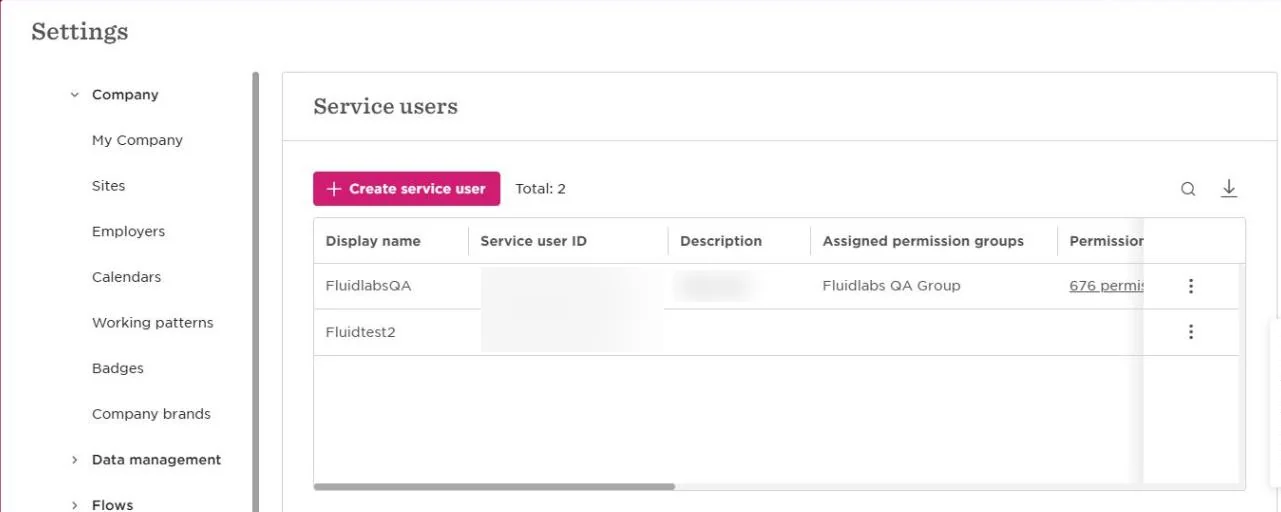
1. In Bob, go to **Settings → Integration tools → Service users** and click **Create service user**.
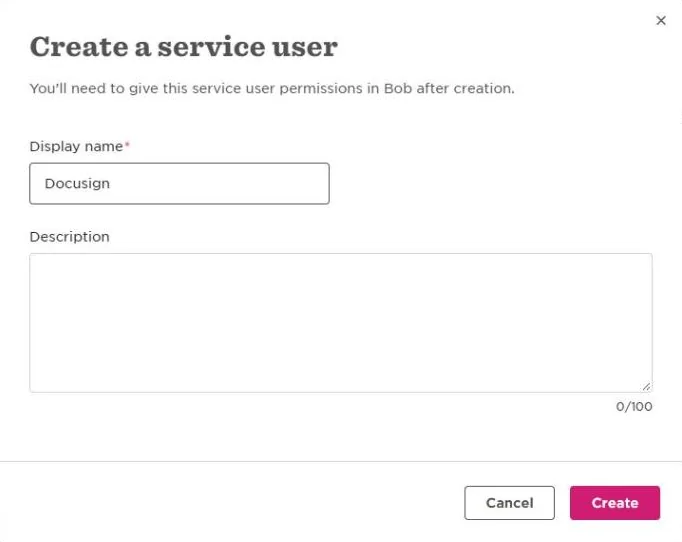
2. Enter a **Display name**, for example `Docusign`, and click **Create**.
3. Copy the **ID** and the **Token**. You enter both when you connect.
> ⚠️ **Copy the Token right away.** Bob shows it only once. If it is lost, open the service user and click **Reset token** to get a new one.
### Create a Permission Group
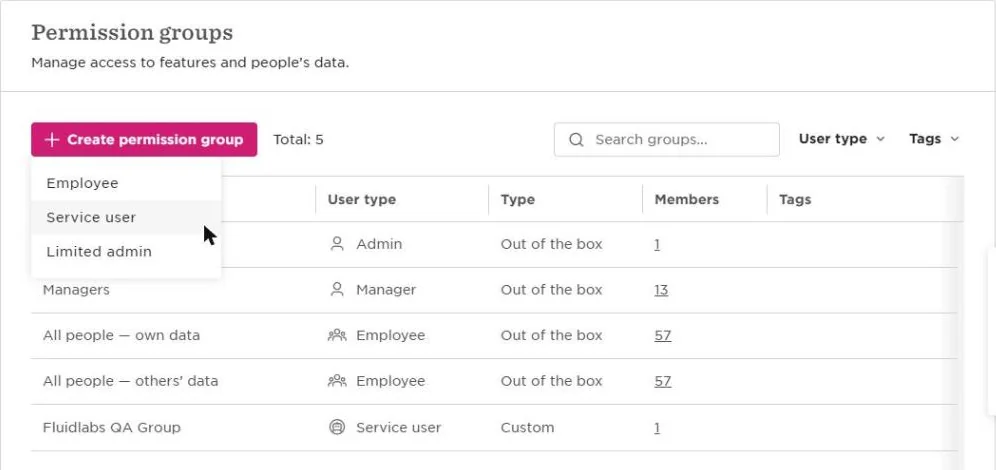
1. Go to **Settings → Account → Permission groups** and click **Create permission group**.
2. Choose the type **Service user**.
3. Add the service user you created to the group.
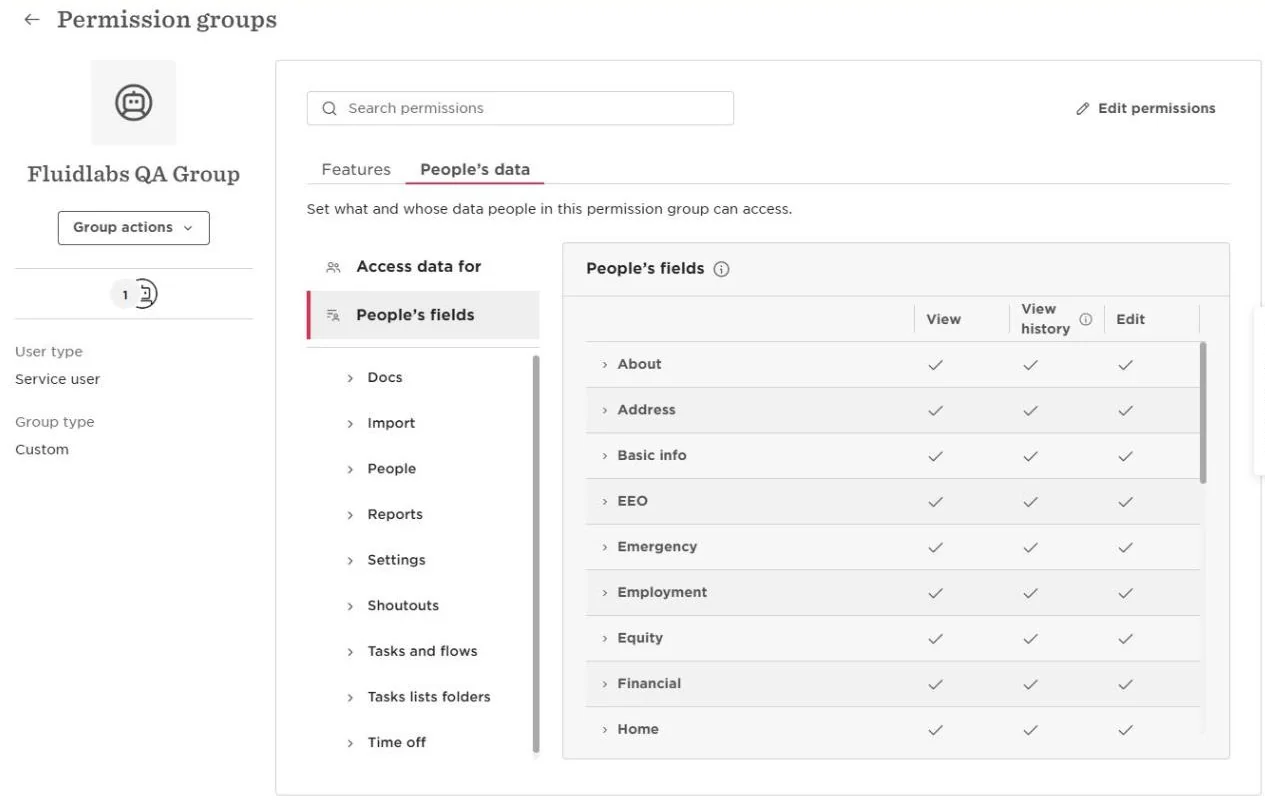
4. On the **People's data** tab, open **People's fields** and grant the categories listed under [Permissions the App Needs](https://fluidlabs.com/documentation/hibob-for-docusign-iam#permissions-the-app-needs).
5. On the **Features** tab, open **People** and grant **Add new people to the company** in the **Employees** row. Writeback needs it to create employees.
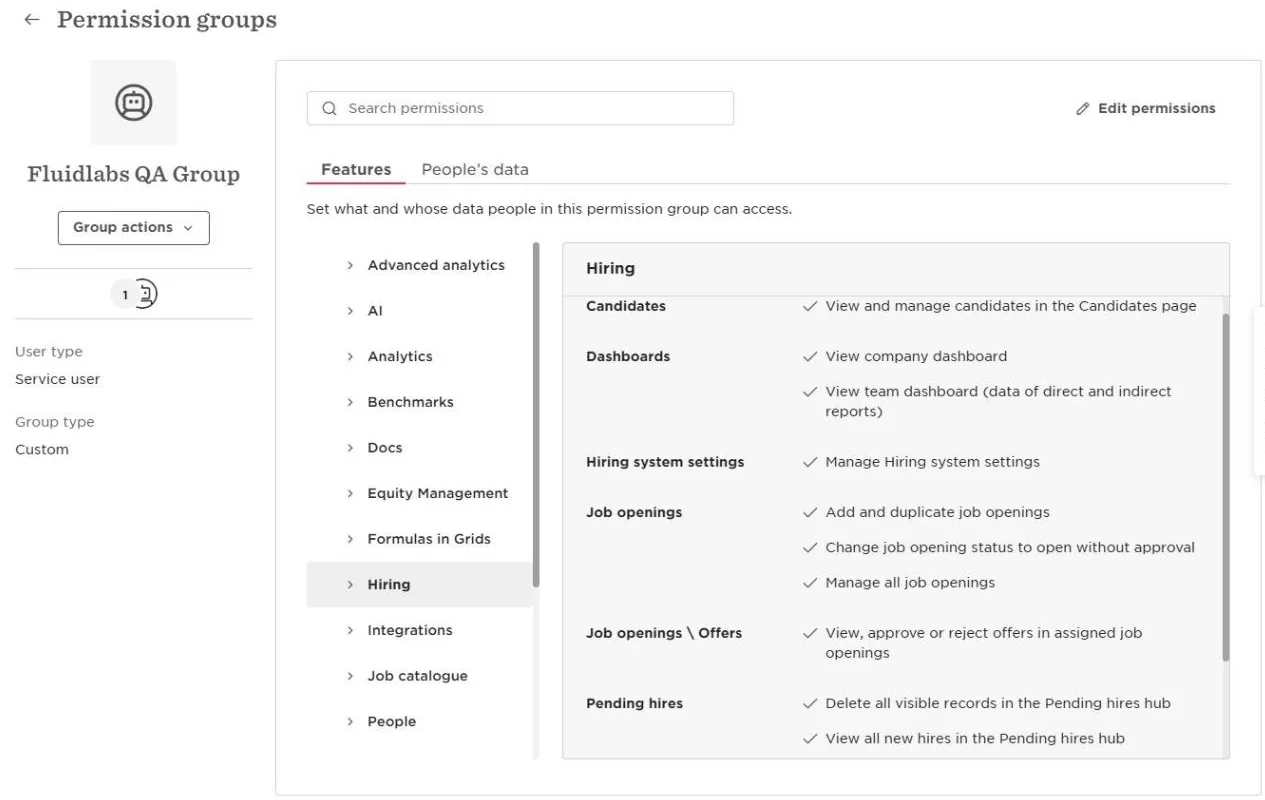
6. If you use Bob Hiring, grant **Manage all job openings** in the **Job openings** row under **Features → Hiring**. The connection then sees the same hiring records as a person with this right.
7. Set [Access data for](https://fluidlabs.com/documentation/hibob-for-docusign-iam#set-access-data-for) and the [Docs permissions](https://fluidlabs.com/documentation/hibob-for-docusign-iam#grant-docs-permissions) as described below.
### Permissions the App Needs
Bob grants permissions by category, and there is no single "grant all" option. A field in a category without View reads empty.
**Minimum, by step**
| Step | Permissions |
| --- | --- |
| Read from HiBob on Employee | People's fields: **View** on Basic info |
| Writeback to HiBob | People's fields: **View** and **Edit** on Basic info and Work, which hold the required fields. Features → People → Employees: **Add new people to the company**, for Create and Update or Create |
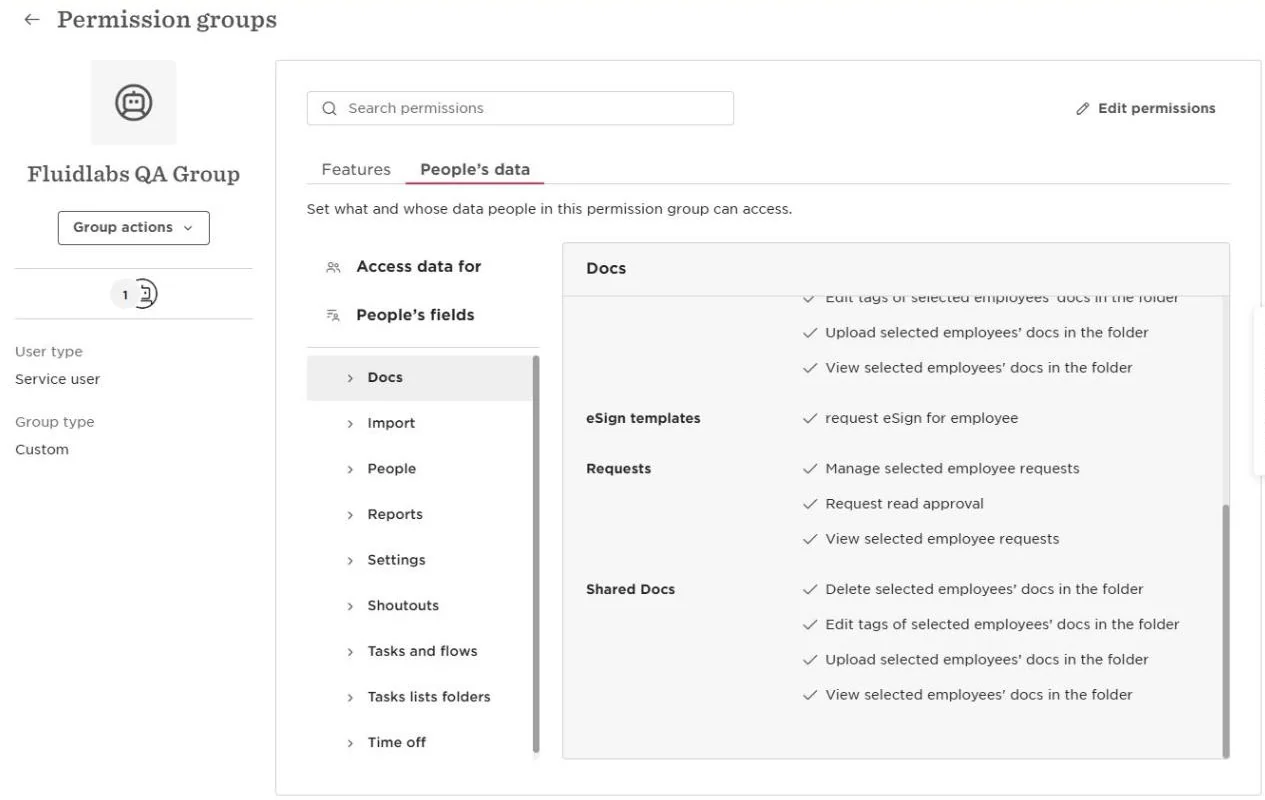
| File Upload to HiBob | People's data → Docs, the target folder: **View selected employees' docs in the folder** and **Upload selected employees' docs in the folder** |
| Read from HiBob on Candidate, Job Opening, Application, or Offer | Features → Hiring → Job openings: **Manage all job openings** |
**Recommended**
Grant these as well. Without them a step returns empty fields or does not find an employee.
- **Access data for: Lifecycle status equals Any.** The default covers employed people only, so an employee created with a future start date, or a terminated one, is not found. See [Set Access Data For](https://fluidlabs.com/documentation/hibob-for-docusign-iam#set-access-data-for).
- **View on every category in the table below**, so every field in the step returns its value.
- **Edit on Work contact details, Personal contact details, Personal, and Emergency** when your workflows write phones, personal email, date of birth, or the emergency contact.
- **View on each custom category, and Edit for the custom fields your workflows write.**
**People's data → People's fields**
| Category | Grant | Fields the app uses |
| --- | --- | --- |
| Basic info | View, Edit | Record ID, First name, Last name, Middle name, Display name, Full name, Email |
| Work | View, Edit | Employee ID, Start date, Original start date, Site, Department, Job title, Reports to, Work effective date, Is a manager, Second level manager, Org level, Buddy, HRBP, Payroll manager, IT admin, and custom fields you added to Work |
| Work contact details | View, Edit | Work phone, Work mobile |
| Personal contact details | View, Edit | Personal email, Personal phone, Personal mobile |
| Personal | View, Edit | Date of birth. Prefix, Nationality, and Pronouns are read only |
| Emergency | View, Edit | The emergency contact fields |
| Address | View | Address and site address fields |
| Employment | View | Employment contract, Employment type, Salary pay type, FLSA code, FTE %, Weekly hours, Work location, Employer |
| Payroll | View | Base salary, Salary pay period, Salary pay frequency, Salary effective date |
| Lifecycle | View | Status, Lifecycle status, termination fields, Notice period, Probation end date, First day of work, Last day of work, Eligible for Rehire |
| Identification | View | Passport number, National ID, NI number, SSN, SIN |
| Jobs | View | Job code, Job profile, Job level, Job role, Job family |
| User data | View | Creation date |
| Each custom category | View, and Edit for the fields your workflows write | Your [custom fields](https://fluidlabs.com/documentation/hibob-for-docusign-iam#4-custom-fields) |
The app does not use About, EEO, Equity, Financial, Home, People analytics, Temporary address, Training, UK tax settings, or Work eligibility.
> ⚠️ **Grant each new custom category and each new custom field in a standard category by hand.** Bob does not add them to an existing permission group, and the field is missing from the step until you do and run **Reconnect**.
### Set Access Data For
By default a permission group sees only employees with the lifecycle status Employed. An employee created with a future start date has the status Hired and is invisible to the connection, and so are terminated employees.
On the **People's data** tab, click **Edit permissions**, open **Access data for**, choose **Select people by condition**, and set **Lifecycle status** equals **Any**.
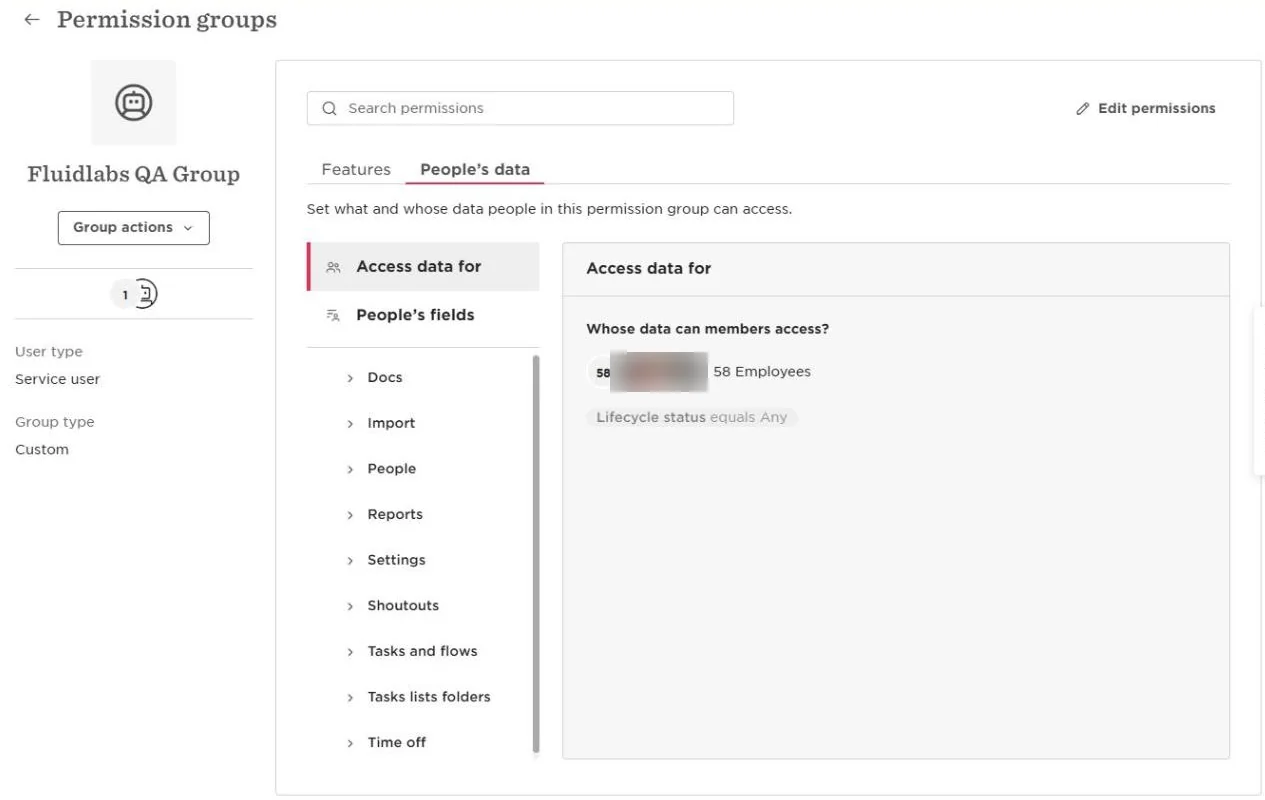
> ⚠️ **Set this before a workflow creates employees.** With the default Employed condition, an employee created on signature cannot be found by a later Read or Writeback step.
### Grant Docs Permissions
For File Upload, open the **Docs** section of the **People's data** tab. Each folder has its own block: grant **View selected employees' docs in the folder** and **Upload selected employees' docs in the folder** on **Shared Docs**, **Confidential Docs**, and every people's folder your workflows upload to.
### How to Install the App
- Open the [**Docusign App Center**](https://apps.docusign.com/app-center/extensionapps) and search for **HiBob**.
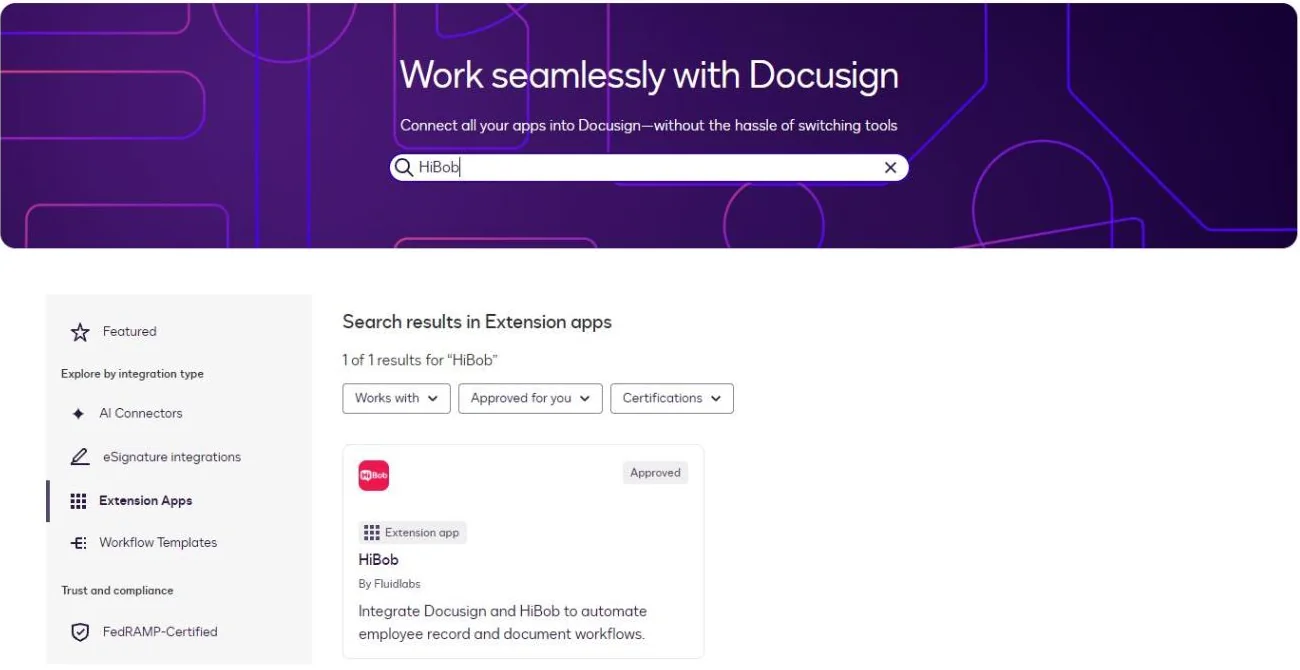
- Click the **HiBob** app card, then click **Install App** (**Log In to Install** if you are not signed in).

- Review the access the app requests and click **Install and Authorize**.
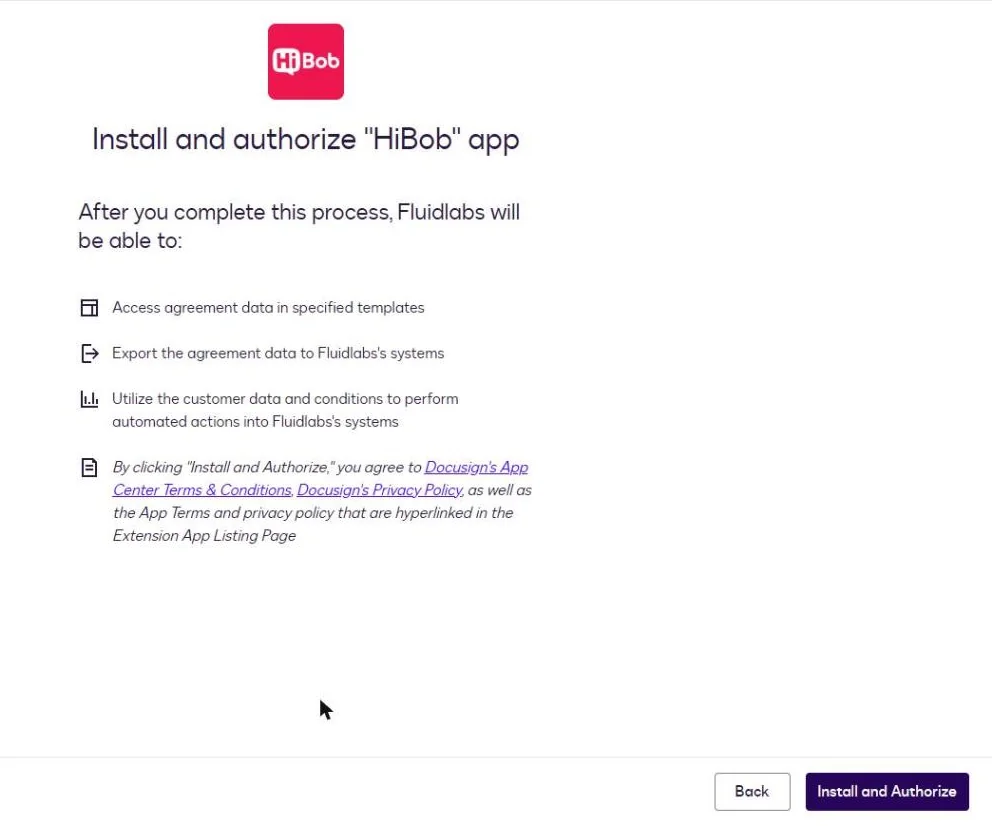
The app now appears with an **Installed** status.
### Connecting Your Account
Have the service user's ID and Token at hand.
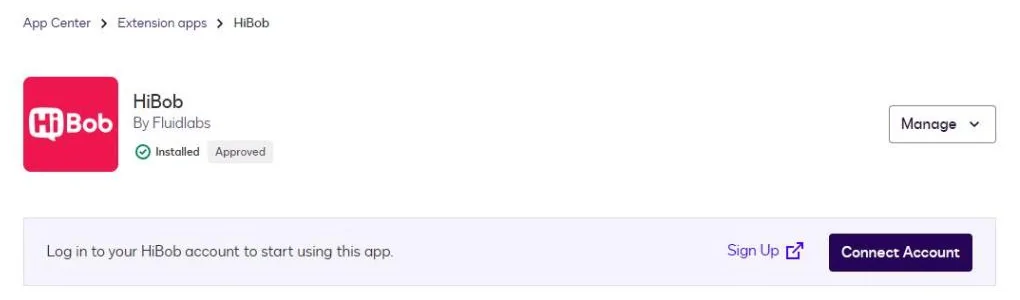
1. On the installed app page, click **Connect Account**. To add a connection later, click **New Connection** on the Connections page.
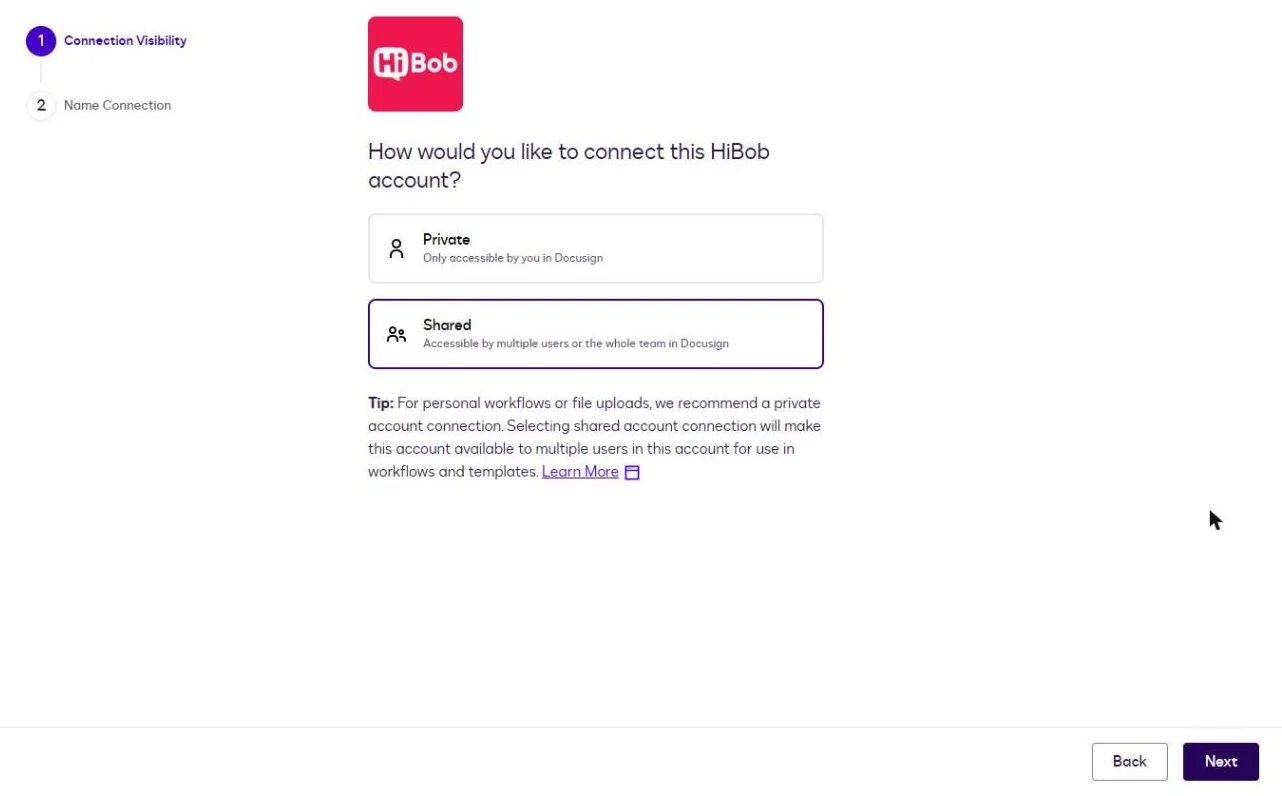
2. **Connection Visibility**: choose how the connection is shared, then click **Next**.
- **Private**: accessible only by you in Docusign.
- **Shared**: accessible by multiple users or the whole team.
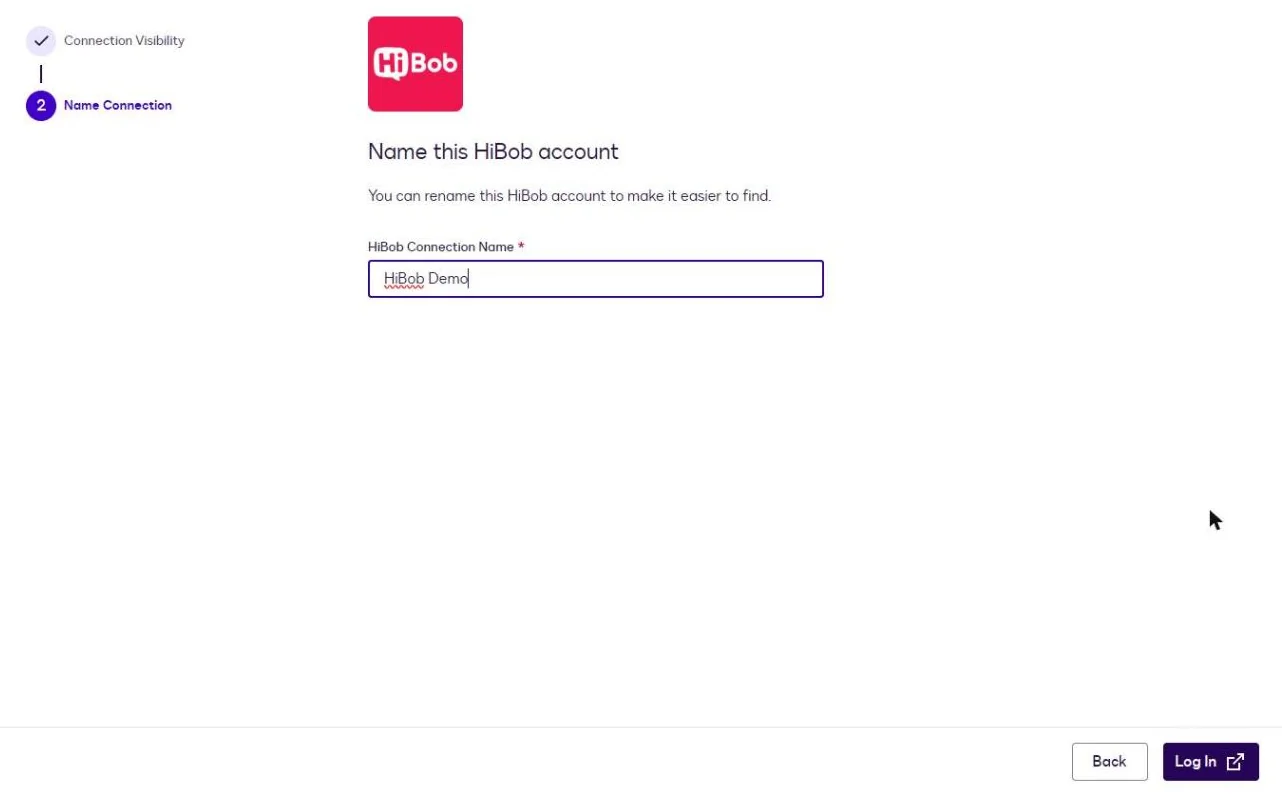
3. **Name Connection**: enter a name that identifies the Bob account, for example `HiBob Demo`. It appears in workflow steps. Click **Log In**.
4. On **Allow access?**, review what the app will do in Bob and click **Allow**.
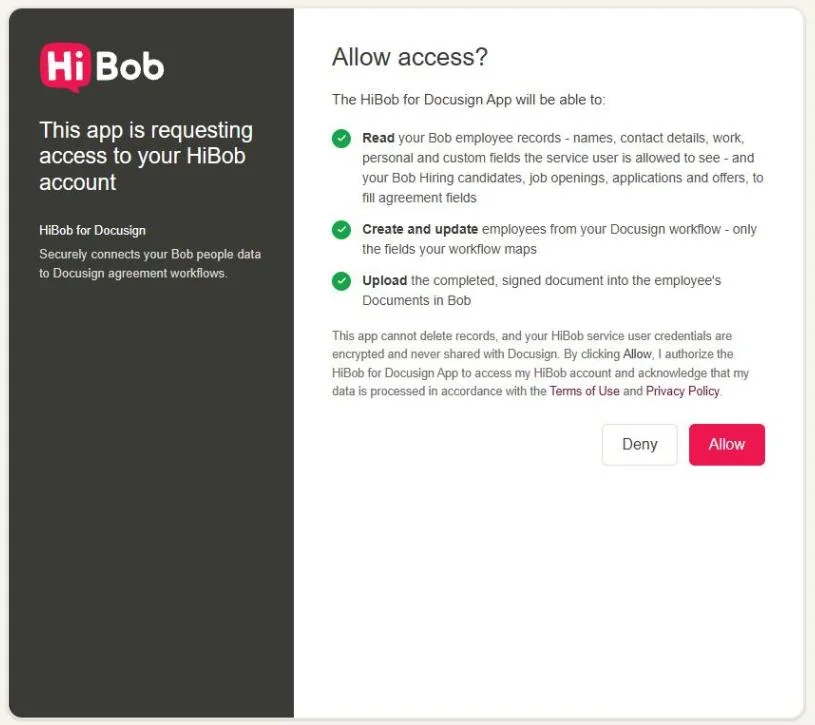
5. On **Connect HiBob**, enter the **Service User ID** and the **Service User Token**, then click **Continue to Docusign**.
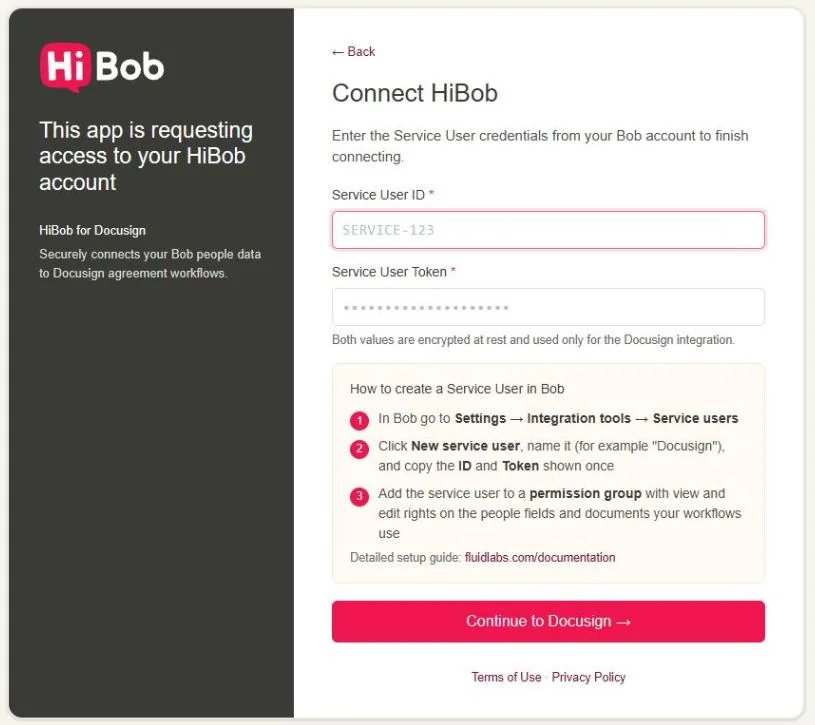
The connection is added and ready to use in workflow steps. It can read and write what the service user's permission group allows.
- **The first Connect Account may show "There was an error adding a connection"** although the connection was created. Open **Manage Connections** and check the list before you connect again, or you end up with two connections.
- **HiBob steps do not appear in the workflow editor after the install?** Sign out of Docusign and sign in again.
### Managing Connections
On the HiBob app page, open the **Manage** dropdown.
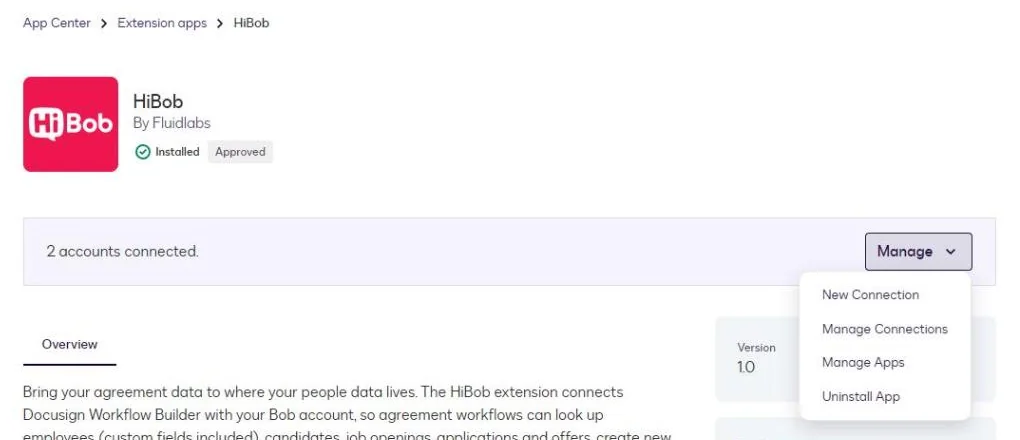
Select **Manage Connections** to see every connection.
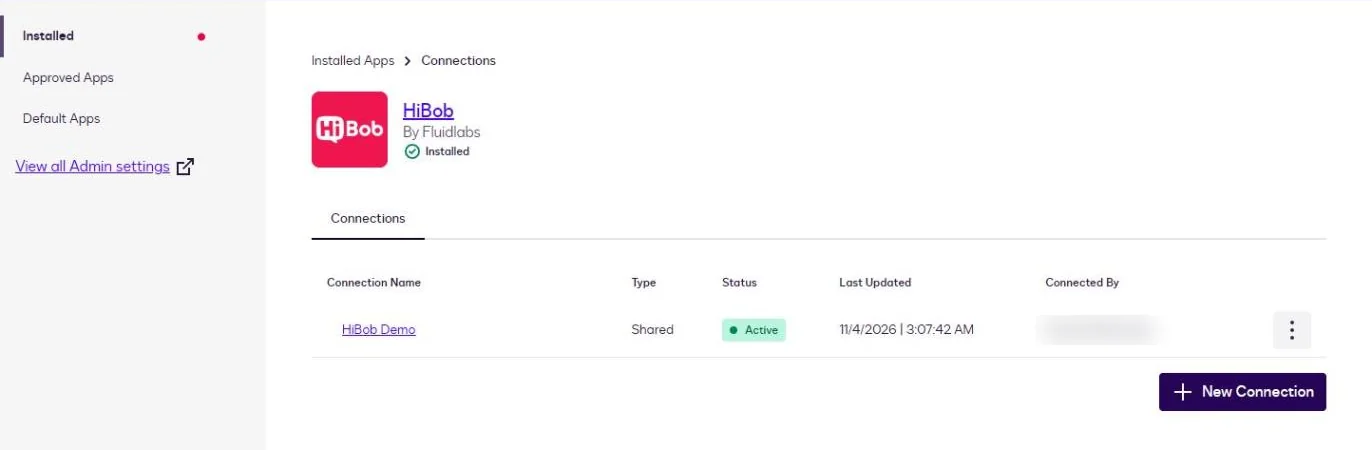
Use the three-dot (⋮) menu next to a connection:
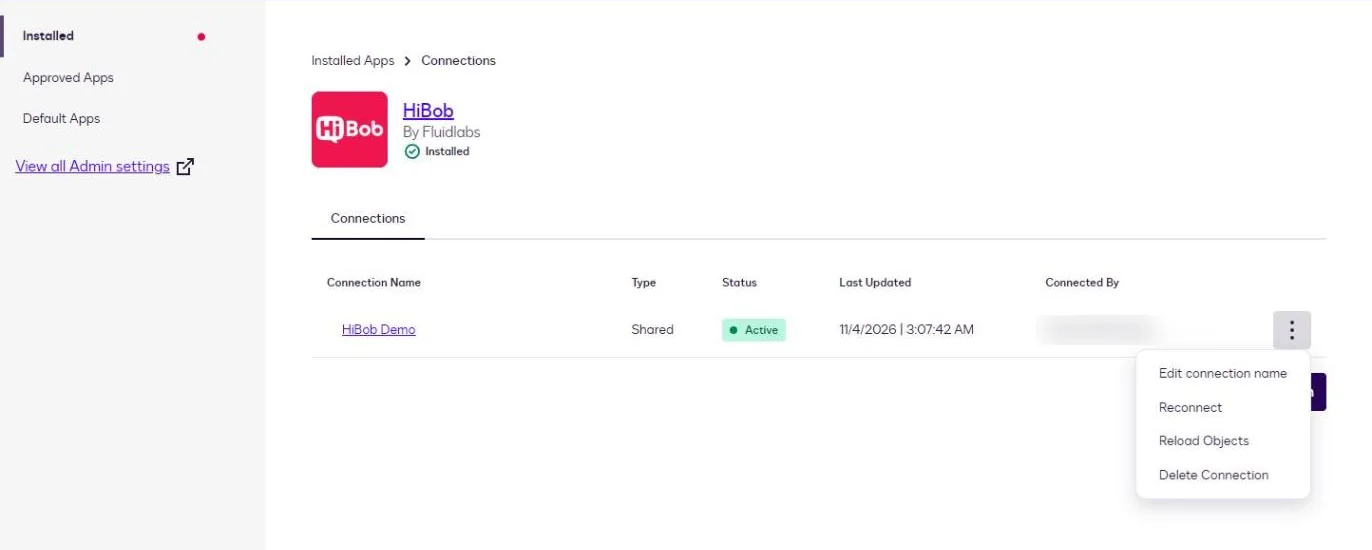
- **Edit connection name**: rename the connection.
- **Reconnect**: run the connection setup again. Run it after you add a custom field or category in Bob and grant it to the permission group, then re-open the HiBob steps to see the new fields.
- **Reload Objects**: refresh the objects and fields after an app release that adds objects.
- **Delete Connection**: remove the connection. ⚠️ This may break workflows that use it.
### Adding a New Connection
Use **Manage → New Connection** on the app page, or **+ New Connection** on the Connections page. Each connection appears separately in workflow steps. To connect another Bob account, create a service user there and use its ID and Token.
### Revoking Access
- **In Docusign**: delete the connection under **Manage Connections**.
- **In Bob**: reset the service user's token, or delete the service user. Every connection that uses it then stops working.
## 9. How to Use the App
### Create a Workflow
- Log in to Docusign and go to **Automations → Workflows**.
- Click **Create Workflow**.
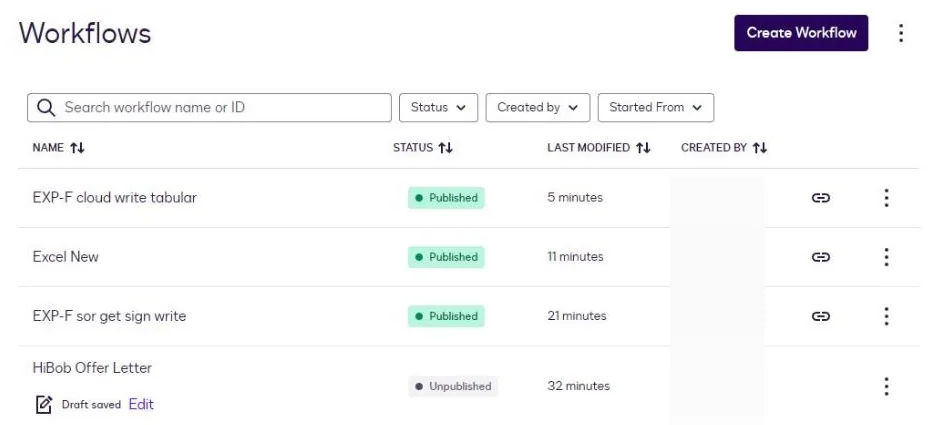
- Build your workflow using the available steps, including the HiBob actions.
- Publish the workflow when it is ready.
### Available HiBob Actions
Click **+ Add Step** and search for **HiBob**:
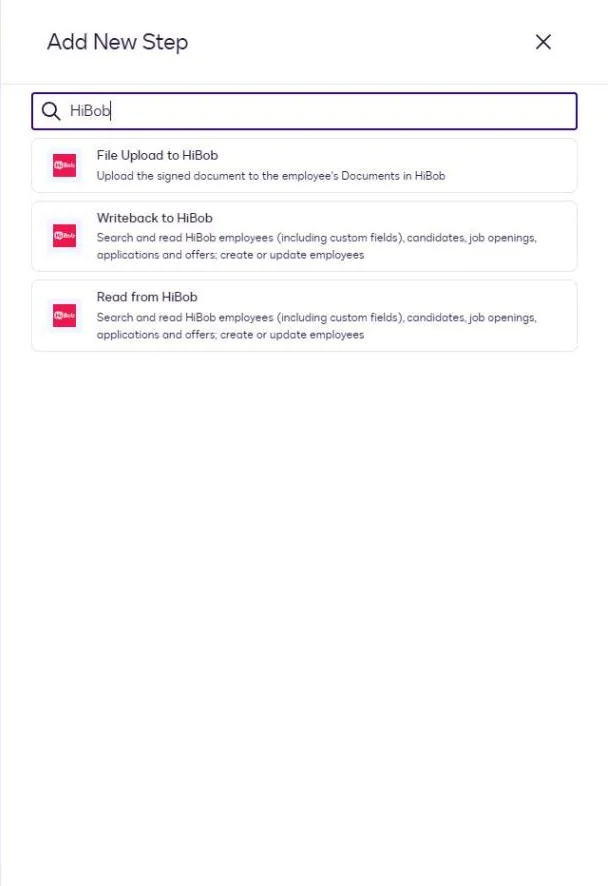
- **Read from HiBob**: fetch an employee or a hiring record and expose its fields as workflow variables. See [Read from HiBob](https://fluidlabs.com/documentation/hibob-for-docusign-iam#10-read-from-hibob).
- **Writeback to HiBob**: create or update an employee. See [Writeback to HiBob](https://fluidlabs.com/documentation/hibob-for-docusign-iam#11-writeback-to-hibob).
- **File Upload to HiBob**: save a document from the workflow in the employee's docs. See [File Upload to HiBob](https://fluidlabs.com/documentation/hibob-for-docusign-iam#12-file-upload-to-hibob).
A typical HR flow:
1. **Read from HiBob**: read the employee.
2. **Prepare eSignature Template**: pre-fill the offer, contract, or policy.
3. **Send Documents for Signature**.
4. **Writeback to HiBob**: create or update the employee with the data collected during signing.
5. **File Upload to HiBob**: file the signed document in the employee's docs.
A hiring flow:
1. **Read from HiBob**: read the Application or the Candidate.
2. **Prepare eSignature Template**: pre-fill the offer letter.
3. **Send Documents for Signature**.
4. **File Upload to HiBob**: once the candidate is hired and has an employee record in Bob, file the signed offer in that employee's docs.
## 10. Read from HiBob
The **Read from HiBob** step retrieves a record and exposes its fields as workflow variables.
Choose the workflow start that fits your process. In this example the workflow starts **From an API Call** and receives the employee's Record ID in a Text variable named `record_id`.
### 1. Add the Read Step
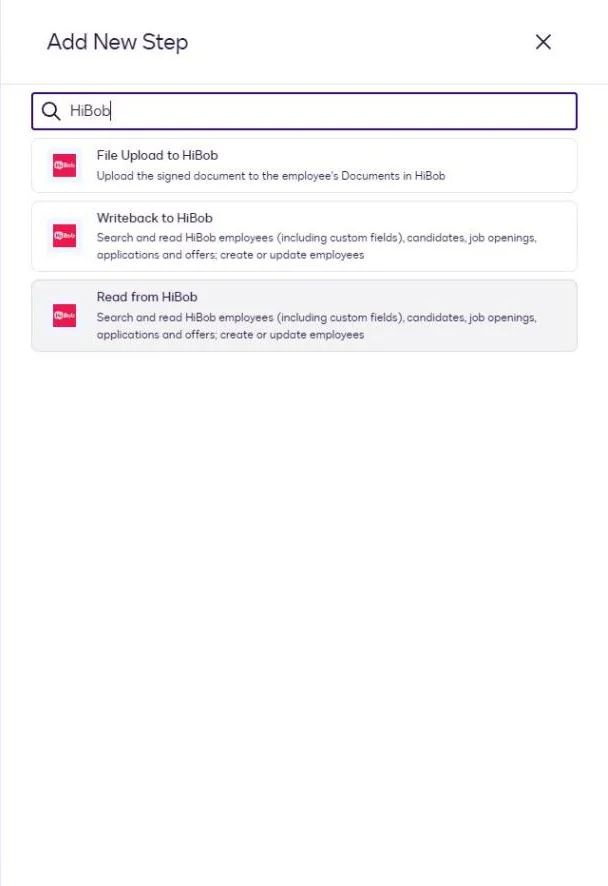
On the workflow canvas, click **+** below the start, search for **HiBob**, and select **Read from HiBob**.
### 2. Configure Connection and Object
- **Connection**: select the connection you created during [installation](https://fluidlabs.com/documentation/hibob-for-docusign-iam#8-installation-and-configuration).
- **HiBob object**: choose **Employee**, **Candidate**, **Job Opening**, **Application**, or **Offer**. This example uses **Employee**. The hiring objects need Bob Hiring, see [Hiring (Read Only)](https://fluidlabs.com/documentation/hibob-for-docusign-iam#5-hiring-read-only).
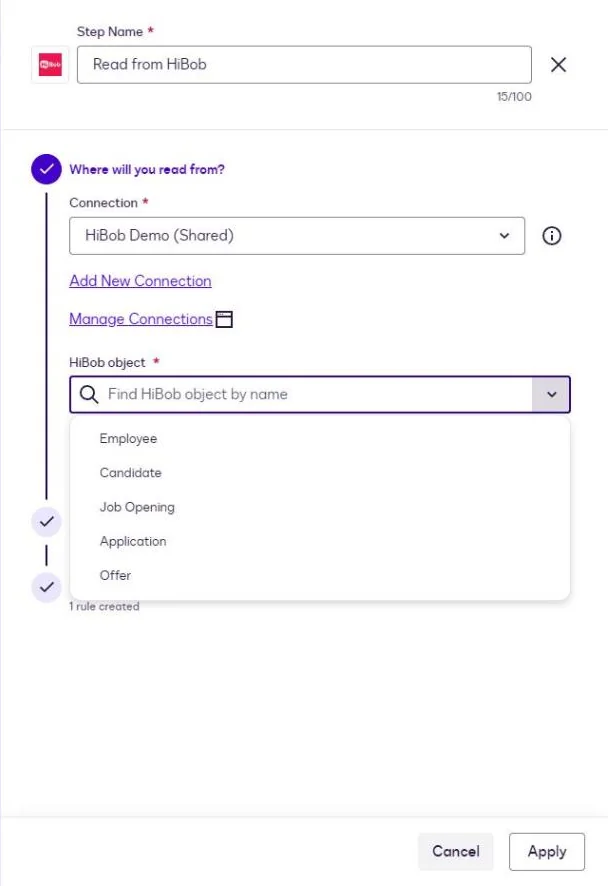
Click **Next**.
### 3. Select Fields
Click **Add or Remove Fields** and tick the fields your workflow needs. The selected fields become workflow variables for later steps. A field marked **(not searchable)** can be read but not used in a rule.
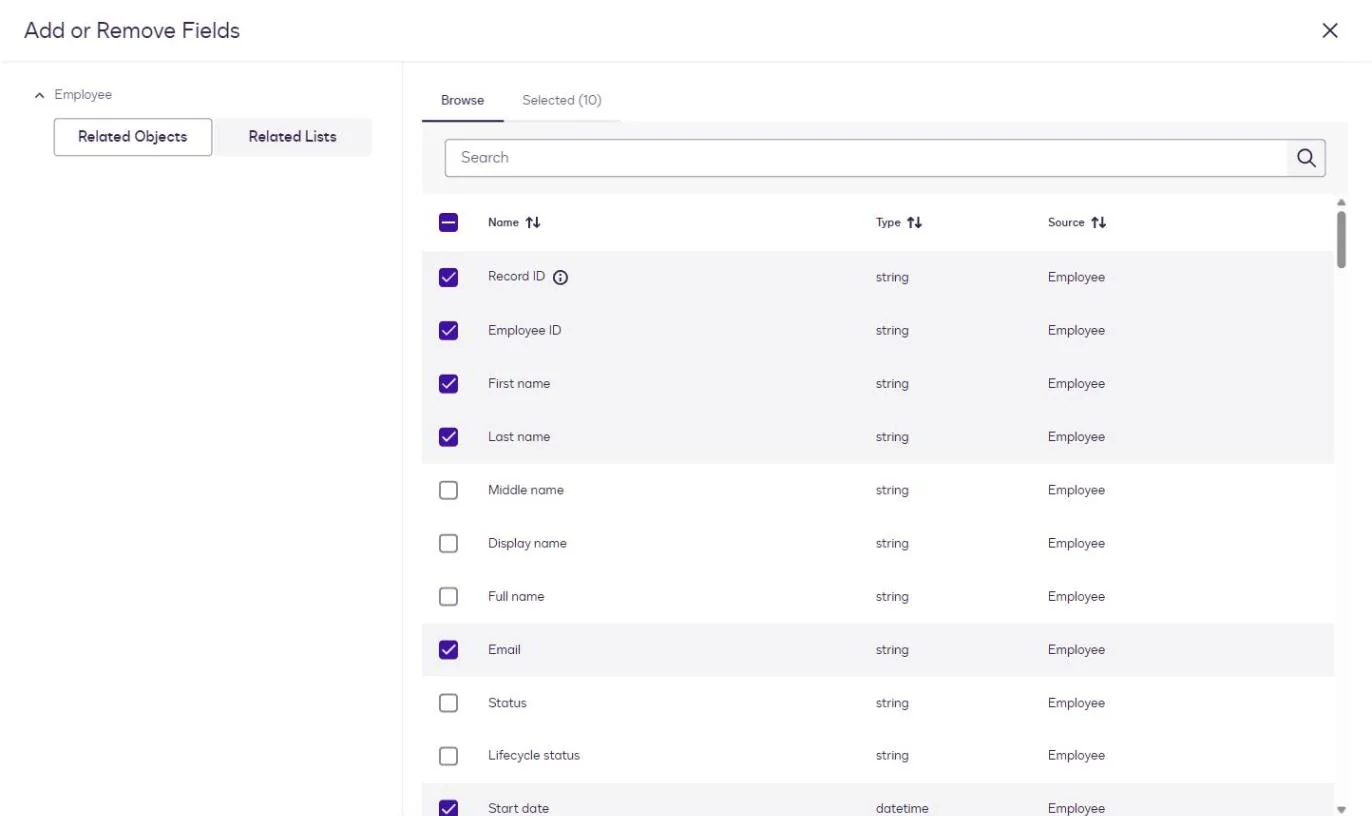
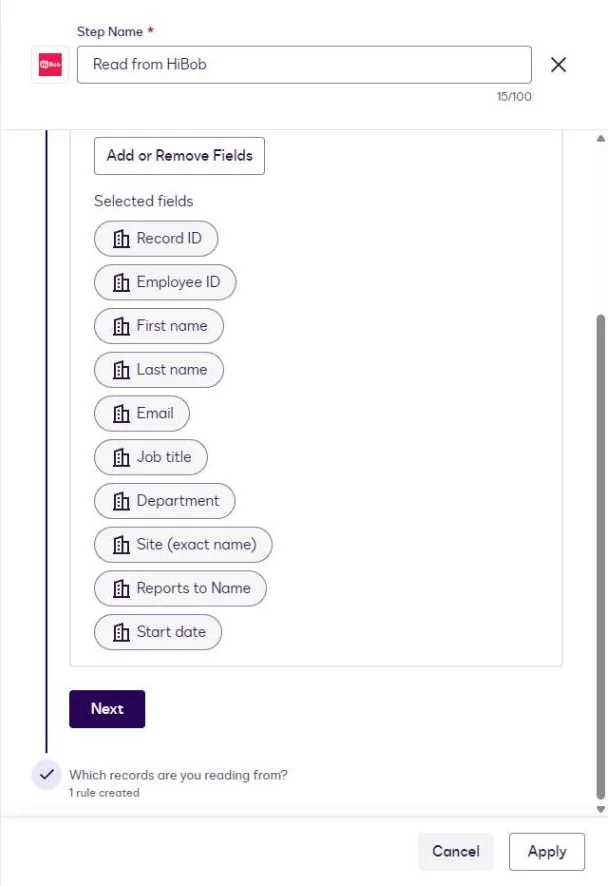
What each field returns is under [Reading Employee Data](https://fluidlabs.com/documentation/hibob-for-docusign-iam#reading-employee-data).
Click **Next**.
### 4. Identify the Record
Create a rule that tells the step which record to read. In this example, match **Record ID** to the `record_id` variable from the workflow start:
- **HiBob field:** Record ID
- **Operator:** Equal to
- **Workflow field:** `record_id`, under **Variables From Workflow Start**
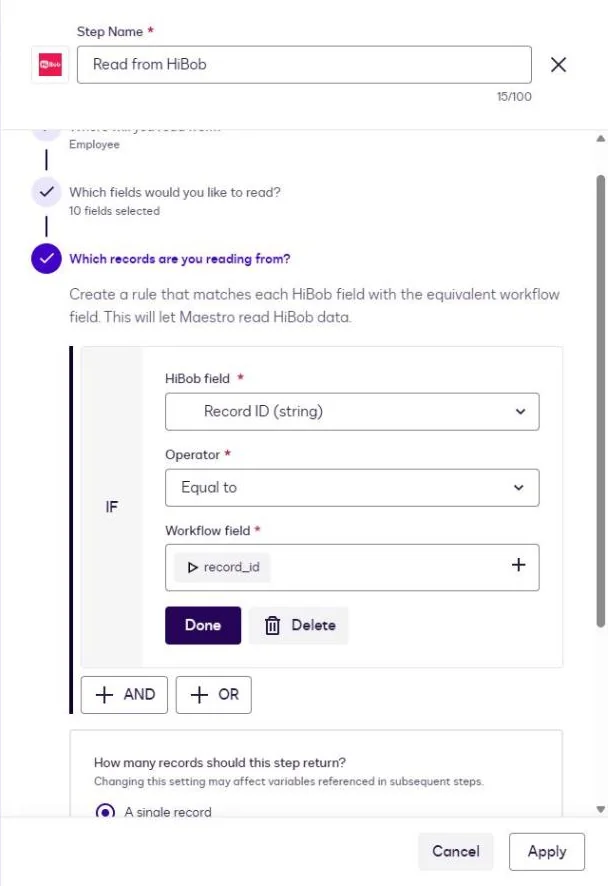
Click **Done**. Under **How many records should this step return?**, pick one:
- **A single record**: the first record that matches.
- **Multiple records**: up to five matching records.
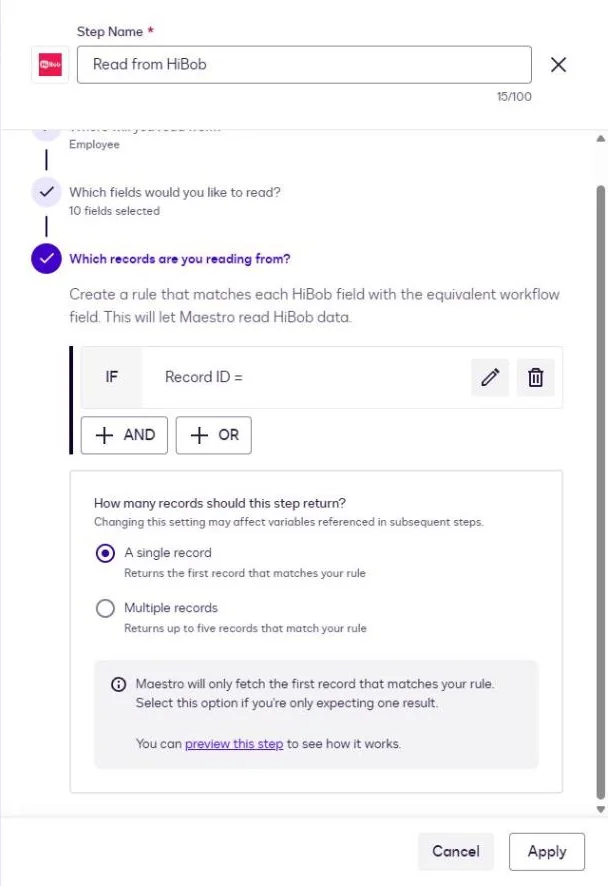
Use **preview this step** to check the rule against live data. Click **Apply**.

How to build a rule is under [Searching for an Employee](https://fluidlabs.com/documentation/hibob-for-docusign-iam#searching-for-an-employee) and [Finding a Hiring Record](https://fluidlabs.com/documentation/hibob-for-docusign-iam#finding-a-hiring-record).
> ⚠️ **Prefer Record ID or Email.** A name can match several people. See [Searching for an Employee](https://fluidlabs.com/documentation/hibob-for-docusign-iam#searching-for-an-employee).
## 11. Writeback to HiBob
The **Writeback to HiBob** step creates an employee or updates one.
### 1. Add the Writeback Step
On the workflow canvas, click **+** where the writeback belongs, for example after **Send Documents for Signature**. Search for **HiBob** and select **Writeback to HiBob**.
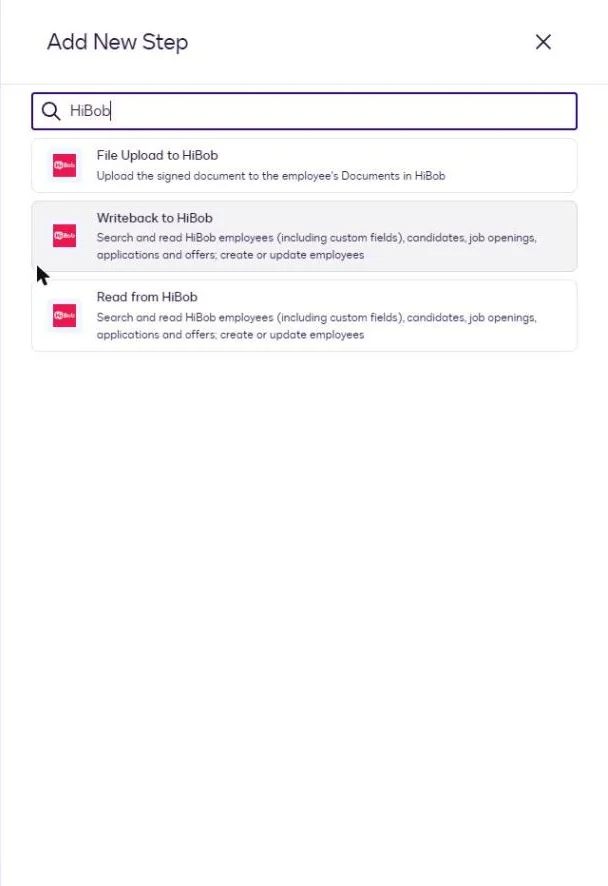
### 2. Configure Connection, Object, and Write Setting
- **Connection**: select your HiBob connection.
- **HiBob object**: **Employee**. The hiring objects are read only.
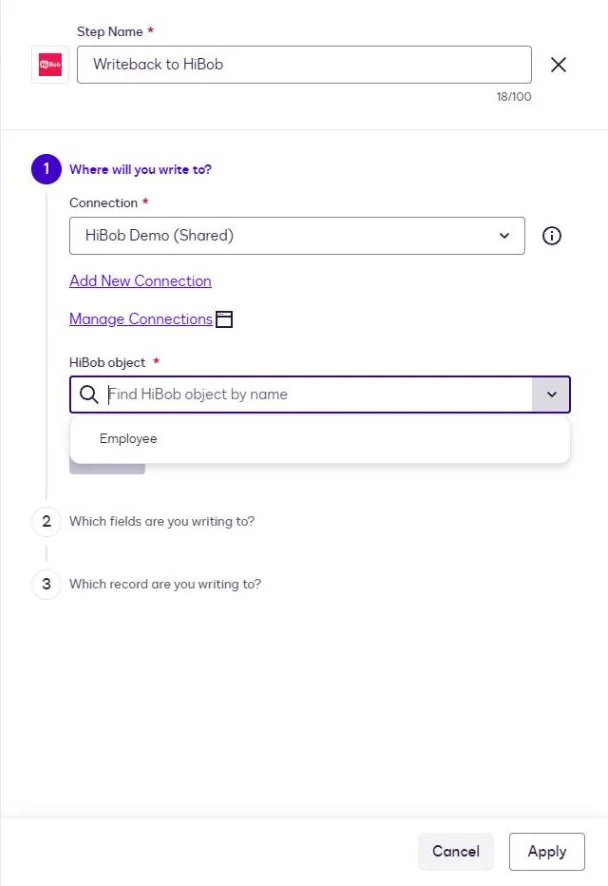
- **Write settings**:
- **Update or Create**: updates the matching employee, or creates one if the rule finds nothing.
- **Update**: updates an existing employee only. The rule must match exactly one employee. Only the mapped fields change.
- **Create**: always creates an employee.
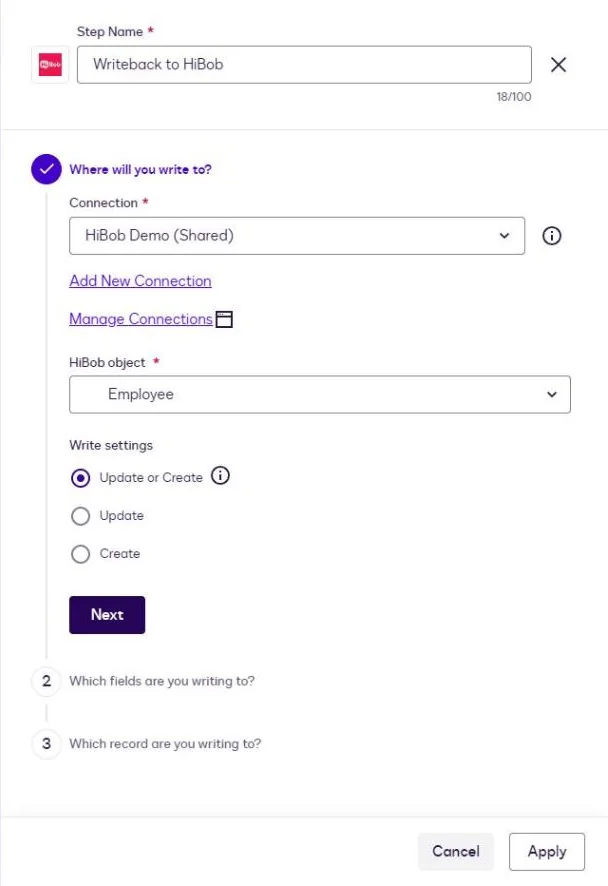
Click **Next**.
### 3. Map Fields
In **Create** and **Update or Create** the step starts with the required fields, marked with an asterisk: **First name**, **Last name**, **Email**, **Start date**, and **Site**. Click **Add or Remove Fields** to tick the other fields you want to write. On **Update** no field is required, and a field you do not map stays as it is.
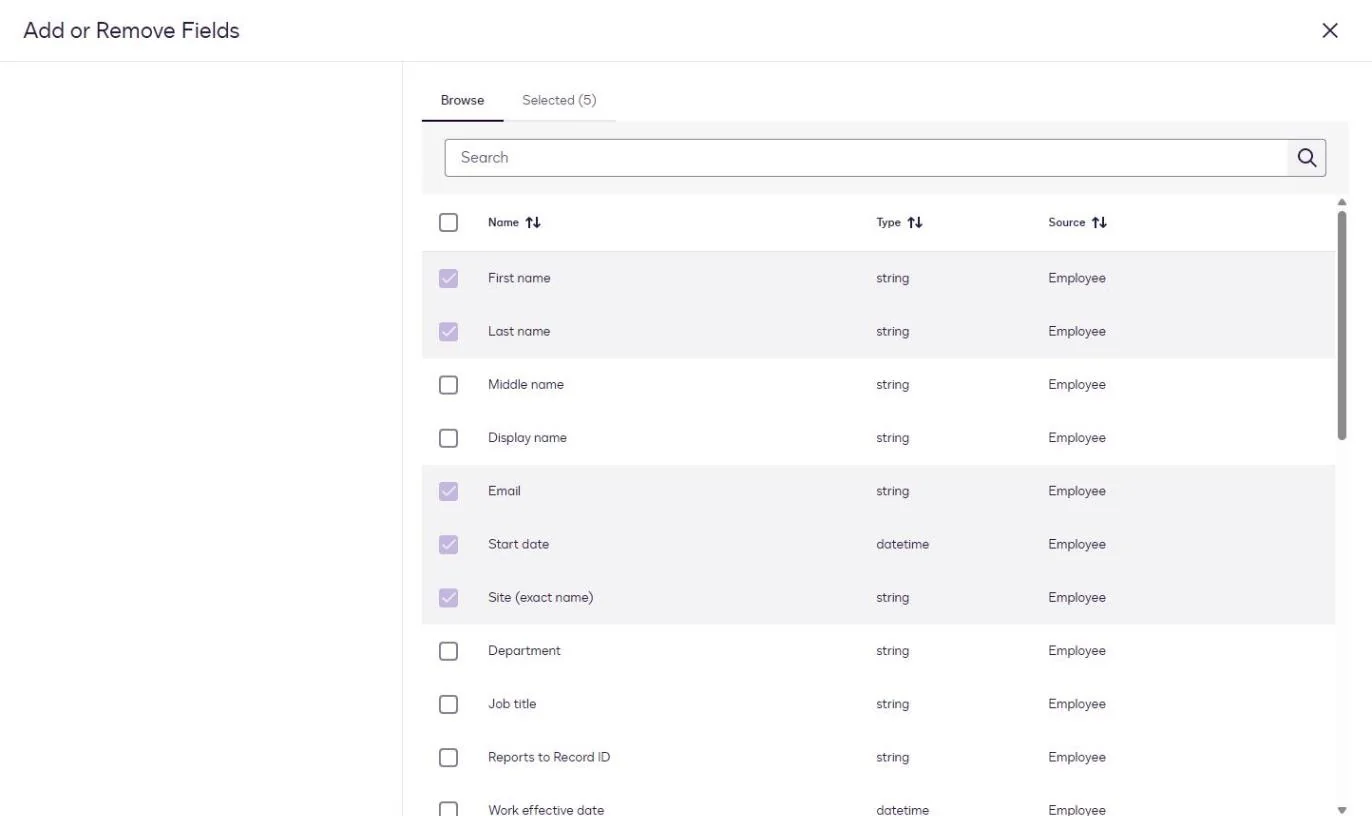
Map each field to the workflow variable that supplies the value, or type a value.
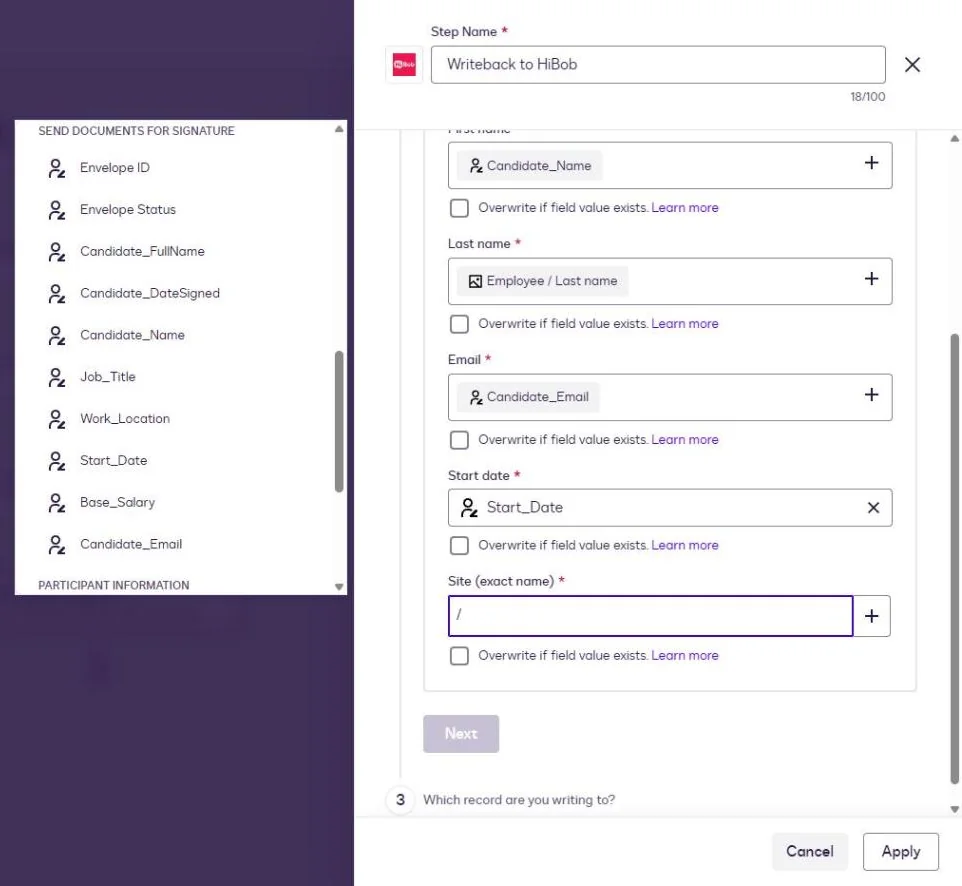
- **Site takes the full site name as Bob shows it**, case aside: `London (Demo)`, not `London`. Job title and Department also take a value from the Bob list.
- **Reports to Record ID takes a Record ID**: the Record ID returned by a **Read from HiBob** step on Employee, or by an earlier **Writeback to HiBob** step. An Employee ID such as `36`, an email, or a name fails the step.
- **Dates are MM/DD/YYYY.** `01/05/2027` is January 5, 2027.
- **Overwrite if field value exists** appears on the required fields under **Update or Create**. Unchecked, a value already filled in Bob stays. Optional fields are always overwritten.
- **Changing Site, Department, Job title, or Reports to adds a new Work entry** dated by **Work effective date**. For an employee who has not started yet, map Work effective date on or after the Start date. See [Start Date and Work Effective Date](https://fluidlabs.com/documentation/hibob-for-docusign-iam#start-date-and-work-effective-date).
⚠️ **Map from the right source.** The variable picker also lists the output of your **Read from HiBob** step. Mapping from there writes the original values back unchanged. Map from the step that produced the new data, such as **Send Documents for Signature** or **Collect Data with Web Forms**. A required field the document does not carry, such as Last name in the example, can come from the Read step.
The writable fields and their rules are under [Writing Employees](https://fluidlabs.com/documentation/hibob-for-docusign-iam#writing-employees).
Click **Next**.
### 4. Identify the Record to Write
For **Update or Create** and **Update**, create a rule that finds the employee. Match **Record ID** to the **Employee / Record ID** of the Read from HiBob step, or match **Email**.
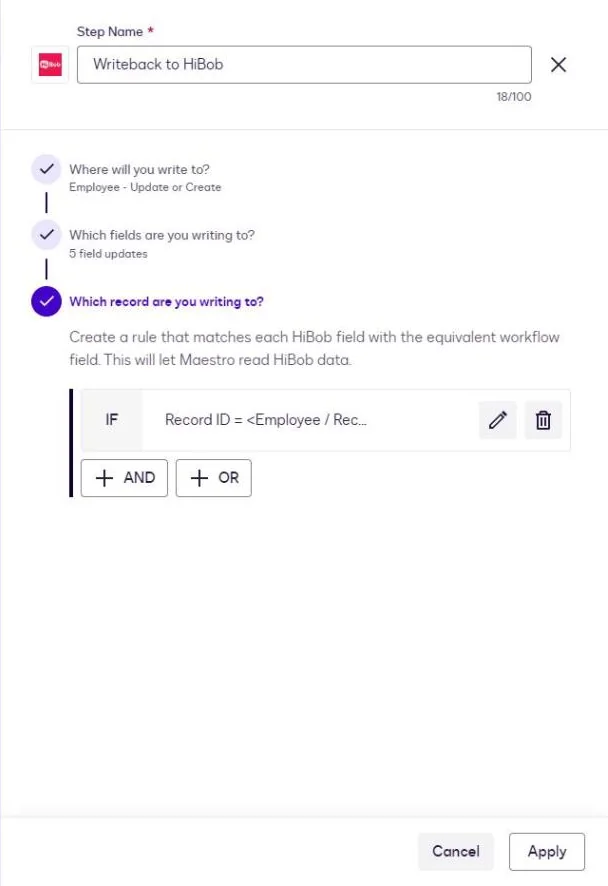
Click **Done**, then **Apply**.
When Bob rejects a value, the step fails and Docusign shows only the error code, such as `400`. The usual causes are under [Other Known Behaviors](https://fluidlabs.com/documentation/hibob-for-docusign-iam#7-other-known-behaviors).
## 12. File Upload to HiBob
The **File Upload to HiBob** step saves a document from the workflow in an employee's docs in Bob.
Check [File Upload Known Behaviors](https://fluidlabs.com/documentation/hibob-for-docusign-iam#file-upload-known-behaviors) before you build the step.
### 1. Add the File Upload Step
Add a step after signing completes, search for **HiBob**, and select **File Upload to HiBob**.
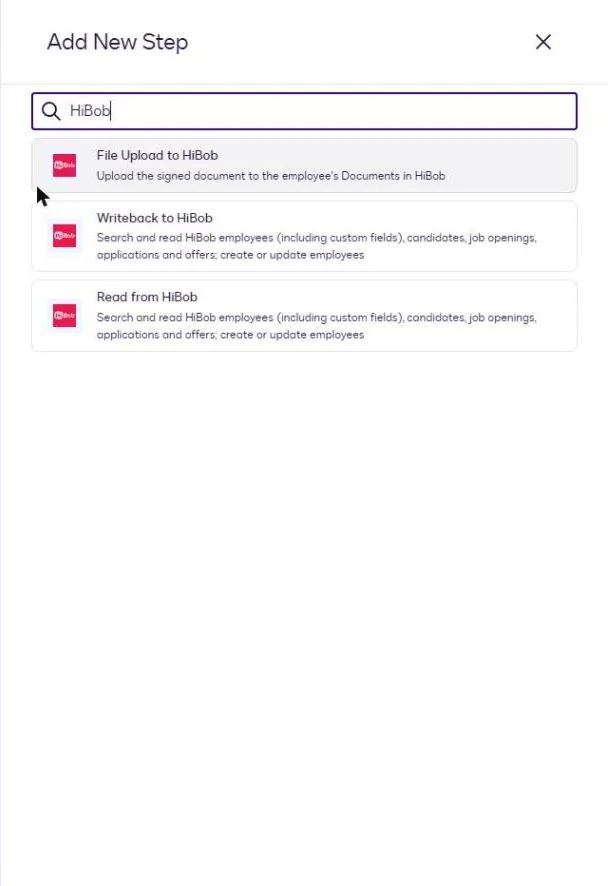
### 2. Select the File
Choose the file or envelope from an earlier step. In this example it is the **Combined Envelope File** from **Send Documents for Signature**.
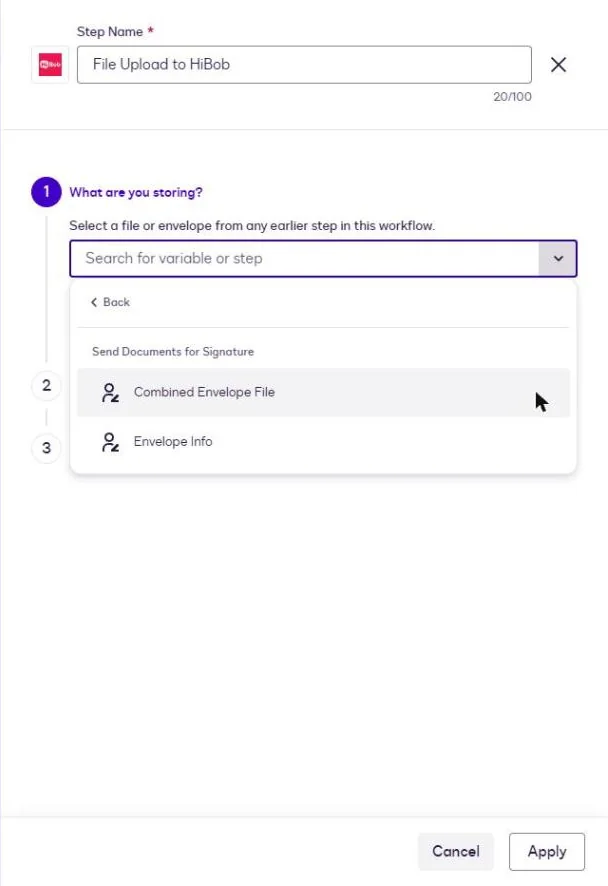
> An empty list means no earlier step produced a file. Check that a step such as **Send Documents for Signature** comes before File Upload.
### 3. Choose the Drive
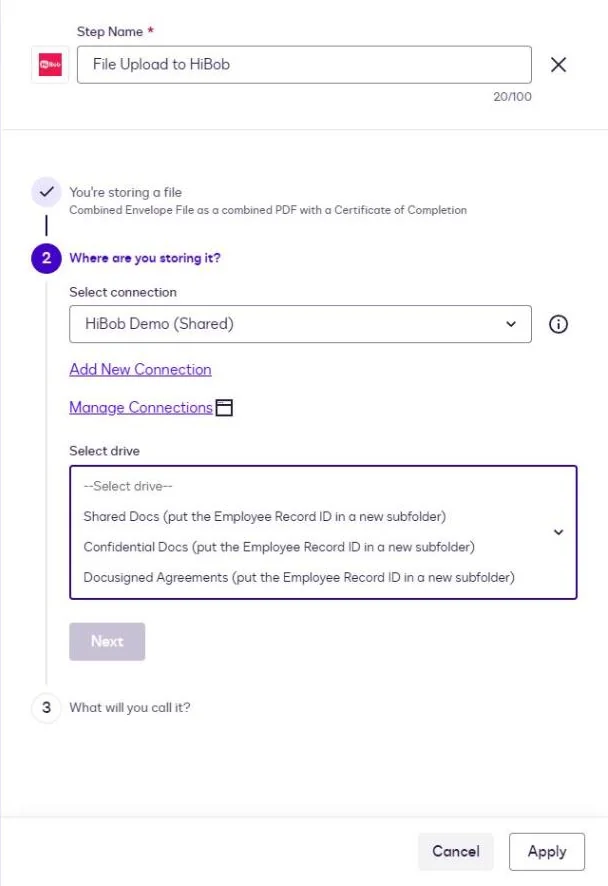
- **Select connection**: your HiBob connection.
- **Select drive**: the Bob folder for the file: **Shared Docs**, **Confidential Docs**, or one of your people's folders. Each entry reads ` (put the Employee Record ID in a new subfolder)`. The list shows folders, not employees: the employee comes from the next step.
### 4. Put the Employee Record ID in the Folder
**File Upload takes the employee from the folder.** The folder holds the employee's Record ID.
- Click **Add Folder**, open the **Select folder** dropdown, and pick **New Subfolder**. The **New folder** dialog opens.
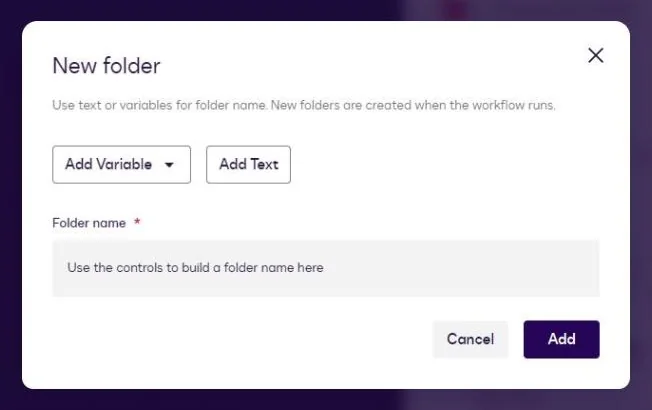
- Click **Add Variable**, choose the **Read from HiBob** or **Writeback to HiBob** step that returns the employee, select **Employee / Record ID**, and click **Add**. For a Read step set to **Multiple records**, the variable is **Employee[1] / Record ID**.
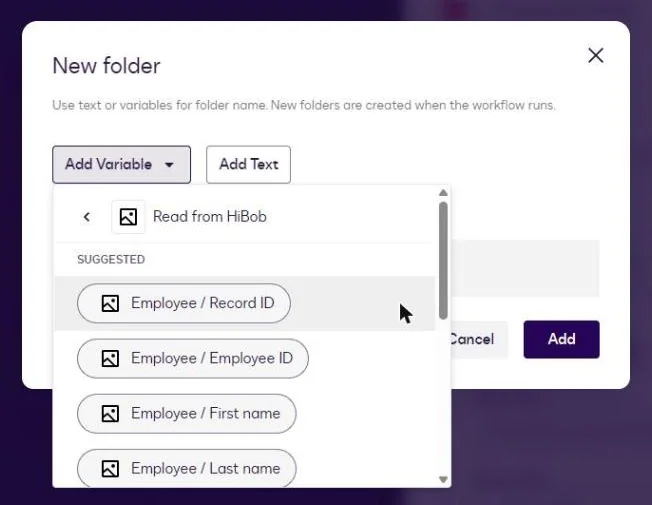
- **Select folder** now shows the Record ID variable. Leave **Add Subfolder** alone: one level is enough. Click **Next**.
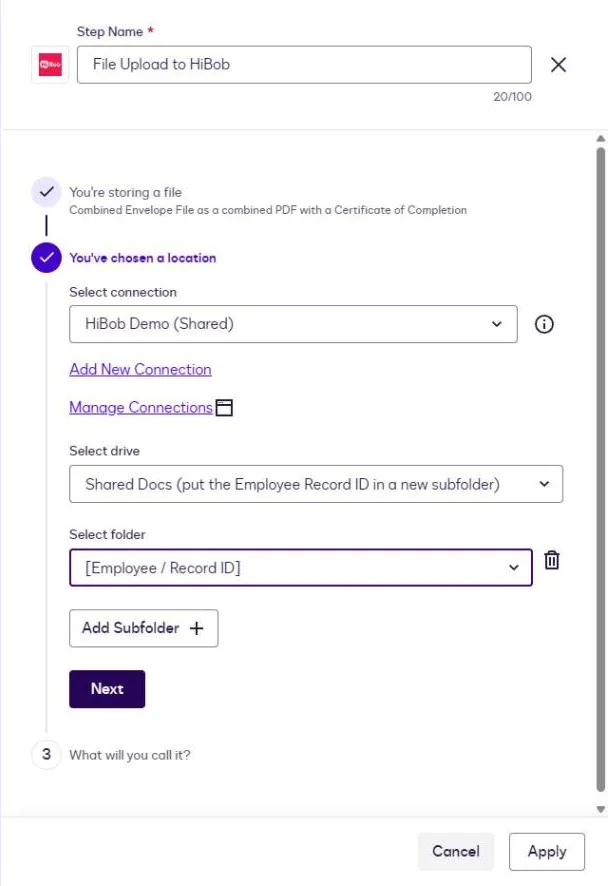
> ⚠️ **Use one subfolder: the Employee Record ID.** Take it from a step on Employee. A candidate's or an application's Record ID is not an employee, and the step fails.
### 5. Name the File
Build the file name from **Add Text** and **Add Variable**. A date or time variable keeps repeat runs apart: a file with the same name is saved as `… copy1`.
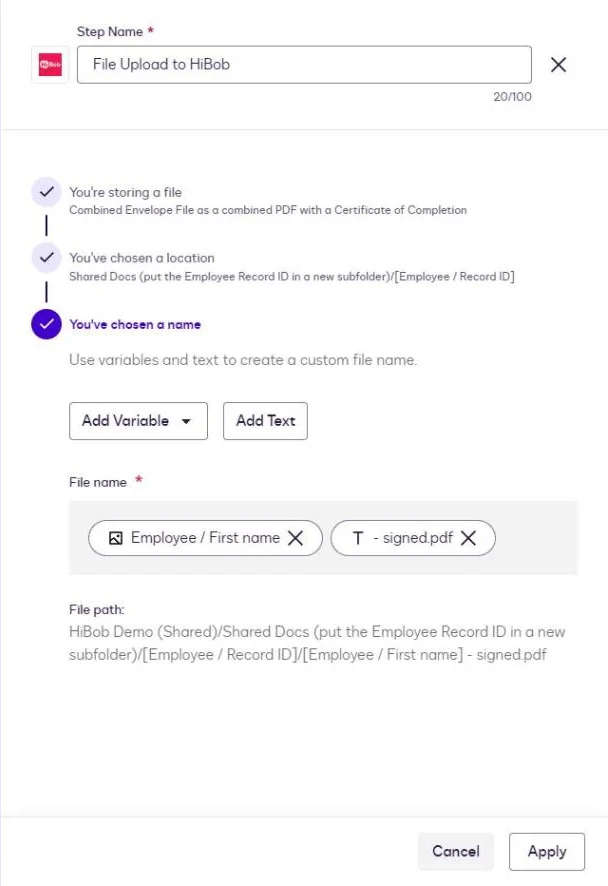
Click **Apply**.
### 6. Verification
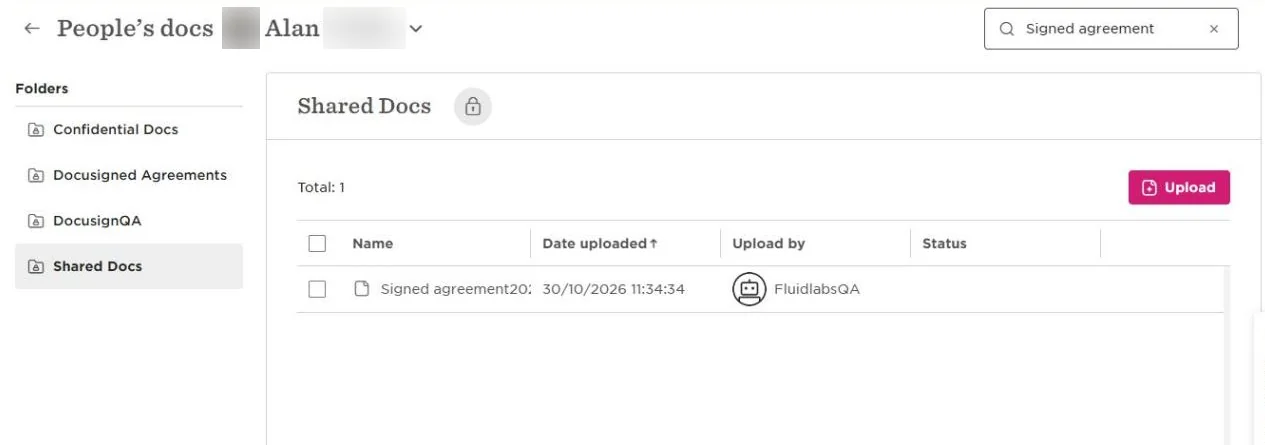
The file appears in the employee's **Docs** in Bob, in the folder of the drive you chose, uploaded by the service user.
### File Upload Known Behaviors
- **Files are limited to 5 MB in Shared Docs and Confidential Docs, and 1 MB in a people's folder.** A larger file stops the step.
- **Any file type is accepted.**
- **A Record ID that matches no employee stops the step.**
- **With several subfolders, the file goes to the employee of the last one.** If the last subfolder is not a Record ID, the step fails.
- **Uploads work for employees who have not started yet and for terminated employees.** Whether the file shows on their profile depends on the folder's visibility, see below.
- **A new people's folder needs permissions.** Bob does not grant them to the service user: grant View and Upload on the folder in its permission group, see [Grant Docs Permissions](https://fluidlabs.com/documentation/hibob-for-docusign-iam#grant-docs-permissions). Without them the step fails.
**People's folders follow their visibility setting.** People's folders are set up in Bob under **Docs → Settings → People's folders**, and the app lists every one of them as a drive. A folder visible to **All employees** exists only for employed people: an upload for an employee who has not started (status Hired) or a terminated employee succeeds, but the file does not show on the profile.
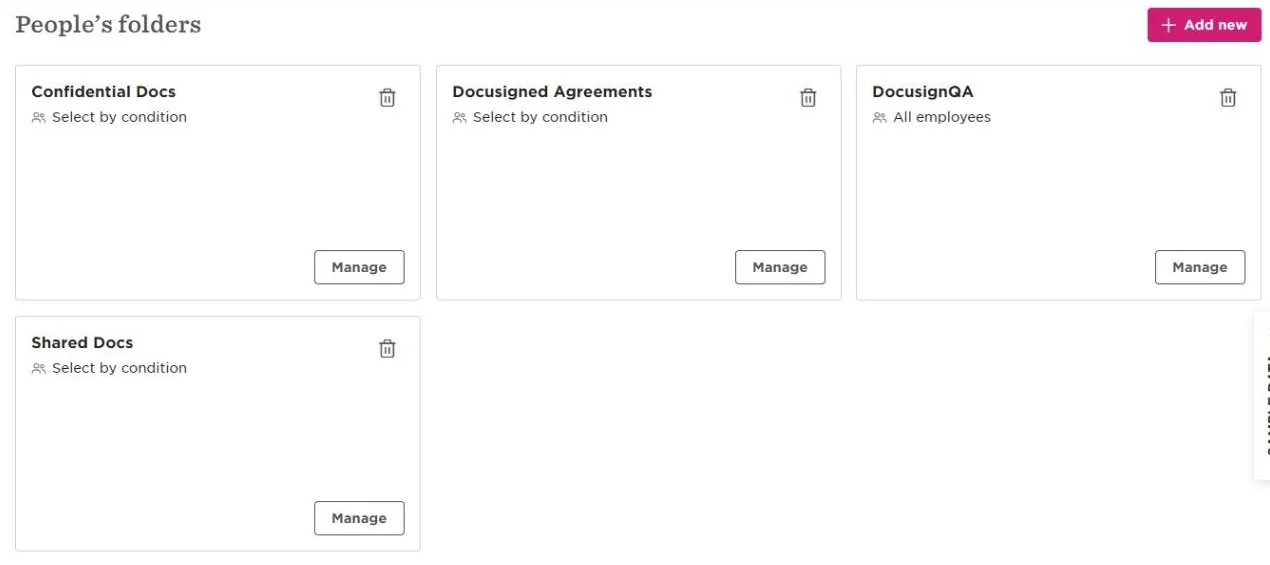
> ⚠️ **For offers and terminations, open the folder in Bob and set Applies to → Select by condition → Lifecycle status equals Any**, or upload to Shared Docs or Confidential Docs.
## 13. FAQ & Troubleshooting
**I installed the app, but HiBob steps do not appear in the workflow editor.**
> Sign out of Docusign and sign in again.
**Connect Account showed "There was an error adding a connection".**
> The connection is often created anyway. Open **Manage Connections** and check the list before you connect again.
**A field I expect is missing from the step.**
> The service user's permission group has no View right on its category, or the field is in a custom category that was not granted. Grant it in Bob, see [Permissions the App Needs](https://fluidlabs.com/documentation/hibob-for-docusign-iam#permissions-the-app-needs), then run **Reconnect** on the connection and re-open the step.
**An employee created on signature is not found by a later step.**
> The employee has a future start date and the status Hired, and the permission group sees only Employed people. Set **Access data for** to **Lifecycle status equals Any**, see [Set Access Data For](https://fluidlabs.com/documentation/hibob-for-docusign-iam#set-access-data-for).
**Update failed with 400 for an employee who has not started yet.**
> The step changes Site, Department, Job title, or Reports to without a Work effective date, or with one before the Start date. Map **Work effective date** on or after the Start date. See [Start Date and Work Effective Date](https://fluidlabs.com/documentation/hibob-for-docusign-iam#start-date-and-work-effective-date).
**Site is rejected.**
> Enter the full site name as Bob shows it, for example `London (Demo)`, not `London`. See [Picklists](https://fluidlabs.com/documentation/hibob-for-docusign-iam#6-picklists).
**Reports to is rejected.**
> Reports to Record ID takes the manager's Record ID from a Read from HiBob or Writeback to HiBob step. An Employee ID such as `36`, an email, or a name fails the step.
**The employee's address did not change.**
> Address fields are read only. Change the address in Bob under **Actions → Update profile → Address Change**.
**A date in the step preview is one day off.**
> The preview shows dates in your computer's time zone, so east of UTC a date reads one day earlier. A running workflow sends the date as selected.
**Candidate, Job Opening, Application, or Offer returns nothing or fails.**
> These objects need Bob Hiring on your Bob account and the right **Manage all job openings** in the service user's permission group. Offers exist in Bob only when an Offer letter template is active. See [Hiring (Read Only)](https://fluidlabs.com/documentation/hibob-for-docusign-iam#5-hiring-read-only).
**The file was uploaded, but it is not on the employee's profile.**
> The people's folder is visible to All employees, and the employee has not started yet or is terminated. Set the folder's **Applies to** to **Lifecycle status equals Any**, or upload to Shared Docs or Confidential Docs. See [File Upload Known Behaviors](https://fluidlabs.com/documentation/hibob-for-docusign-iam#file-upload-known-behaviors).
**The file upload failed.**
> The file is larger than the folder's limit (5 MB, or 1 MB in a people's folder), the Record ID matches no employee, or the service user has no Upload right on the folder. See [File Upload Known Behaviors](https://fluidlabs.com/documentation/hibob-for-docusign-iam#file-upload-known-behaviors).
**I cannot find the stage name of an application.**
> The app reads the **Stage ID**, a number that differs per job opening. To check where an application is, use **Status**: In progress, Rejected, Pending hire, Hired, or Withdrawn.
**I lost the service user's token.**
> Bob shows it once. Open the service user in Bob, click **Reset token**, then run **Reconnect** on every connection that used it and enter the new token.
---
HiBob for Docusign IAM is published by Fluidlabs. Docusign is a trademark of Docusign, Inc.