Video, 3:23Negotiate and sign a subcontract from a Procore commitment
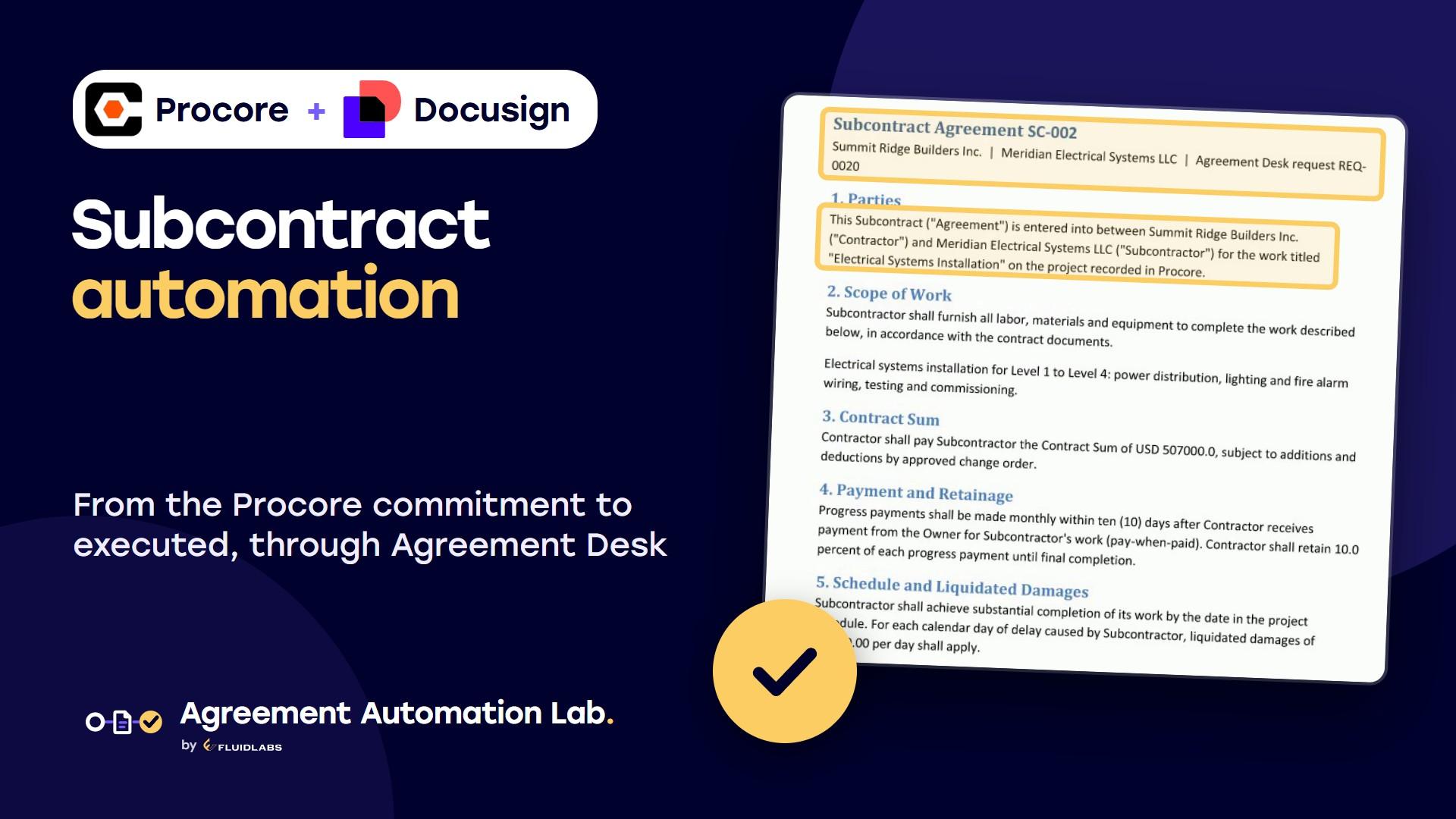
An Agreement Desk request drafts the subcontract from Procore; after negotiation, signing marks it executed with the PDF attached.
The workflow reads the change order, its subcontract and the subcontractor's contact from Procore, then pulls the change order PDF from Procore with File Input from Procore. It sends that PDF for signature to the subcontractor and the general contractor, marks the change order approved and executed, and files the signed copy on it.
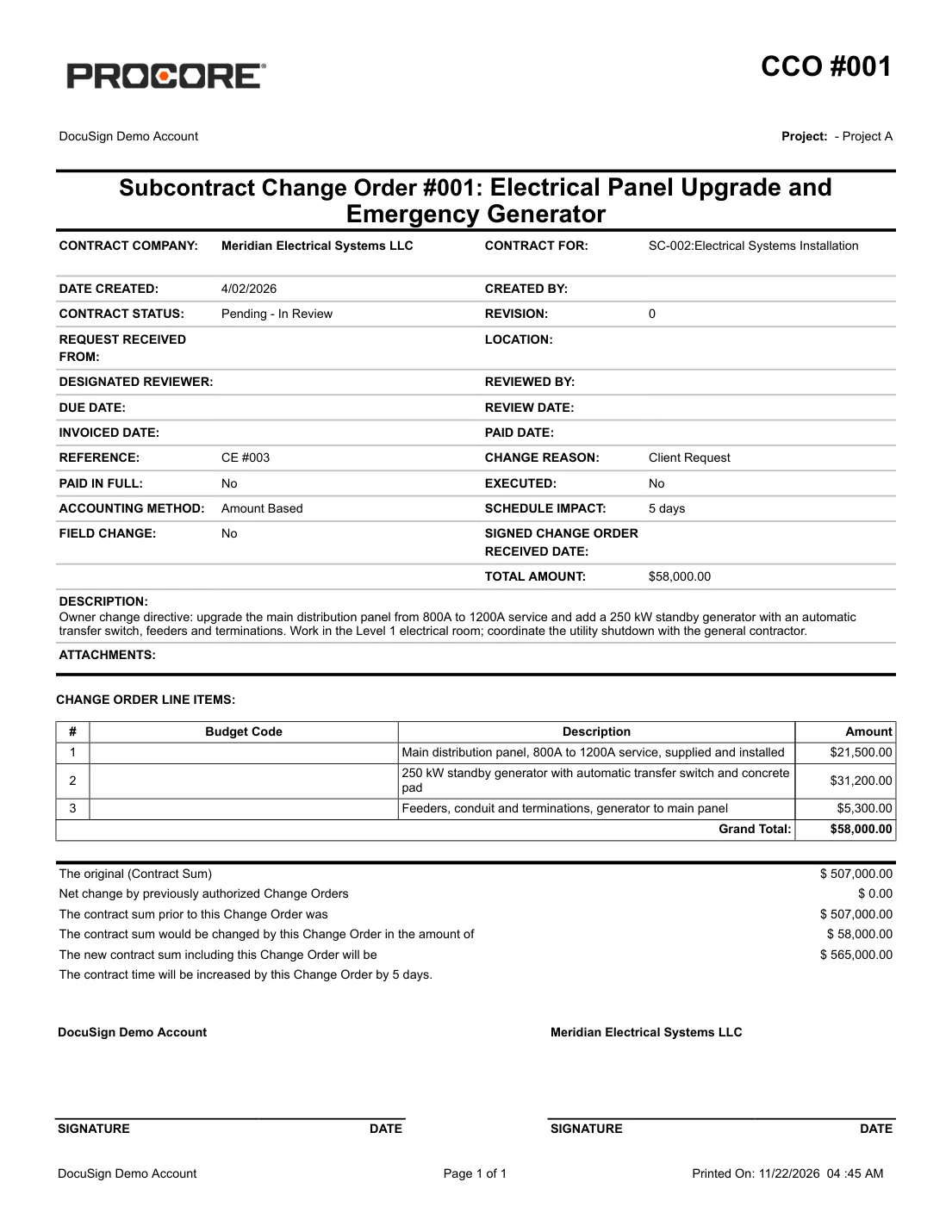
Summit Ridge Builders needs a change on Meridian Electrical's subcontract: a bigger electrical panel and a standby generator, fifty-eight thousand dollars. In Procore, the commitment change order is pending review, not executed, with nothing signed attached.
This Docusign workflow handles the signature. It reads the change order, its subcontract and Meridian's contact from Procore. Then it pulls the change order PDF straight out of Procore, exactly as Procore prints it, and sends it for signature.
When both sides have signed, it marks the change order approved and executed, and files the signed copy back on it.
In production, a call from your system starts it with the change order's id. Here, we start it by hand: the record id, and the change order as File Input finds it in Procore.
Meridian gets the change order by email.
It's Procore's own change order document: the three line items, fifty-eight thousand dollars, and the new contract sum. Meridian drags a signature under its name, and finishes.
Meridian has signed. At Summit Ridge, the change order is waiting in Docusign for the countersignature.
The owner signs under Summit Ridge's name, and the change order is complete.
From here, the workflow writes back to Procore.
Back in Procore, nobody touched the change order, and it's done: approved, executed, and the signed copy, with its certificate of completion, attached and named for the change order and the subcontractor.
The document Procore produced, signed in Docusign, and back in Procore, with no downloads and no uploads. That's change orders with Docusign and Procore.
Written back: Status = Approved; Executed = Yes
Filed to: Change order attachments / Signed Change Order {Number} - {Contract Company Name}.pdf

The workflow does not generate this commitment change order: Procore prints it, and the workflow pulls the PDF from Procore and sends it for signature as it is. It carries no signature fields, so each signer places a signature where the page asks for one. This sample is the PDF Procore printed for the demo record.
Install Procore for Docusign IAM from the Docusign App Center and connect it to your Procore account. An account admin does this once.
In Docusign, go to Agreements, Workflows, Create Workflow, then Import Workflow, and pick the .zip. When it asks, pick your Procore connection.
The second signer is the user who last published the workflow. Change it on Send Change Order for Signature if someone else countersigns for your company.
Publish, then run it on a test change order whose subcontractor email is your own inbox. Give it the change order id and commitmentCOs/ followed by the same id.
Read steps take the change order's record id. File Input from Procore takes the record as type and id, commitmentCOs/ followed by the id. A system that starts the workflow sends both.
Procore prints the change order without Docusign fields, and the workflow sends it unchanged. Each signer drags a signature onto the signature line.
Install Procore for Docusign IAM from the Docusign App Center and connect it, then import again. The import asks for your Procore connection and fills it into every Procore step.
No. Both are fictional and every sample value is invented. The change order PDF is what the Procore sandbox printed for the demo record.
We adapt library workflows to your stages, approvals and documents, and build private apps when a system has no app yet.
Video, 3:23An Agreement Desk request drafts the subcontract from Procore; after negotiation, signing marks it executed with the PDF attached.
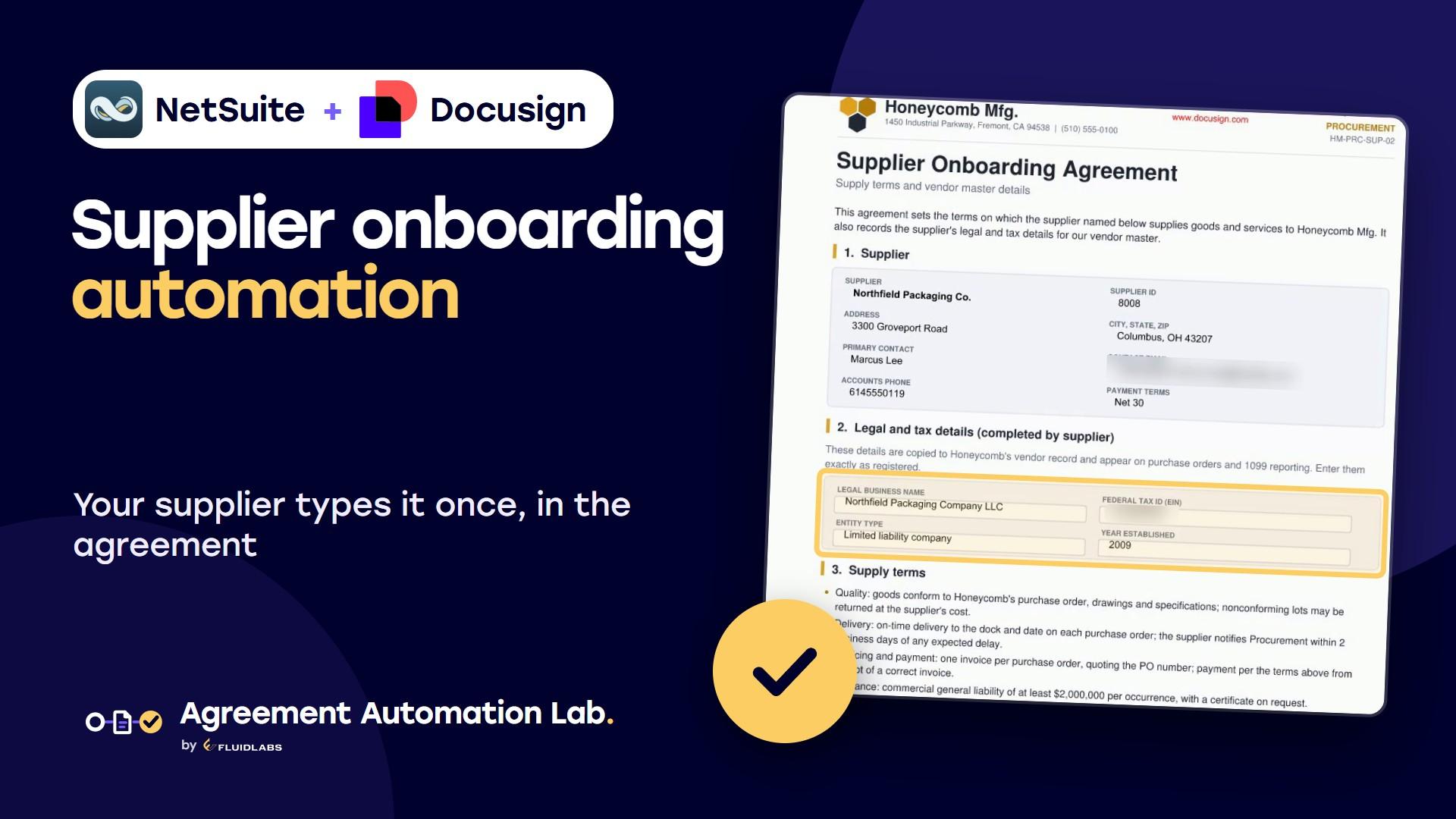
Video, 2:23Fills a supplier agreement from the vendor, collects the legal name, tax ID and both signatures, and updates the vendor.
Docusign is a trademark of Docusign, Inc. Procore for Docusign IAM is published by Fluidlabs. To ask us to remove a mark, email hello@fluidlabs.com.