
 Video, 2:23
Finance and procurement

Onboard a supplier from a NetSuite vendor record
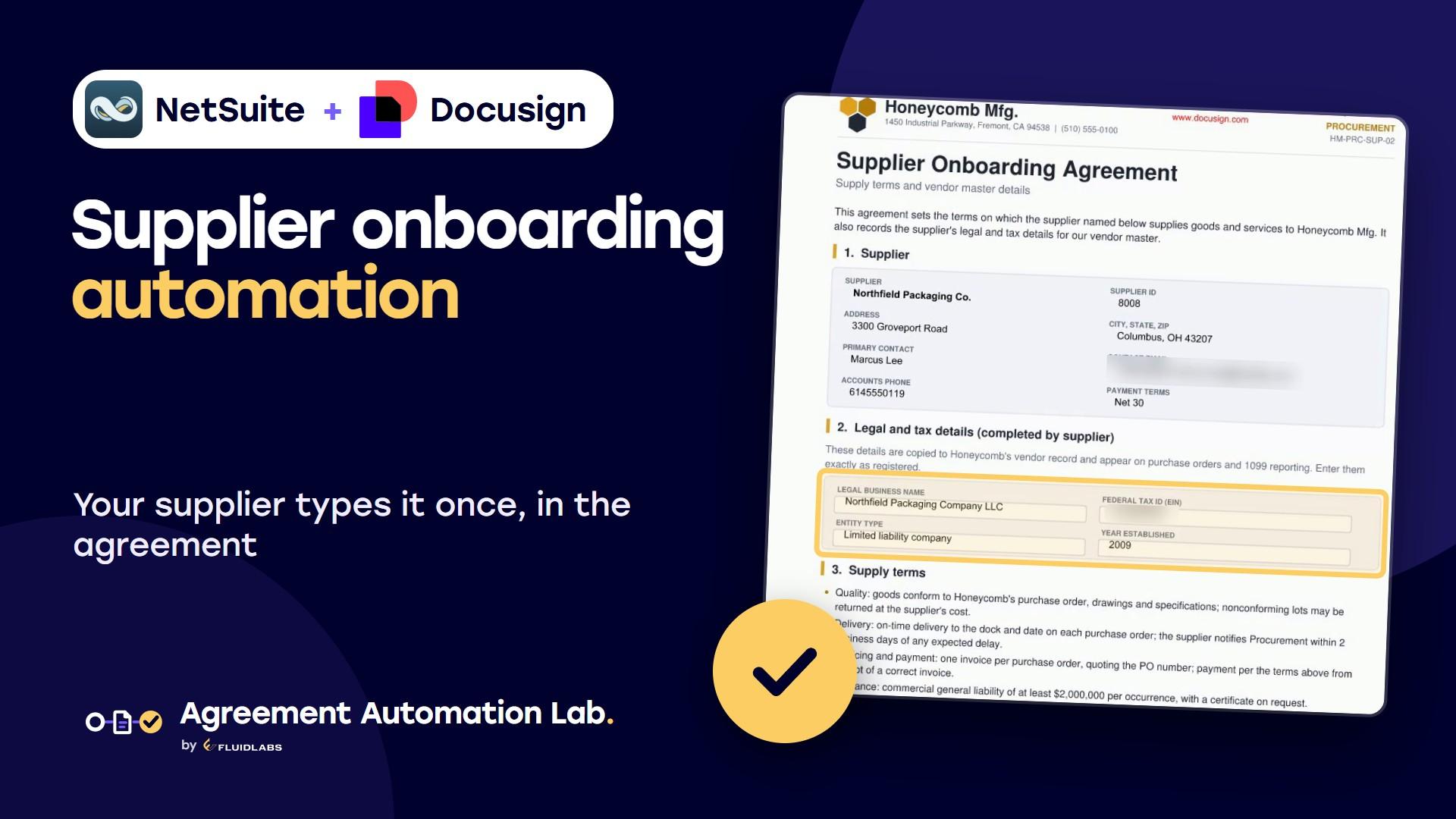
Fills a supplier agreement from the vendor, collects the legal name, tax ID and both signatures, and updates the vendor.
Starts: API or by handTested 10 Nov 2026
Two workflows share one Agreement Desk request type: the first reads the commitment and the subcontractor from Procore, drafts the subcontract, emails it for review and moves the request to Negotiation. When legal moves the request to Waiting for Signature, the second sends the negotiated subcontract for signature, marks the commitment executed with the agreed retainage, attaches the signed PDF and closes the request.
Summit Ridge Builders has awarded the electrical work on a project to Meridian Electrical. In Procore, subcontract SC-002 is approved, but nobody has signed it: it isn't marked executed, and there's no agreement attached.
So the project manager asks legal for the subcontract with a Docusign Agreement Desk request. The subcontractor field searches Procore's companies as you type.
Then the subcontract's number in Procore, and the scope of work.
A minute later, the request has its draft. The workflow read the subcontract and Meridian's company from Procore, filled the firm's subcontract template, emailed it to Meridian for review, moved the request to Negotiation, and made the requester its owner.
This is that workflow in Docusign Workflow Builder. It starts when a subcontract request is submitted, reads Procore through the Fluidlabs Procore app, and drafts from the template.
Meridian replies with its comments, and legal negotiates the draft inside the request. Once the terms are agreed, legal records the agreed retainage on the request.
Then it moves the request to Waiting for Signature. That status starts the second workflow.
It takes the negotiated subcontract from the request, reads Meridian's contact from Procore, and sends the agreement for signature: Meridian first, then the request owner. When both have signed, it marks the subcontract executed in Procore, files the signed PDF on it, and closes the request.
Meridian gets the subcontract by email, ready to sign.
It's the subcontract legal negotiated: SC-002, the scope from the request, and the agreed retainage. Meridian signs and finishes.
Next, Summit Ridge countersigns.
At Summit Ridge, the request owner finds the subcontract waiting in Docusign.
Meridian has signed. The owner countersigns, and the subcontract is complete.
From here, the workflow takes over again.
The request is closed, and its owner has a note: the subcontract is executed and filed in Procore.
And in Procore, SC-002 is now marked executed, with the retainage legal agreed, and the signed subcontract attached, named for its number and the request.
Request it in Agreement Desk, negotiate, sign, and Procore updates itself. That's subcontracting with Docusign and Procore.
| Data label on the subcontract agreement | Procore field | Step |
|---|---|---|
SubcontractNumber | Commitment Subcontracts / Number | 1 |
RequestId | Agreement Desk request / Request ID | Start |
SubcontractorName | Commitment Subcontracts / Contract Company Name | 1 |
SubcontractTitle | Commitment Subcontracts / Title | 1 |
ScopeNotes | Agreement Desk request / Scope of Work | Start |
ContractSum | Commitment Subcontracts / Grand Total | 1 |
RetainagePercent | Commitment Subcontracts / Default Retainage | 1 |
Written back: Status = Approved; Executed = Yes; Default Retainage = Agreed Retainage (%), as legal entered it on the request
Filed to: Commitment attachments / Executed Subcontract Agreement {Number} {Request ID}.pdf
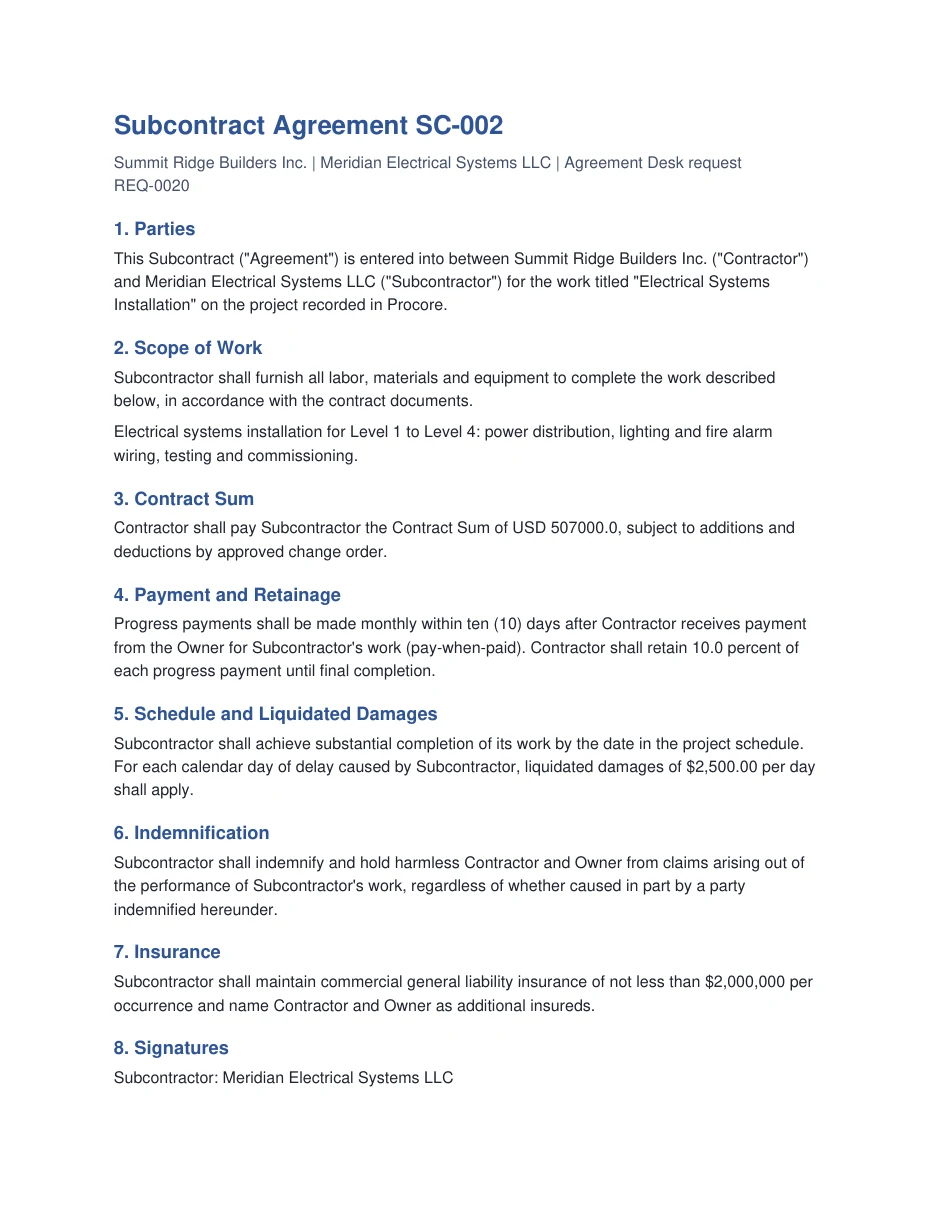
The highlighted fields are the subcontract agreement's data labels, shown here with sample values. The field map lists where each one comes from in Procore or the start inputs. Each field sits on a hidden anchor tag, so you can use your own subcontract agreement: keep the seven data labels and the workflow keeps working.
Install Procore for Docusign IAM from the Docusign App Center and connect it to your Procore account. An account admin does this once.
In Docusign, go to Agreements, Workflows, Create Workflow, then Import Workflow, and pick the first .zip. It brings the Subcontract Request type with its statuses, form and custom fields, and the subcontract template. When it asks, pick your Procore connection.
Import the second .zip the same way. It brings a second copy of the request type, named Subcontract Request (1). Open workflow 2's start, set Request Type to Subcontract Request, and set the copy to inactive in Agreement Desk settings.
Give the people who run requests the Manage all requests in the account permission for Agreement Desk, which status changes need. Publish both workflows, then submit one request for a sample subcontract addressed to your own inbox.
Negotiation takes days and happens in the request, between people. The first workflow ends when the draft is out for review, and the second starts when legal moves the request to Waiting for Signature, so nothing waits inside a running workflow.
Install Procore for Docusign IAM from the Docusign App Center and connect it, then import again. The import asks for your Procore connection and fills it into every Procore step.
Each .zip carries the request type, so the second import adds a copy named Subcontract Request (1). Point workflow 2's start at Subcontract Request and set the copy to inactive. Both workflows then run on the same requests.
No. An Agreement Desk request starts both workflows, so Baton Launcher and the API cannot. People start it from the Subcontract Request form in Agreement Desk.
No. Both are fictional and every sample value is invented. Put your own company, terms and template in place before you use the workflows.
We adapt library workflows to your stages, approvals and documents, and build private apps when a system has no app yet.
Video, 2:23Fills a supplier agreement from the vendor, collects the legal name, tax ID and both signatures, and updates the vendor.
 Video, 1:55
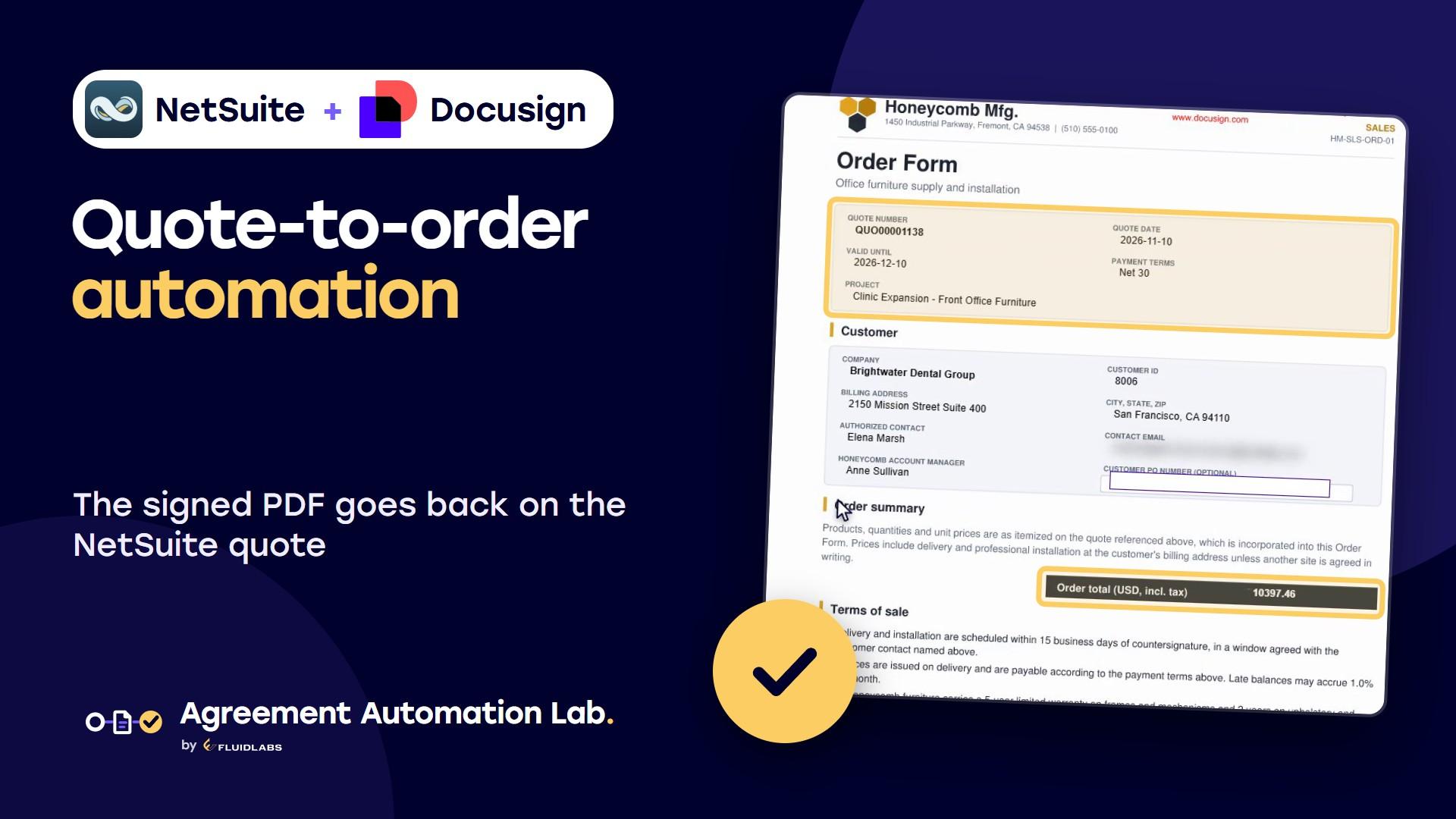
Fills an order form from the quote, its customer and contact, collects both signatures and files the signed copy on the quote.
Docusign is a trademark of Docusign, Inc. Procore for Docusign IAM is published by Fluidlabs. To ask us to remove a mark, email hello@fluidlabs.com.