Send an order form from a NetSuite quote and file the signed copy
The workflow reads the quote, its customer and the customer's contact from NetSuite and fills the order form, which the customer contact signs and the person who started the workflow countersigns. It then files the signed order form on the quote in NetSuite.
Your ERP
Starts
From the quote with Baton Launcher, an API call or by hand
Steps
6
Document
Order form, 2 pages
Signers
The customer contact, then the person who starts it
Last test run
10 November 2026
Order form from NetSuite
Start WorkflowFrom an API call
1Read Quote from NetSuite
2Read Customer from NetSuite
3Read Contact from NetSuite
4Prepare eSignature Template
5Send Documents for Signature
6File signed order form on the Quote
Path End
The steps of this workflow in Docusign Workflow Builder.
What it does
GO
Start: Start WorkflowFrom the NetSuite quote with Baton Launcher, from an API call, or Run Workflow by hand. Inputs: Estimate_ID, the quote's internal ID, and the Customer participant's name and email.
1
Read Quote from NetSuiteQuote where Record ID equals Estimate_ID, one record: Quote #, Quote Date, Due Date, Quote Title, Terms Name, Sales Rep Name, Subtotal, Tax Total, Total and the customer.
2
Read Customer from NetSuiteCustomer where Record ID equals the quote's customer: Company Name, Record ID and the default billing address.
3
Read Contact from NetSuiteContact where Company equals the customer's Record ID, first match: Contact Name, Email, Job Title.
4
Prepare eSignature TemplateThe order form template, with its 13 data labels mapped. The customer adds a PO number, and the Title field starts with the contact's Job Title.
5
Send Documents for SignatureTo the Customer participant first, then to the person who started the workflow, with the subject "Please sign: Honeycomb Mfg. order form".
6
File signed order form on the QuoteFile Upload to NetSuite: the signed order form, attached to the quote.
Field map
Where each data label on the order form is filled from in NetSuite
Data label on the order form
NetSuite field
Step
Quote_Number
Quote / Quote #
1
Quote_Date
Quote / Quote Date
1
Quote_Expires
Quote / Due Date
1
Payment_Terms
Quote / Terms Name
1
Quote_Title
Quote / Quote Title
1
Customer_Company
Customer / Company Name
2
Customer_Number
Customer / Record ID
2
Bill_To_Street
Customer / Default Billing Address 1 and 2
2
Bill_To_City
Customer / Default Billing City, State and Zip
2
Contact_Name
Contact / Contact Name
3
Contact_Email
Contact / Email
3
Sales_Rep
Quote / Sales Rep Name
1
Order_Total
Quote / Total
1
Filed to: Quote drive / {Quote Record ID} / Signed Order Form - {Quote #} - {Instance ID}.pdf
Honeycomb Mfg. is a fictional company. This is a demonstration document. Sample document for workflow testing. Have counsel review before use.
The document
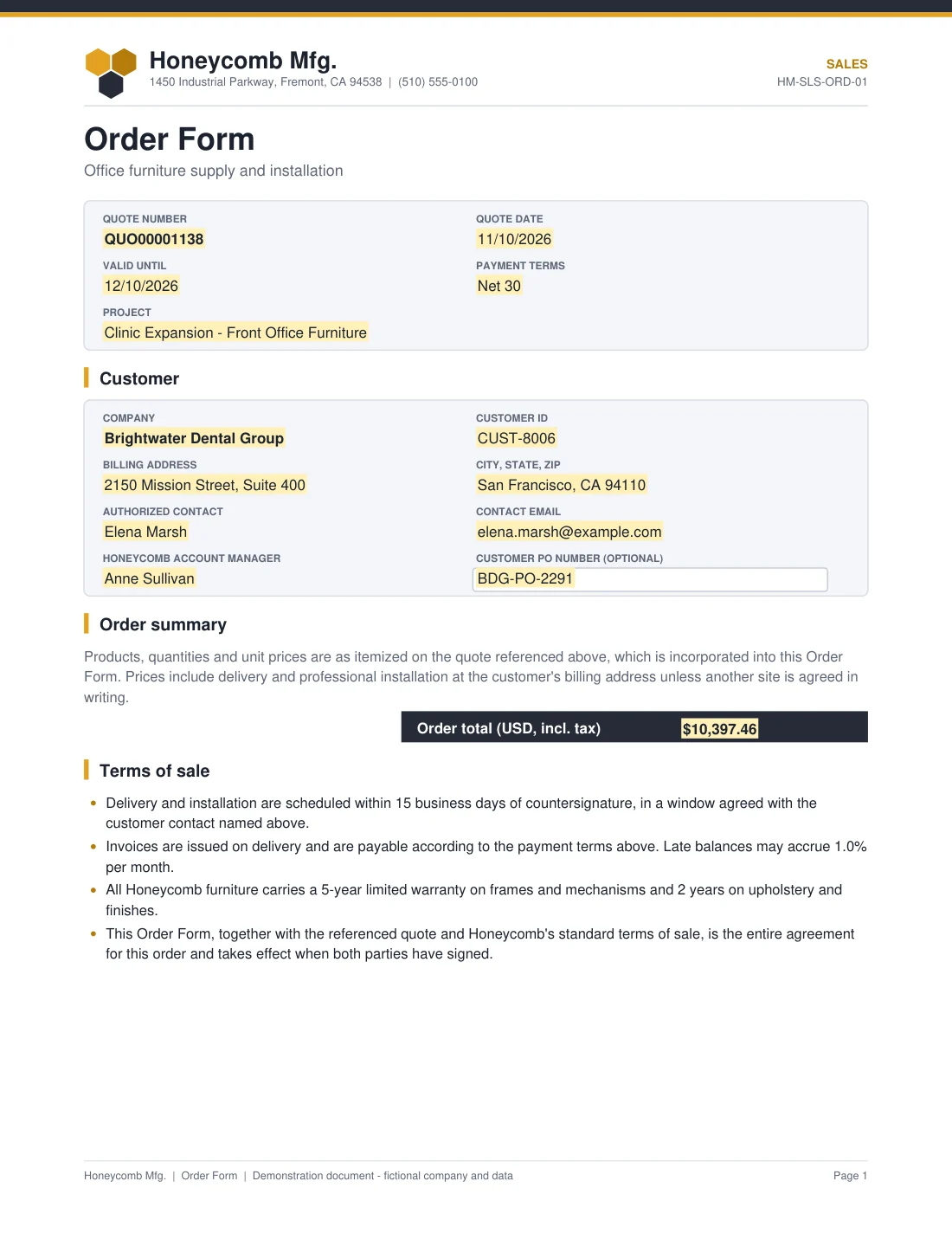
An order form that fills itself
The highlighted fields are the order form's data labels, shown here with sample values. The field map lists where each one comes from in NetSuite or the start inputs. Each field sits on a hidden anchor tag, so you can use your own order form: keep the 13 data labels and the workflow keeps working.
Set it up
1
Install and connect the app
Install NetSuite for Docusign IAM from the Docusign App Center and connect it to your NetSuite account. An account admin does this once.
2
Upload the template
In Docusign, upload the order form template (.json) under Templates. It carries the document and its fields.
3
Build the workflow
In Agreements, Workflows, Create Workflow, add the steps listed above in order. Use the definition file to check the settings of each step, pick your NetSuite connection, and map the fields as the field map shows.
4
Test with a sample record
Run it once on a test record addressed to your own inbox, and check the file.
Make it yours
Countersign with someone other than the person who starts the workflow: change the second recipient in Send Documents for Signature.
File the signed copy on the customer instead of the quote: in the file step, choose the Customer drive and put Customer / Record ID in the folder.
Record the signing in NetSuite with a Writeback to NetSuite step on the customer or an opportunity. Quote is read only in NetSuite for Docusign IAM.
Use your own order form: upload it as an eSignature template with the same data labels as anchor text, and choose it in Prepare eSignature Template.
Questions
Is the workflow file ready to run as is?
No. It is the definition exported from the tested workflow, kept as a reference. Build the workflow step by step in Docusign Workflow Builder and use the file to check the settings of each step. The account, connection and template ids in it are placeholders.
Who starts the workflow?
A sales rep on the NetSuite quote with Baton Launcher, or anyone with Run Workflow and the quote's internal ID. Another system can start it through the API with Estimate_ID.
Who signs?
The customer contact you name as the Customer participant signs first. The person who started the workflow countersigns.
Is Honeycomb Mfg. a real company?
No. Honeycomb Mfg. is a fictional company and every sample value is invented. Put your own company, terms and template in place before you use the workflow.
Need it to match your sales process?
We adapt library workflows to your stages, approvals and documents, and build private apps when a system has no app yet.