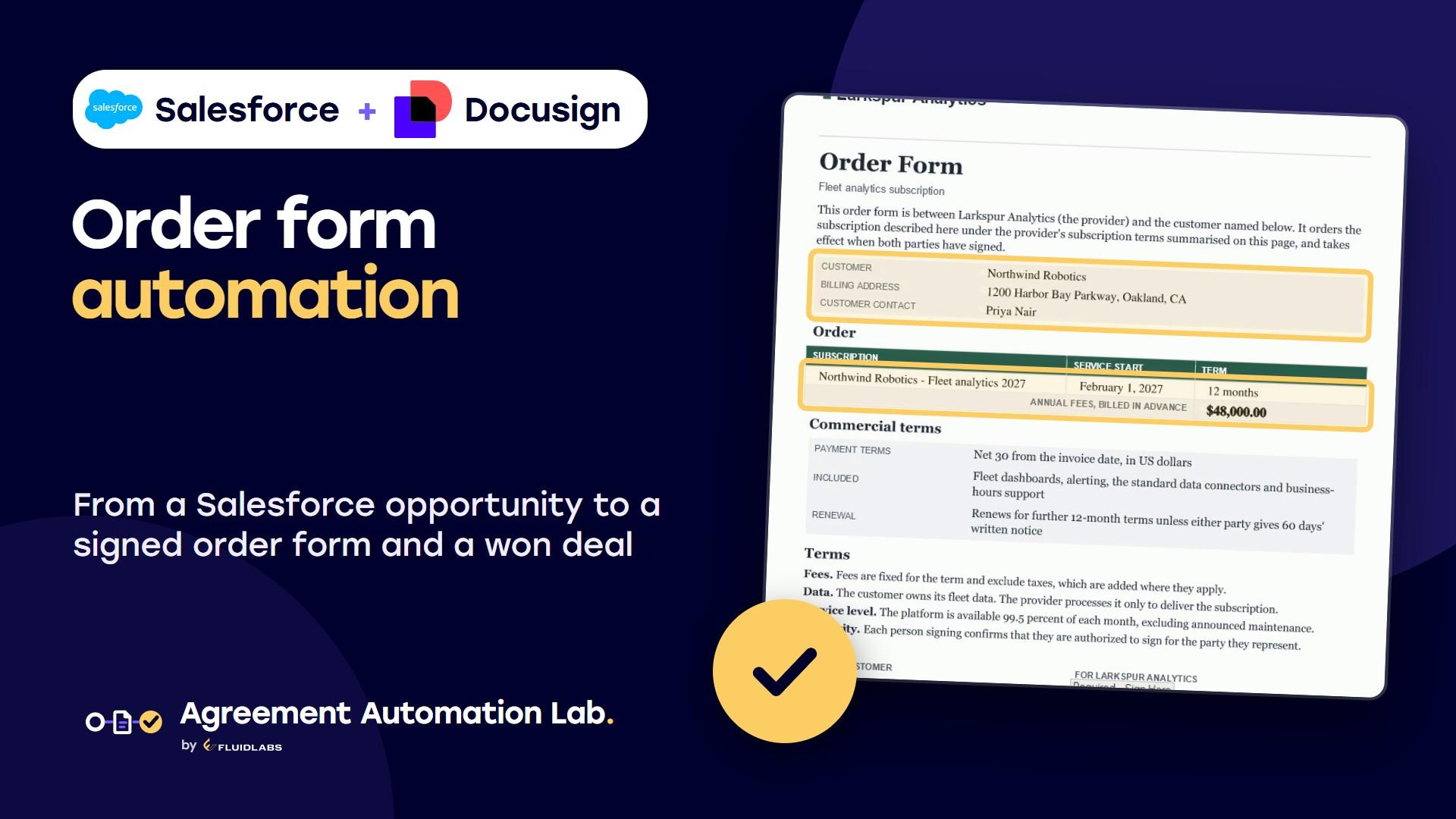
Video, 3:38Send an order form when an opportunity is ready to sign
Fills the order form from the opportunity, its account and primary contact, and closes the opportunity as won once both sides sign.
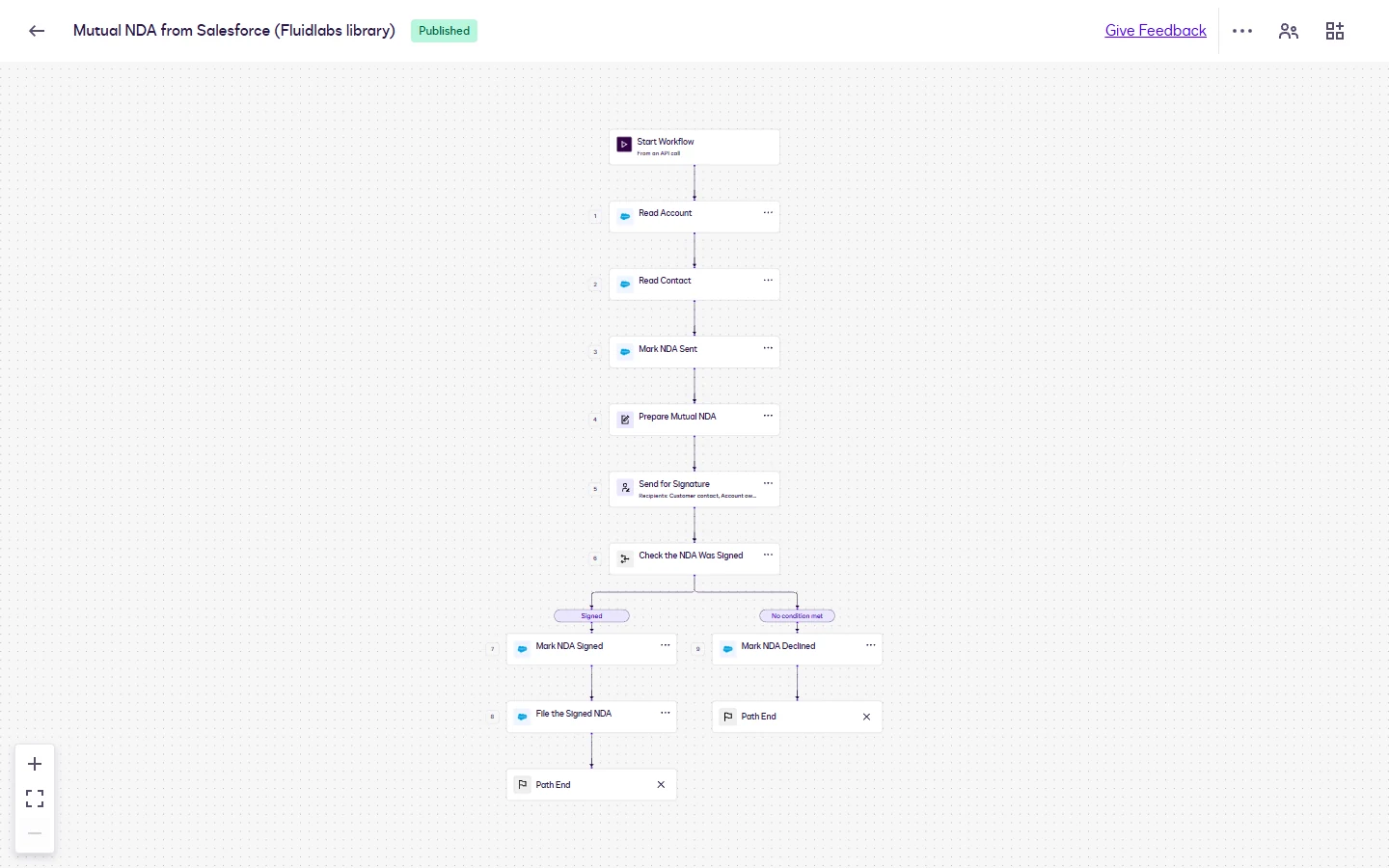
The Send NDA button on a Salesforce account opens a short screen flow where the rep picks the contact who signs, and the Start Docusign Workflow action starts the workflow with the account and that contact. The workflow reads both from Salesforce, sets NDA Status to Sent and sends the filled NDA to the contact, then the account owner; once both have signed, it sets NDA Status to Signed and files the signed NDA on the account.
Before Larkspur Analytics shares its product roadmap with Northwind Robotics, both sides sign a mutual NDA. On the account in Salesforce, NDA Status is still empty.
Daniel sends it with one button on the account page: Send NDA.
Behind the button is a short Salesforce screen flow that we built. It reads the account and lets Daniel choose which contact signs.
Then it calls the action Start Docusign Workflow, which comes from Docusign itself in Docusign Apps Launcher, with the account and the chosen contact.
In Docusign, the workflow reads the account and the contact from Salesforce, marks the NDA as sent, fills the mutual NDA, and sends it to the contact, then to Daniel.
When both have signed, NDA Status becomes Signed and the signed NDA is filed on the account. The Salesforce steps come from the Salesforce app that Docusign publishes in the App Center.
Daniel clicks Send NDA on the account.
The screen lists the account's contacts. He picks Marcus Webb, their Director of Engineering, and clicks Next.
That is all Daniel does. The flow has handed the account and Marcus to the Docusign action, and the NDA is on its way.
A moment later, NDA Status on the account reads Sent.
Marcus Webb gets the mutual NDA by email.
The NDA is already filled in from Salesforce: Northwind Robotics, its address, and Marcus with his title.
Marcus signs and finishes.
Once Marcus finishes, Docusign sends the NDA to Daniel to sign for Larkspur Analytics.
He signs, and both sides are bound.
Back in Salesforce, NDA Status on the Northwind Robotics account now says Signed, so anyone on the account can see it before the roadmap meeting.
And the signed NDA is filed on the account.
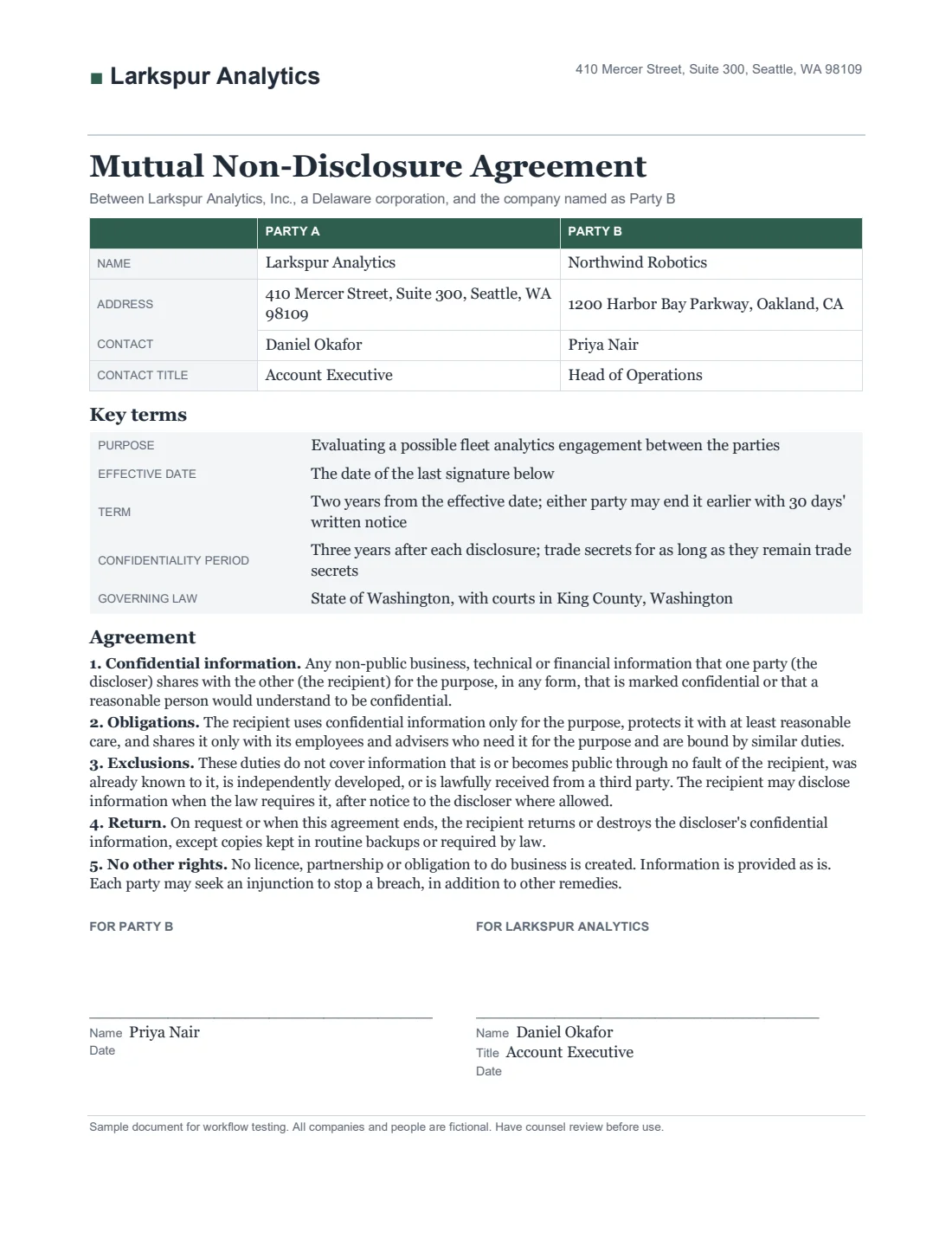
| Data label on the mutual NDA | Salesforce field | Step |
|---|---|---|
Customer_Name | Account / Account Name | 1 |
Customer_Address | Account / Billing Street, Billing City, Billing State/Province Code | 1 |
Contact_Name | Contact / Full Name | 2 |
Contact_Title | Contact / Title | 2 |
Written back: NDA Status = Sent; NDA Status = Signed, or Declined when not signed
Filed to: Account / {Record ID} / Files / Signed Mutual NDA - {Account Name}.pdf

The highlighted fields are the mutual NDA's data labels, shown here with sample values. The field map lists where each one comes from in Salesforce or the start inputs. Each field sits on a hidden anchor tag, so you can use your own mutual NDA: keep the four data labels and the workflow keeps working.
Install the Salesforce app and Docusign eSignature for Salesforce, which Docusign publishes, and connect them to Salesforce. An admin does this once. More on them: Salesforce and Docusign integrations.
Add NDA Status to Account, a picklist of Sent, Signed and Declined, and put it on the account page layout. A field added after you connect the Salesforce app appears in its steps once you choose Reload Objects on the connection in the App Center.
In Docusign, go to Agreements, Workflows, Create Workflow, then Import Workflow, and pick the .zip. When it asks, pick your Salesforce connection. Check the mapping on Prepare Mutual NDA, then publish.
In Salesforce, add a screen flow that takes the account's recordId, lists the account's contacts as a choice and calls the Start Docusign Workflow action: the workflow's ID, Record ID set to the account and Variable 1 to the chosen contact. Put it on the account page as the quick action Send NDA, then send one to a test contact with your own email address.
Docusign publishes the Salesforce app in the Docusign App Center, which adds the Read from Salesforce, Writeback to Salesforce and Store files in Salesforce steps, Docusign Apps Launcher with its Start Docusign Workflow action, and Docusign Workflow Builder. You set up the rest: the NDA Status field, the Send NDA button and its screen flow, the workflow and the mutual NDA. The .zip brings the last two.
Yes. The Send NDA screen lists the account's contacts, and the rep picks one. The screen flow passes the account as Record ID and the contact as Variable 1, the variable names the Start Docusign Workflow action accepts.
No. Read Contact reads the contact whose ID arrives as Variable 1. The Send NDA screen offers only the account's contacts, so a rep cannot pick another one there. A system that starts the workflow through the API should send a contact of the same account.
Check the NDA Was Signed takes the other path, and Mark NDA Declined sets NDA Status to Declined. No file is added.
Install and connect the Salesforce app from Docusign first, with a connection to your Salesforce org, then import the .zip again. Docusign does not name the missing app in that message.
We adapt library workflows to your stages, approvals and documents, and build private apps when a system has no app yet.
Video, 3:38Fills the order form from the opportunity, its account and primary contact, and closes the opportunity as won once both sides sign.
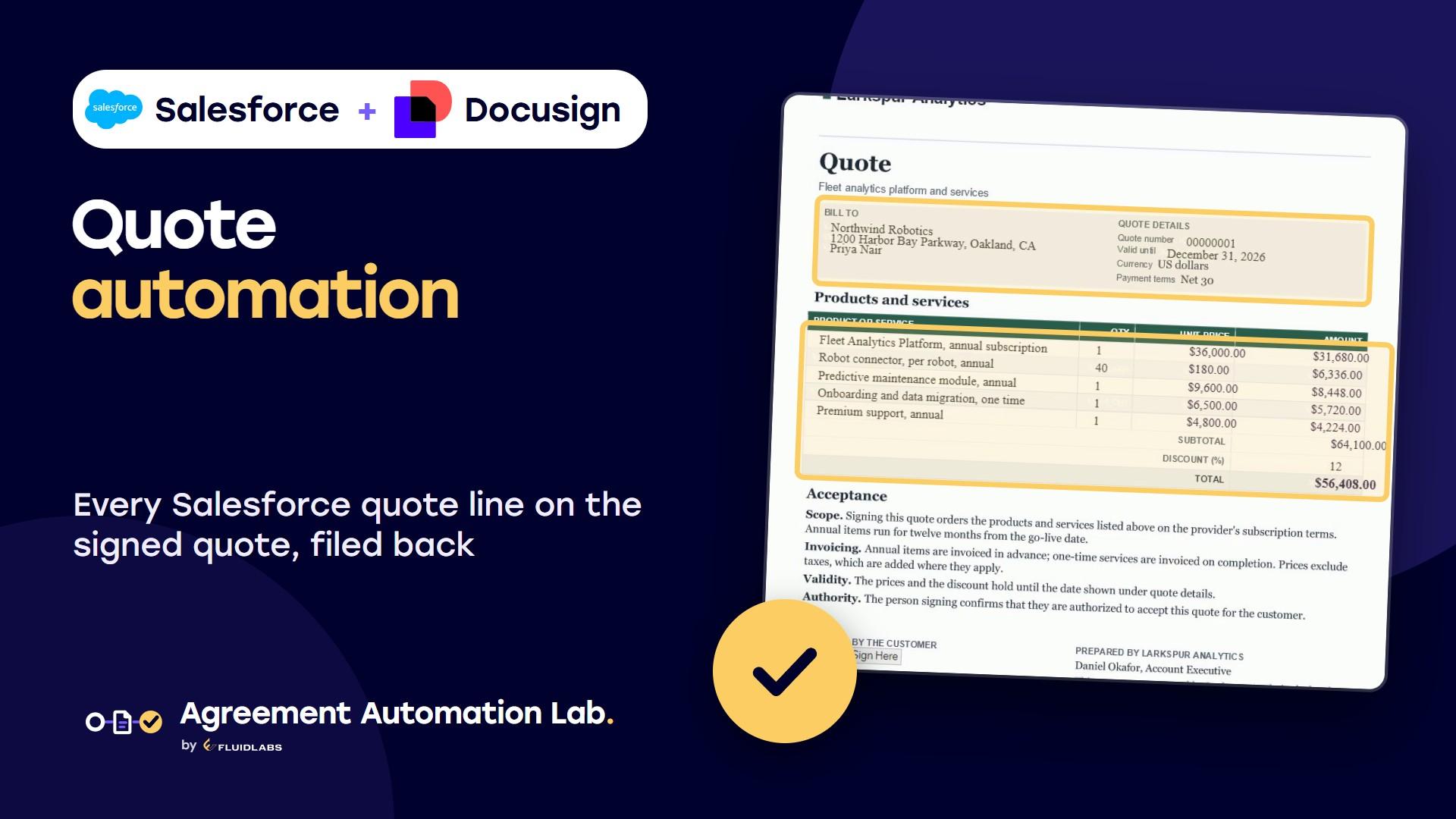
Video, 3:13Sends the approved quote with its line items to the customer, then marks it accepted and files the signed copy on the quote.
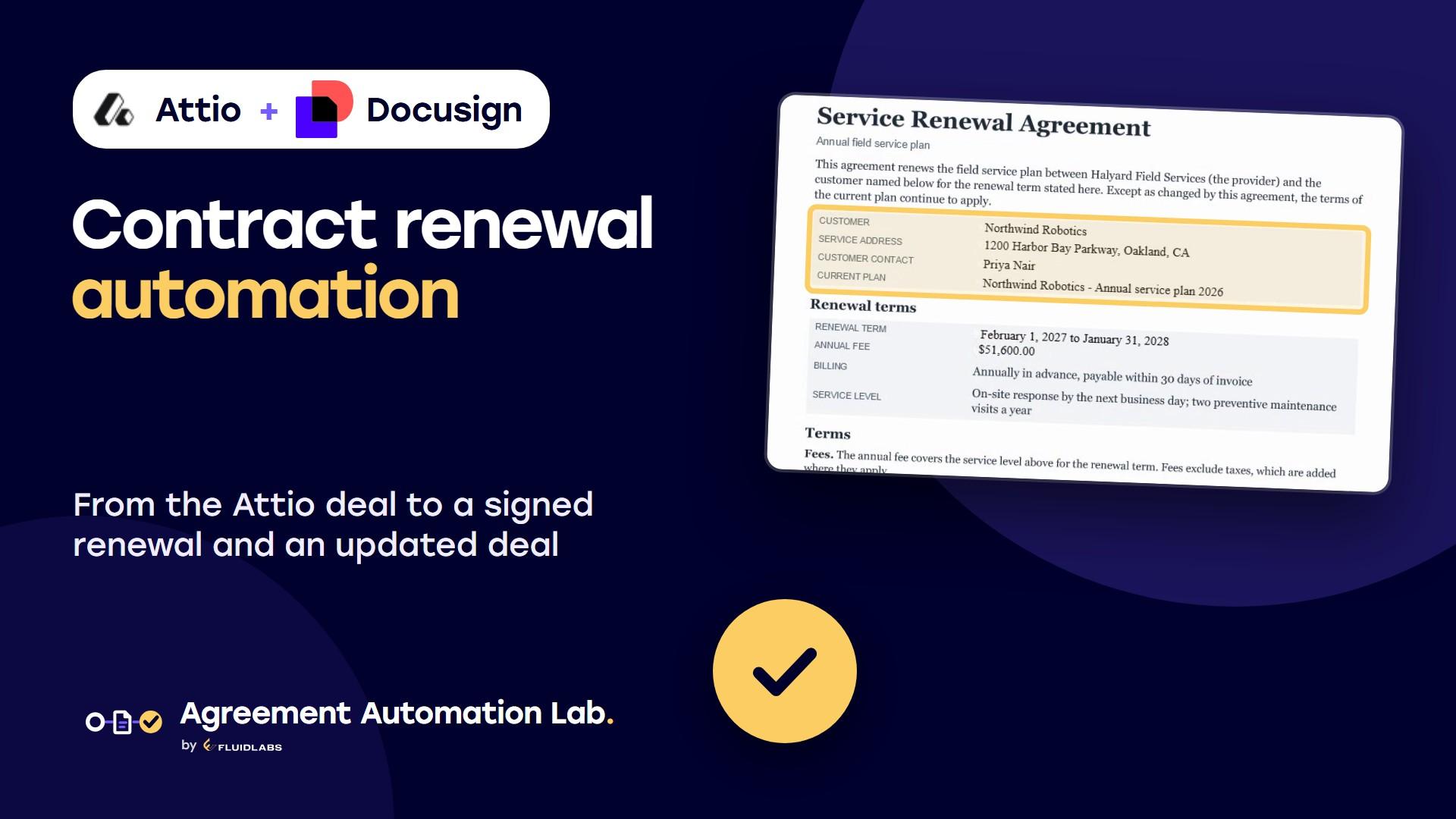
Video, 3:11Fills the renewal agreement from the deal, gets it signed by both sides, and updates the deal with the new fee and the signed copy.
Docusign is a trademark of Docusign, Inc. The Salesforce app and Docusign eSignature for Salesforce are published by Docusign. To ask us to remove a mark, email hello@fluidlabs.com.