Send an order form from a Salesforce opportunity and close it won

When an opportunity moves to Ready to Sign, a Salesforce flow calls the Start Docusign Workflow action, and the workflow reads the opportunity and its primary contact, marks the order form sent and sends it to the customer, then to the account executive. Once both have signed, it closes the opportunity as won and files the signed order form on it; if the envelope is declined, Order Form Status becomes Declined instead.

Your CRM
Free download: the workflow file to import, the order form template and the field map
› Read the transcript

Northwind Robotics has agreed terms with Larkspur Analytics. In Salesforce, the opportunity already holds what the order form needs.

The service start, the twelve month term, and Priya Nair as the primary contact. Order Form Status is still empty.

When an opportunity moves to Ready to Sign, this Salesforce flow runs. The flow is the part we set up.

The action inside it, Start Docusign Workflow, comes from Docusign itself, in Docusign Apps Launcher. It hands the opportunity's record ID to a Docusign workflow.

In Docusign, the workflow reads the opportunity and its contact from Salesforce, marks the order form as sent, fills the template, and sends it to Priya, then to Daniel to countersign.

When both have signed, it closes the opportunity as won and files the signed order form on it. If the order form is declined, it records that instead. These Salesforce steps come from the Salesforce app that Docusign publishes in the App Center.

Daniel moves the opportunity to Ready to Sign, the way he moves any deal along.

Nobody opened Docusign. Salesforce started the workflow by itself, and a minute later Order Form Status reads Sent.

Priya gets the order form by email from Larkspur Analytics.

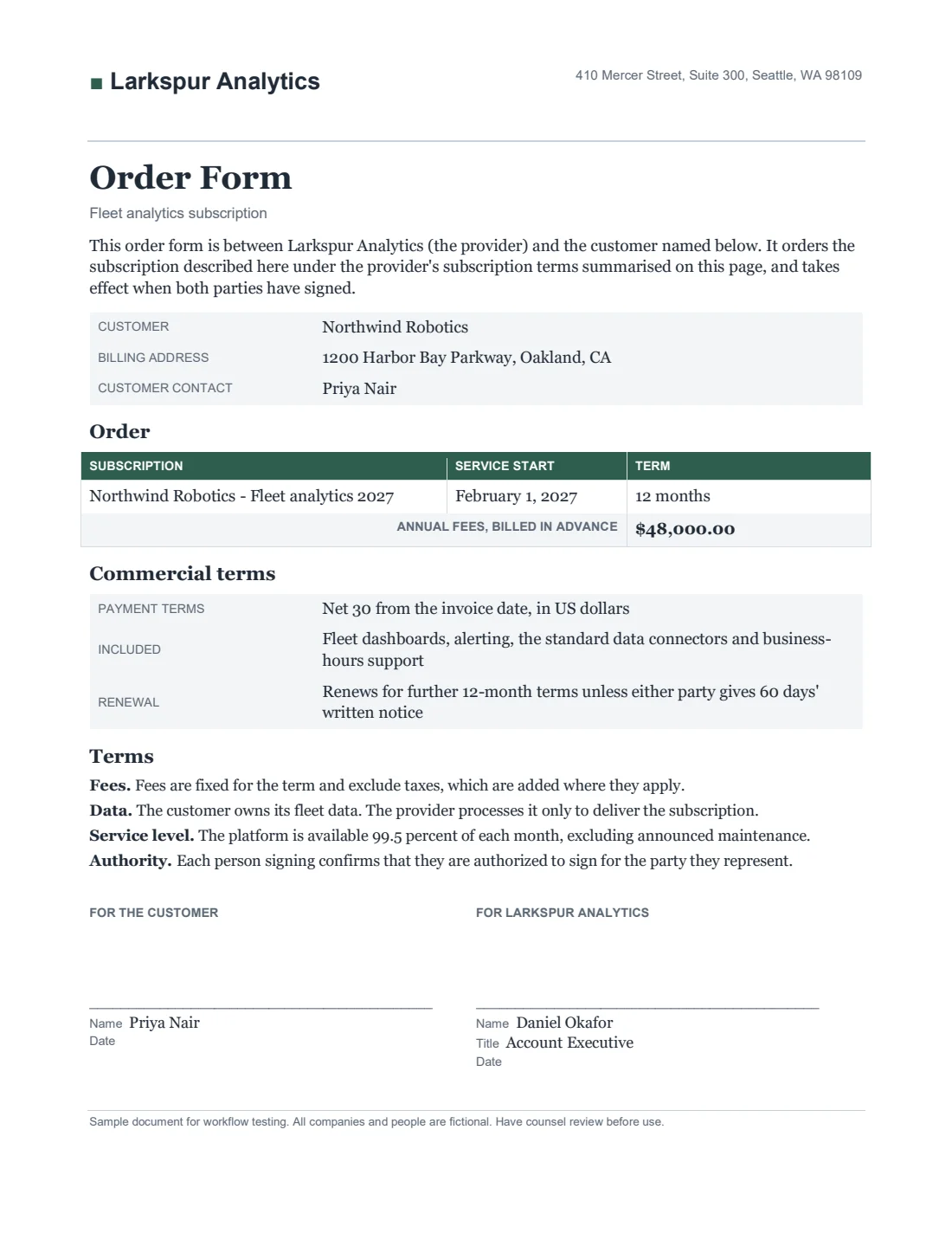
Every value came from Salesforce: the customer and billing address, the contact, the service start, the term and the total.

Priya signs, and finishes.

As soon as Priya finishes, Docusign sends the order form to Daniel to countersign for Larkspur Analytics.

He signs, and the order form is complete.

Back in Salesforce, the opportunity is Closed Won, and Order Form Status says Signed.

The signed order form is filed on the opportunity. Nobody retyped a value or uploaded a PDF.

The flow is one way in. Because the workflow starts from an API call, there are others. Here is a second opportunity, Warehouse expansion, and beside it the Docusign WorkflowLauncher, our browser extension. It recognises the opportunity on the page.

Daniel picks the same order form workflow. The launcher fills in the opportunity's record ID by itself.

He launches it, and the order form goes to Marcus Webb, without the stage changing at all.

Any other system can start it the same way, through the Docusign workflow API. That is what our Baton service does for platforms with webhooks.
Starts
From a Salesforce flow, an API call or by hand
Steps
9
Document
Order form, 1 page
Signers
The customer contact, then the account executive
Last test run
27 November 2026
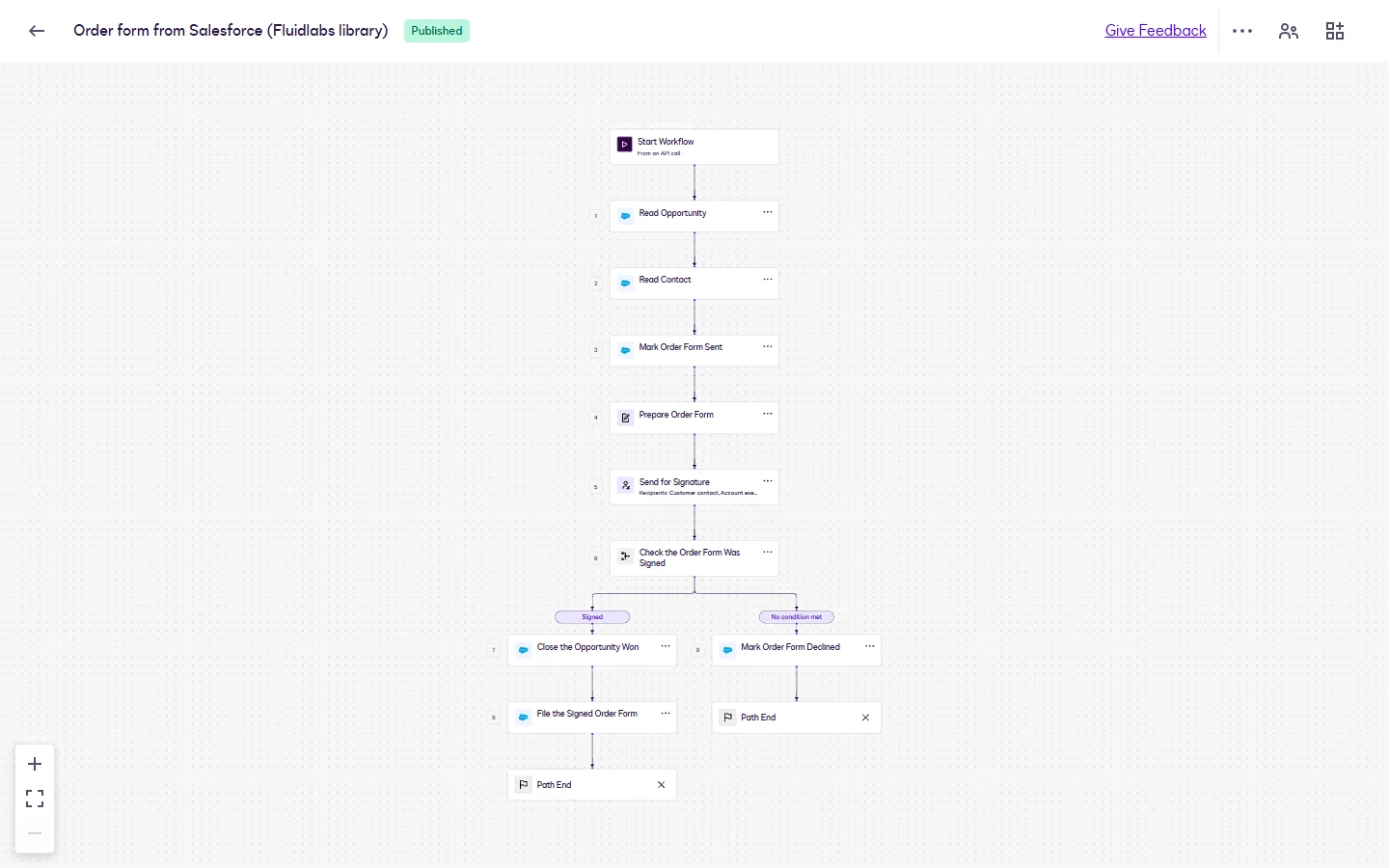
Workflow Builder canvas: Start Workflow from an API call, Read Opportunity and Read Contact from Salesforce, Mark Order Form Sent, Prepare Order Form, Send for Signature to the customer and the account executive, Check the Order Form Was Signed, then Close the Opportunity Won and File the Signed Order Form, or Mark Order Form Declined.
Captured in Docusign Workflow Builder with sample records.View full size

What it does

  1. Start: Start WorkflowFrom an API call: the Start Docusign Workflow action in a Salesforce flow, the Docusign WorkflowLauncher or Baton, or Run Workflow by hand. Input: Record ID, the opportunity's ID.
  2. 1
    Read OpportunityRead from Salesforce, Opportunity where Opportunity ID equals Record ID: Name, Stage, Amount, Service Start (text), Subscription Term (months), Contact ID, Order Form Status, the account's Account Name and Billing Street, City and State/Province Code, and the owner's Full Name and Email.
  3. 2
    Read ContactRead from Salesforce, Contact where Contact ID equals the opportunity's Contact ID, which Salesforce sets from the primary contact role: Full Name, Email, Title.
  4. 3
    Mark Order Form SentWriteback to Salesforce, Update on the opportunity: Order Form Status becomes Sent.
  5. 4
    Prepare Order FormPrepare eSignature Template: the order form template, with its seven data labels mapped.
  6. 5
    Send for SignatureSend Documents for Signature, remote: to the customer contact first, then the account executive, who is the opportunity owner.
  7. 6
    Check the Order Form Was SignedSigned: Envelope Status equals completed. Otherwise the run takes the not-signed path.
  8. 7
    Close the Opportunity WonWriteback to Salesforce, Update on the opportunity: Stage becomes Closed Won and Order Form Status becomes Signed.
  9. 8
    File the Signed Order FormStore files in Salesforce: the combined envelope PDF in the opportunity's Files, as Signed Order Form - {Opportunity Name}.
  10. 9
    Mark Order Form DeclinedOn the not-signed path, Writeback to Salesforce, Update on the opportunity: Order Form Status becomes Declined.

Field map

Where each data label on the order form is filled from in Salesforce
Data label on the order formSalesforce fieldStep
Customer_NameOpportunity / Account / Account Name1
Customer_AddressOpportunity / Account / Billing Street, Billing City, Billing State/Province Code1
Contact_NameContact / Full Name2
Order_ReferenceOpportunity / Name1
Service_StartOpportunity / Service Start (text), a formula field1
TermOpportunity / Subscription Term (months) + months1
Order_TotalOpportunity / Amount1

Written back: Order Form Status = Sent; Stage = Closed Won; Order Form Status = Signed, or Declined when not signed

Filed to: Opportunity / {Record ID} / Files / Signed Order Form - {Opportunity Name}.pdf

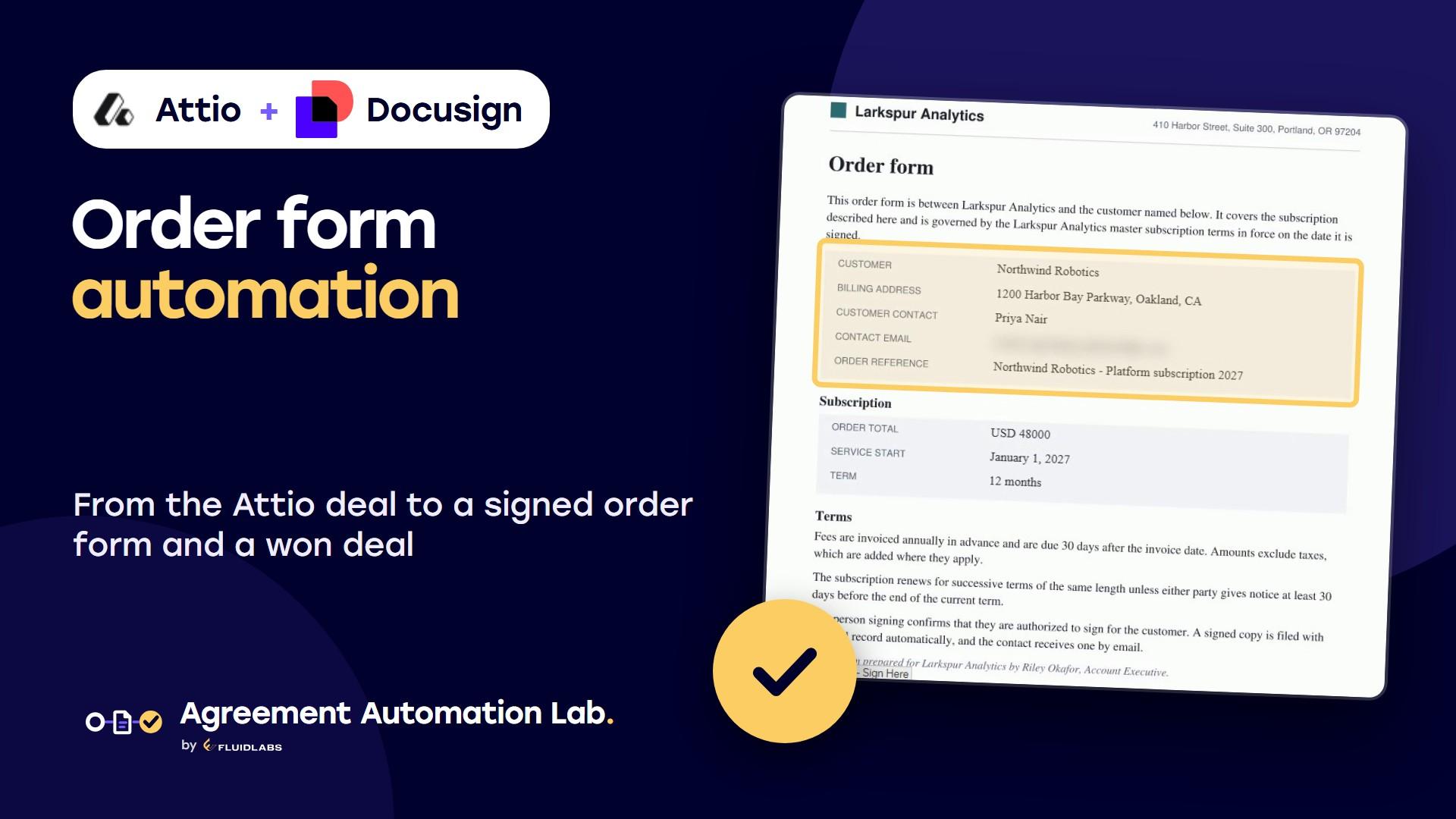
Page preview of the sample order form, with its data label fields highlighted and filled with sample values.
Northwind Robotics and Larkspur Analytics are fictional companies. This is a demonstration document. Sample document for workflow testing. Have counsel review before use.
The document

An order form that fills itself

The highlighted fields are the order form's data labels, shown here with sample values. The field map lists where each one comes from in Salesforce or the start inputs. Each field sits on a hidden anchor tag, so you can use your own order form: keep the seven data labels and the workflow keeps working.

Set it up

  1. Install and connect the apps

    Install the Salesforce app and Docusign eSignature for Salesforce, which Docusign publishes, and connect them to Salesforce. An admin does this once. More on them: Salesforce and Docusign integrations.

  2. Prepare Salesforce

    Add the stage Ready to Sign, and on Opportunity the fields Order Form Status (a picklist of Sent, Signed and Declined), Service Start (a date), Subscription Term (months) (a number) and Service Start (text), a formula that writes the date out. Fields added after you connect the Salesforce app appear in its steps once you choose Reload Objects on the connection in the App Center.

  3. Import the workflow

    In Docusign, go to Agreements, Workflows, Create Workflow, then Import Workflow, and pick the .zip. When it asks, pick your Salesforce connection. Check the mapping on Prepare Order Form, then publish.

  4. Add the flow and test

    In Salesforce, add a record-triggered flow on Opportunity that runs when Stage changes to Ready to Sign, with the Start Docusign Workflow action on its asynchronous path: the workflow's ID, and Record ID set to the opportunity's ID. Then move a test opportunity, with yourself as its primary contact, to Ready to Sign.

Make it yours

  • Print dates in words: Workflow Builder cannot format a date, and a Salesforce date field prints as 2027-02-01. The order form reads Service Start (text), a formula field that gives February 1, 2027. Use the same kind of formula for any other date you add.
  • Start it from a button instead of the stage: put the Start Docusign Workflow action in a screen flow behind a quick action on the opportunity, with Record ID set to the opportunity's ID.
  • Countersign with a sales manager instead of the opportunity owner: change the second participant in Send for Signature.
  • Record when the customer signed: Send for Signature offers each template field as a variable, Customer_DateSigned among them, for Close the Opportunity Won to write to a date field of your own.

Questions

Which parts are Docusign products, and which do I set up?

Docusign publishes the Salesforce app in the Docusign App Center, which adds the Read from Salesforce, Writeback to Salesforce and Store files in Salesforce steps, Docusign Apps Launcher with its Start Docusign Workflow action, and Docusign Workflow Builder. You set up the rest: the Ready to Sign stage and the custom fields, the Salesforce flow, the workflow and the order form. The .zip brings the last two.

What starts the workflow?

A record-triggered Salesforce flow, when an opportunity moves to Ready to Sign. It calls the Start Docusign Workflow action with the opportunity's ID, and the run starts within a minute. The workflow starts from an API call, so the Docusign WorkflowLauncher, our browser extension, Baton or Run Workflow can start it with the same Record ID.

Which contact signs?

The opportunity's primary contact. Salesforce sets the opportunity's Contact ID from its primary contact role, and Read Contact reads that contact. Give the opportunity a primary contact before it moves to Ready to Sign.

What if the customer declines?

Check the Order Form Was Signed takes the other path: Mark Order Form Declined sets Order Form Status to Declined. The stage is not changed and no file is added.

The import says an app linked to a workflow step is missing.

Install and connect the Salesforce app from Docusign first, with a connection to your Salesforce org, then import the .zip again. Docusign does not name the missing app in that message.

Need it to match your sales process?

We adapt library workflows to your stages, approvals and documents, and build private apps when a system has no app yet.

Video, 3:03
Sales and CRM

Send an order form and mark the deal won

Fills the order form from the deal, its company and its contact, and marks the deal won once the customer signs.

Starts: API or by handTested 16 Oct 2026

Docusign is a trademark of Docusign, Inc. The Salesforce app and Docusign eSignature for Salesforce are published by Docusign. To ask us to remove a mark, email hello@fluidlabs.com.